
Sketch toy is an online drawing tool that can be used to create and share images. You can access sketch toy using the link below:
Click here to jump to directions for saving your Sketch Toy drawing
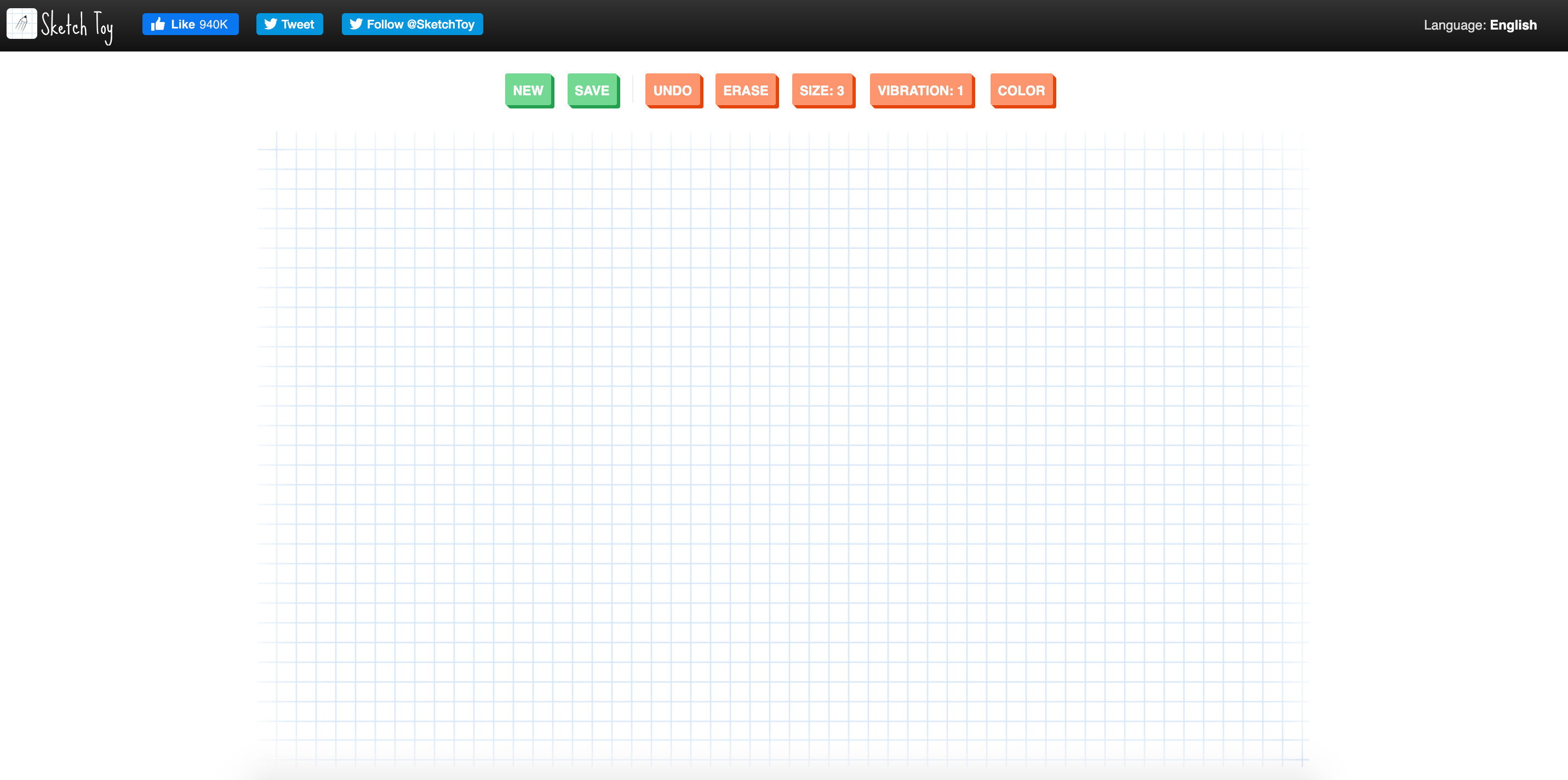
When you go to the Sketch Toy website, you will see this page. There are a few buttons with options at the top of the page, and graph paper to draw on.
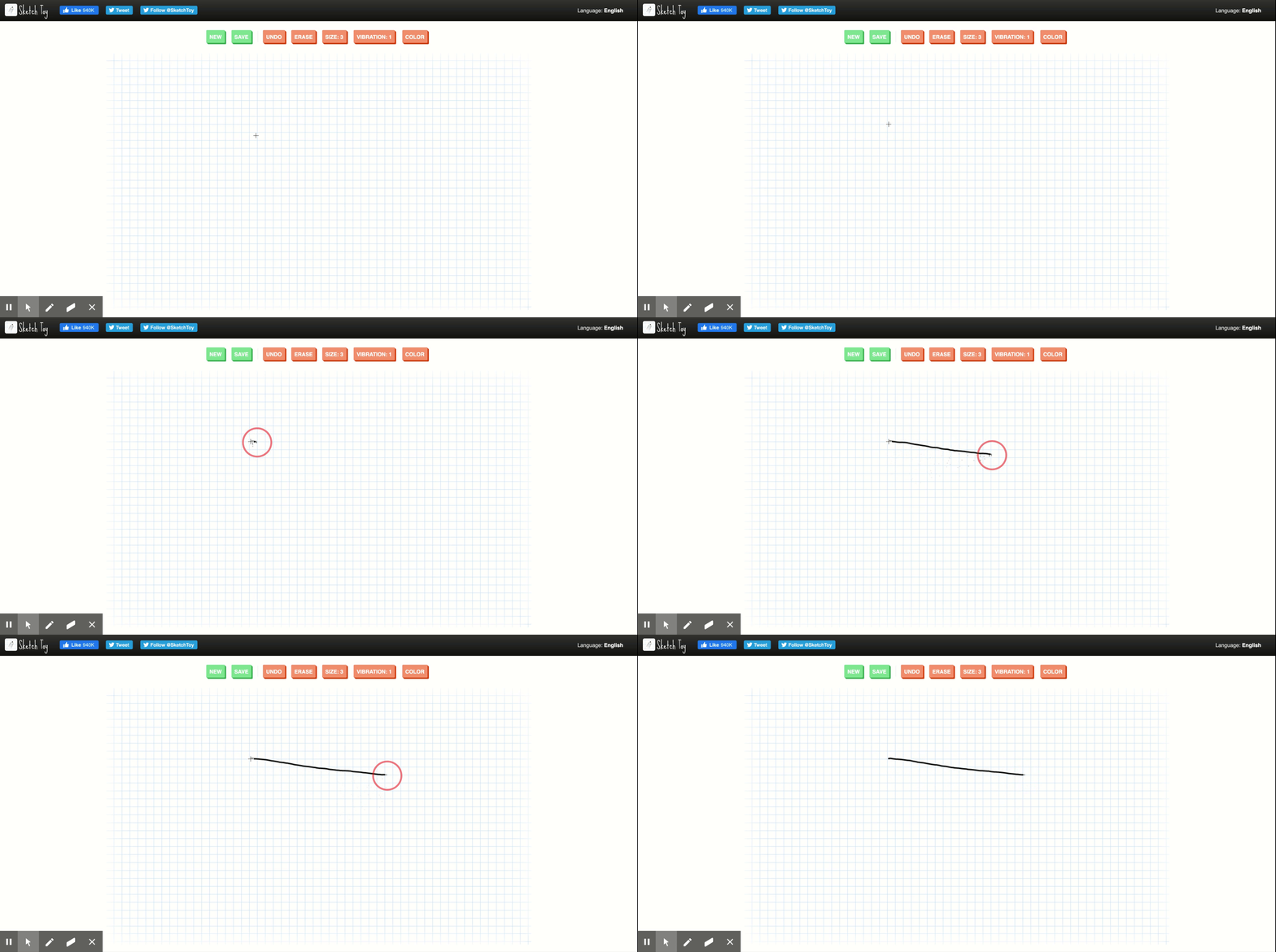
To begin drawing, click anywhere on the graph paper. While still holding down your mouse button, drag your cursor across the paper to draw a line.
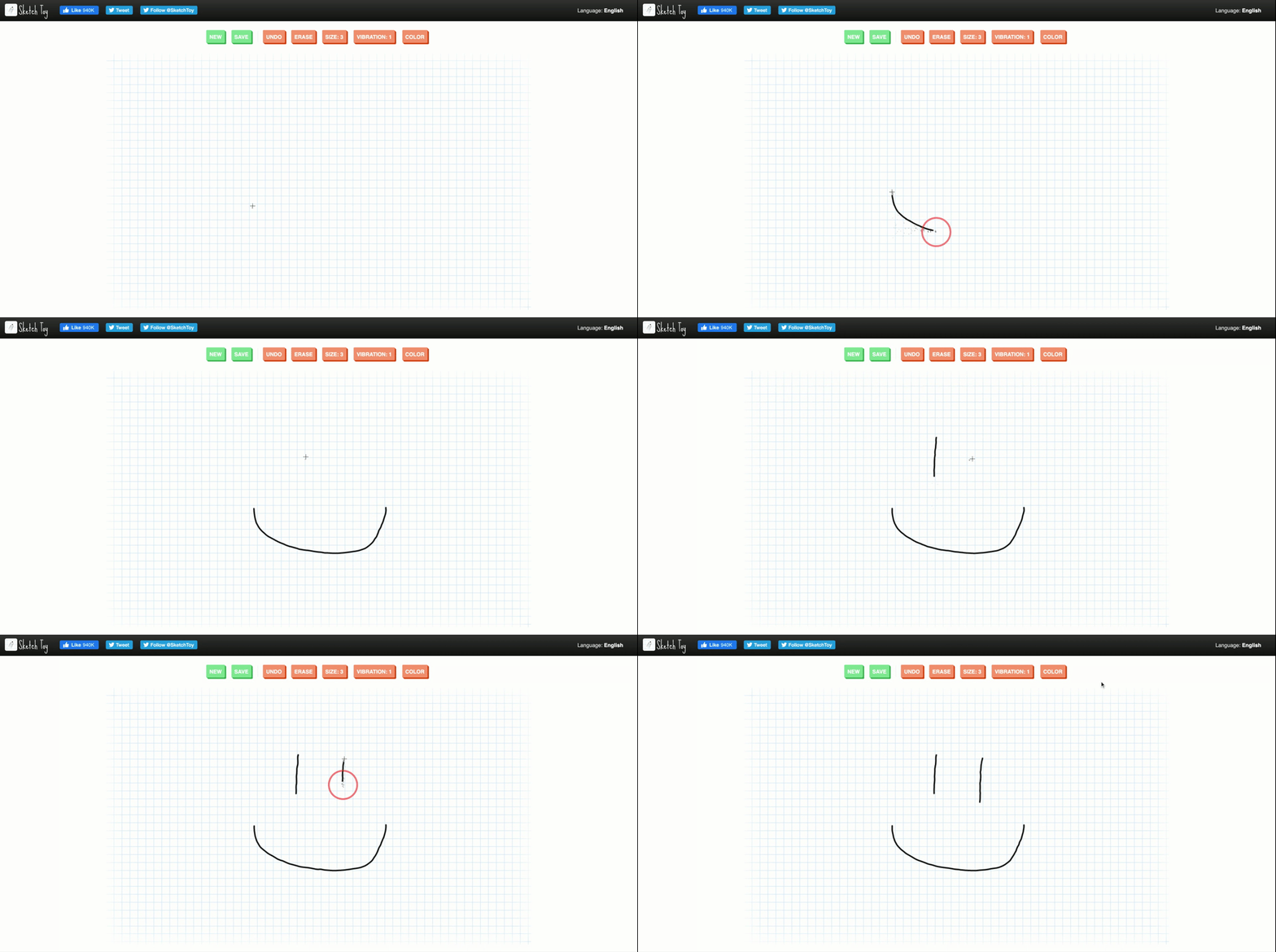
You can continue to click and drag your cursor to add more lines.
To remove the line you drew last, click the "Undo" button at the top of the screen.
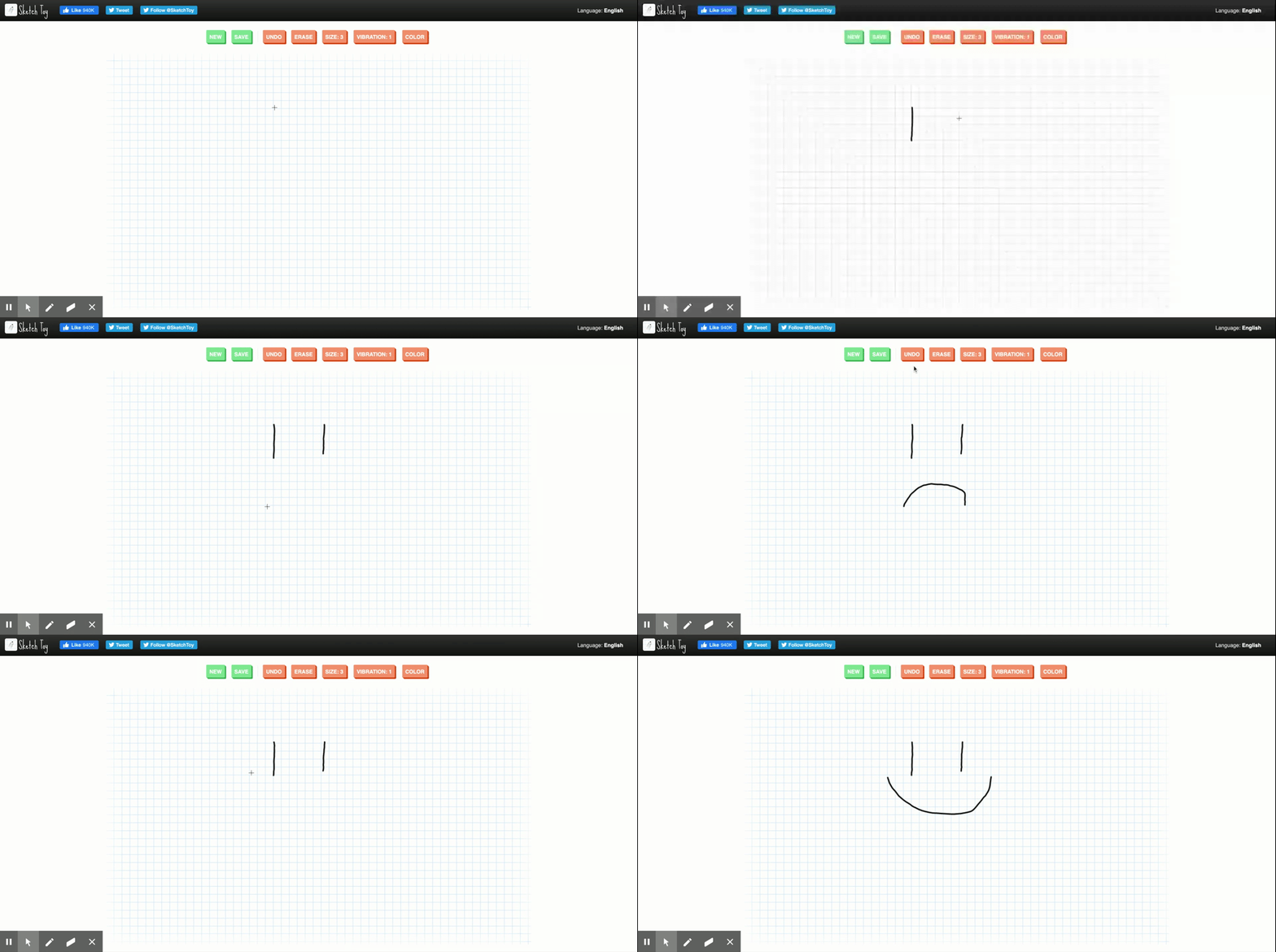
The "Erase" button will change your cursor into an eraser.

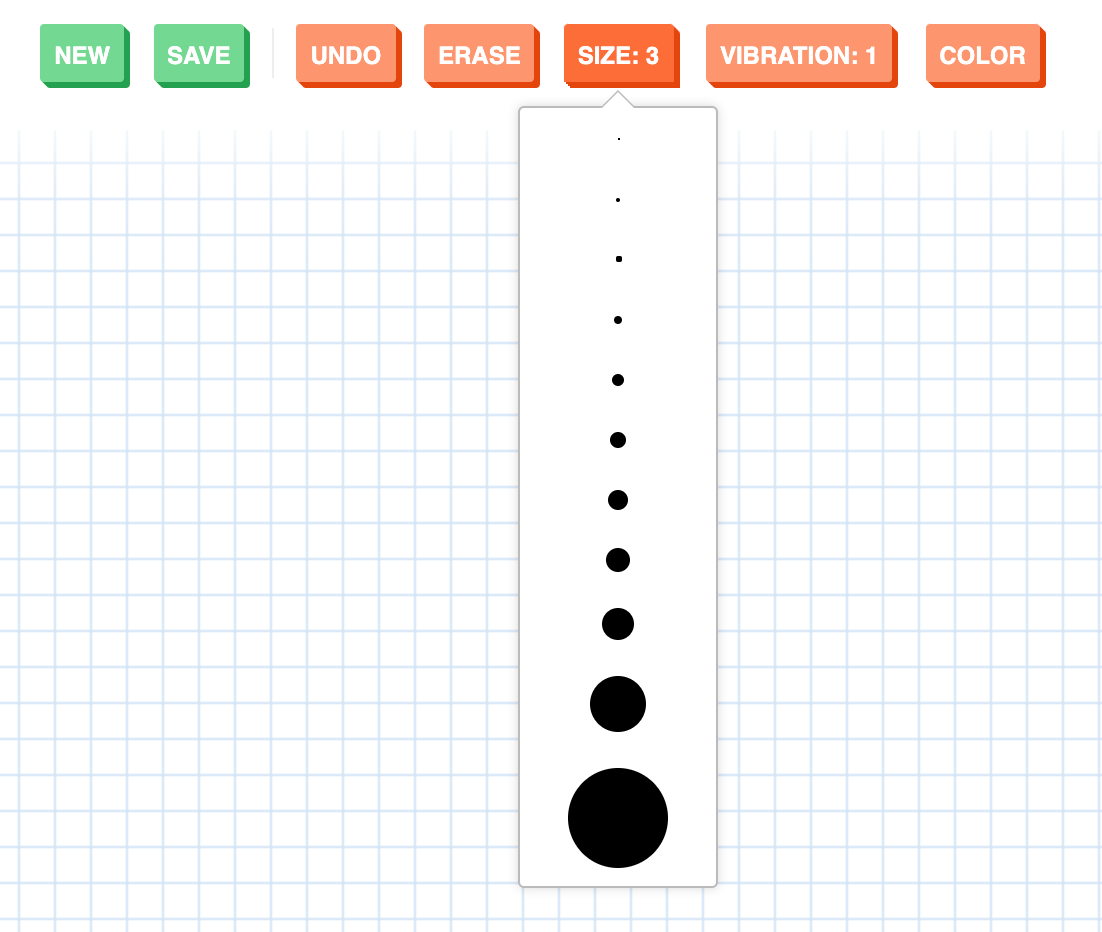
The "Size" button will open up a menu where you can set the size of your cursor for drawing or erasing.
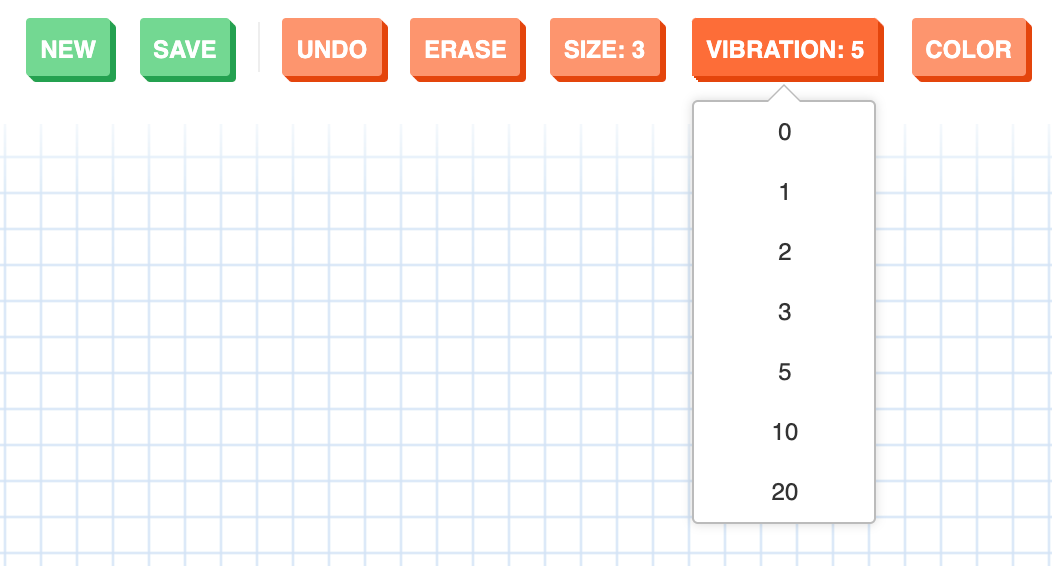
The "Vibration" button will let you choose how much the image vibrates. This is probably not an important setting to change, but have fun! If you do not want your image to vibrate, select "0."
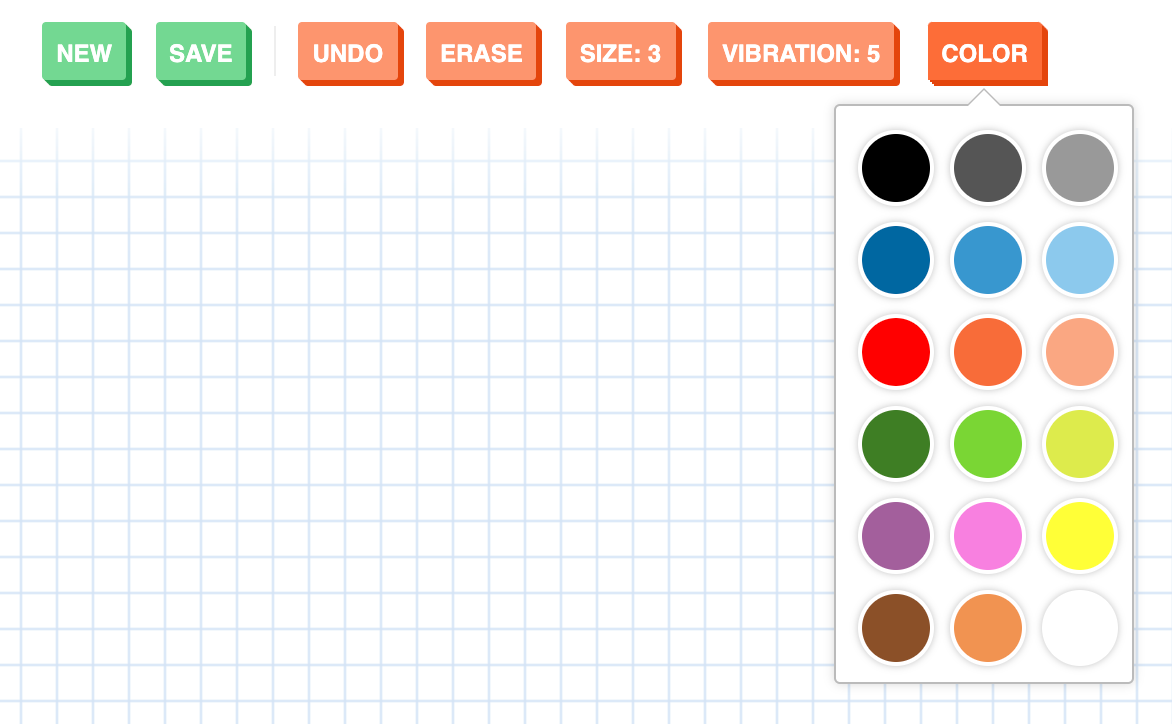
The "Color" button lets you select which color to draw with.
Click "New" to erase your entire drawing and start with a new page.

Saving your Drawing
Click "Save" to save your drawing and share it on Canvas.

When you click "Save," this menu will open:
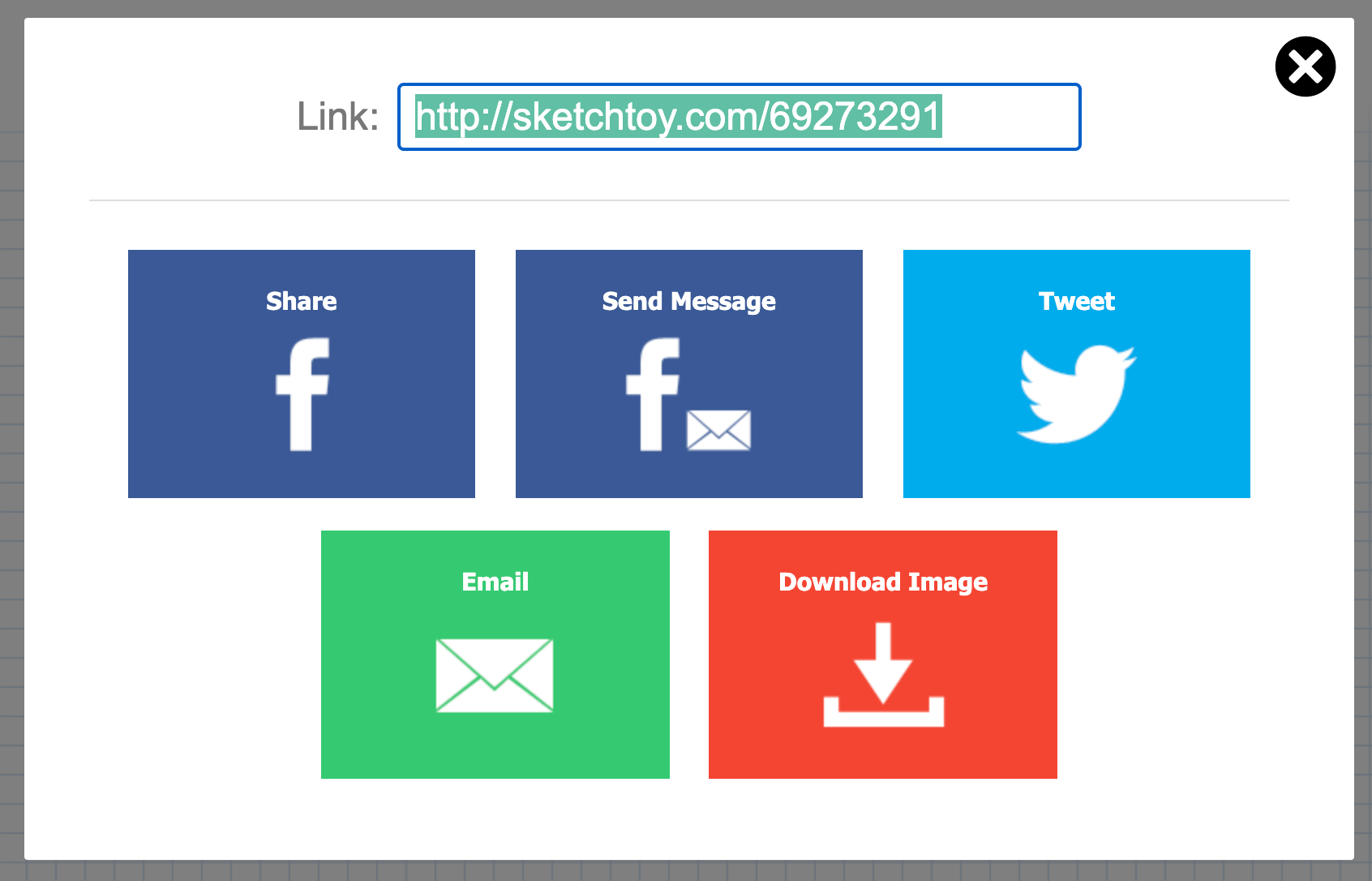
You can copy and paste the "Link" to share a link to your drawing in a Canvas discussion or assignment. If you want to directly include your drawing in a Canvas assignment or discussion, click "Download Image." Downloading your drawing will save it to your computer. Once it is saved, you can upload it onto Canvas. For instructions on how to upload an image into a canvas assignment, check out this article:
How do I include a photo from the web in a Canvas assignment?
If you are having any troubles, check out this article for instructions on getting technical support:
How do I get technical support?