
When you first join a Zoom class you will need to connect your computer's audio! You will need to manually click "Join Audio" found at the bottom left hand-side of the Zoom call, and then click "Join Audio by Computer". Sound from your class should play through your Chromebook's speakers. If you can't hear any audio when you join a class, it could be that nobody is speaking or the class is muted, however, it could also be one of several issues.
Check that you've manually selected your audio
How do I mute/unmute my computer?
Checking the volume on your Chromebook
Switch to your phone for audio
Check that you've manually selected your audio
Since 01/03/2022, students have needed to manually select their audio upon joining a class session. To learn more about that, please follow step #5 from our "How do I join my scheduled Zoom class?" article.
How do I mute/ unmute my computer?
Audio from your location (any sound, including background noise such as televisions or other people talking in the room) will be picked up from your Chromebook's internal microphone. Because of how distracting those sounds can be, you should "Mute" yourself when you're not speaking in class.
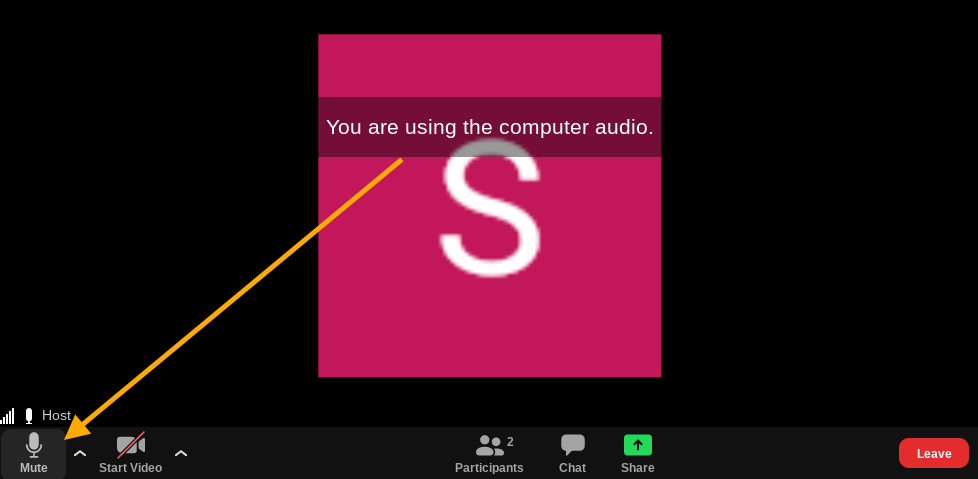
If your microphone isn't automatically muted as you join the class, you should mute yourself (unless otherwise instructed by the teacher).
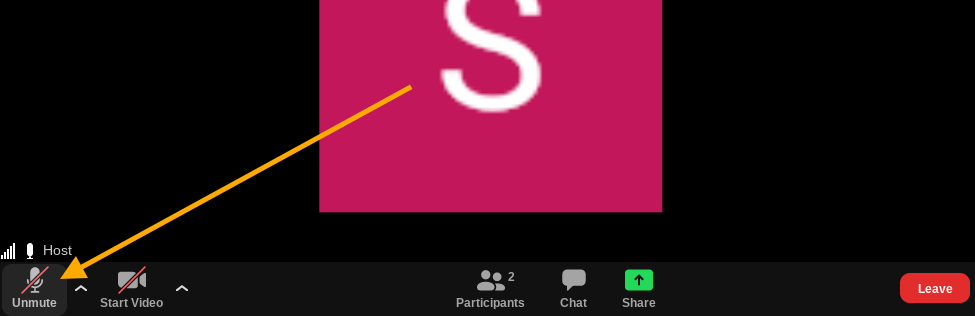
On the bottom left of your Zoom class window, there is a small microphone. If the microphone has a red line slashed through it, and says "Unmute", it means that the sound coming from your microphone is off! If it does not, please be sure to click the microphone to mute yourself.
Checking your site settings
It is important to make sure that you have the audio enabled in your site settings. You can access these settings by checking out the instructions in this article or by following the steps below. If you have your Zoom app open that is fine for the moment.
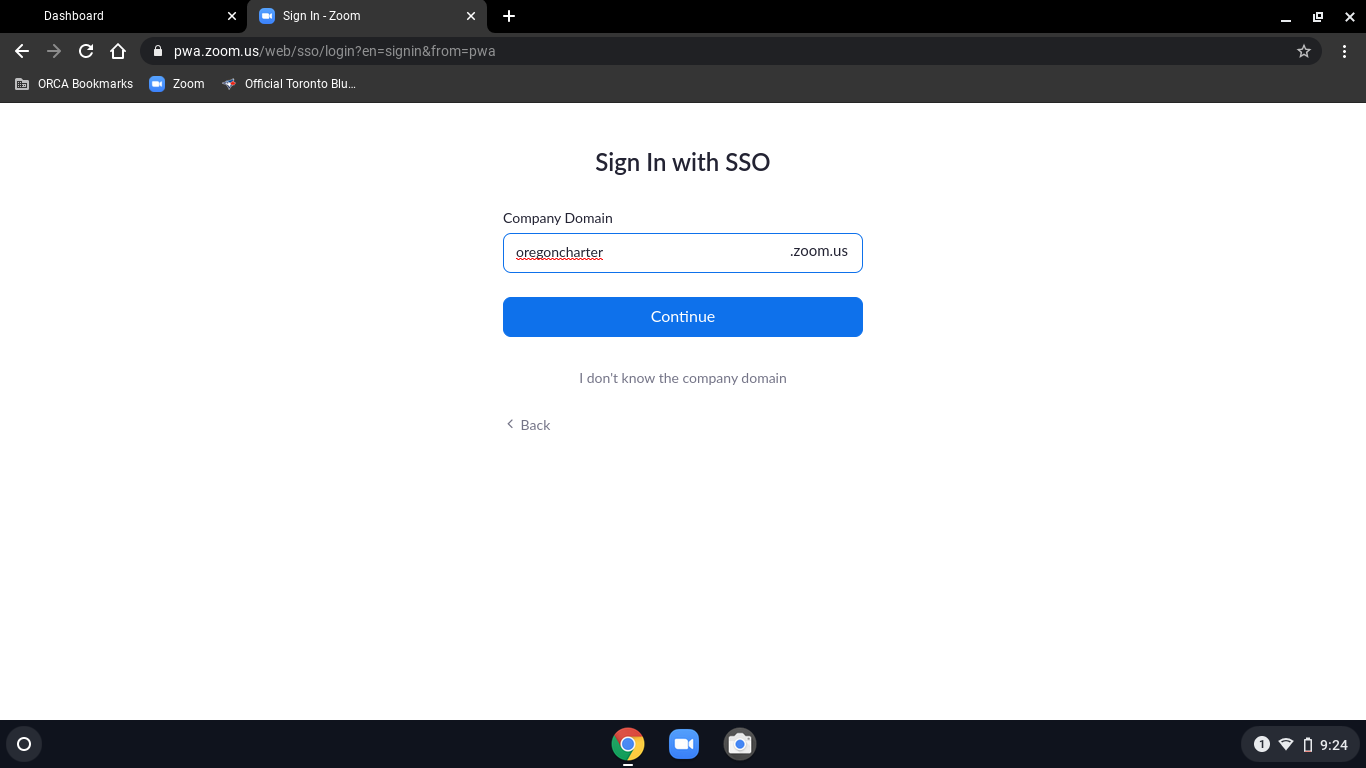
1. Go to Google Chrome and navigate to the Zoom pwa website. Log in using your SSO credentials
2. Click the lock symbol located in the search bar and view your site settings
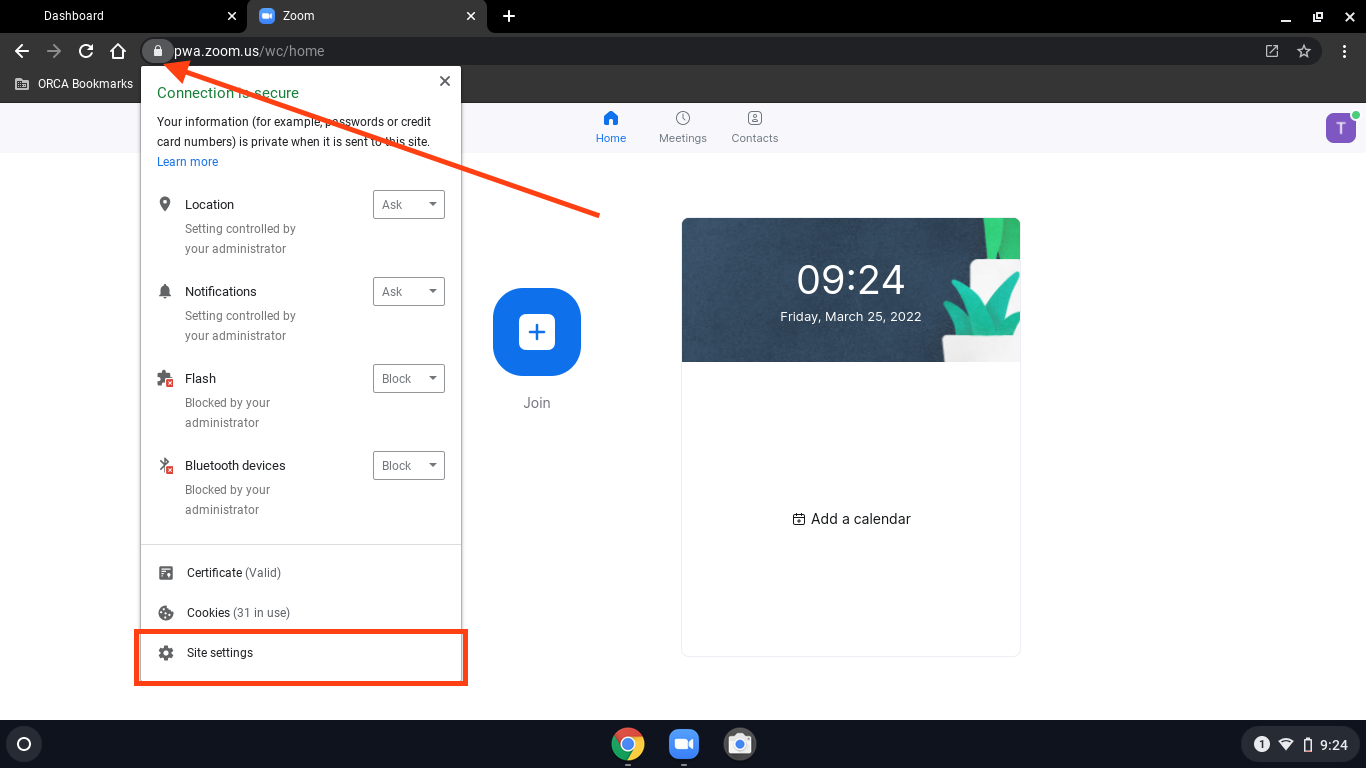
3. Click Reset Permissions and then reload the page.
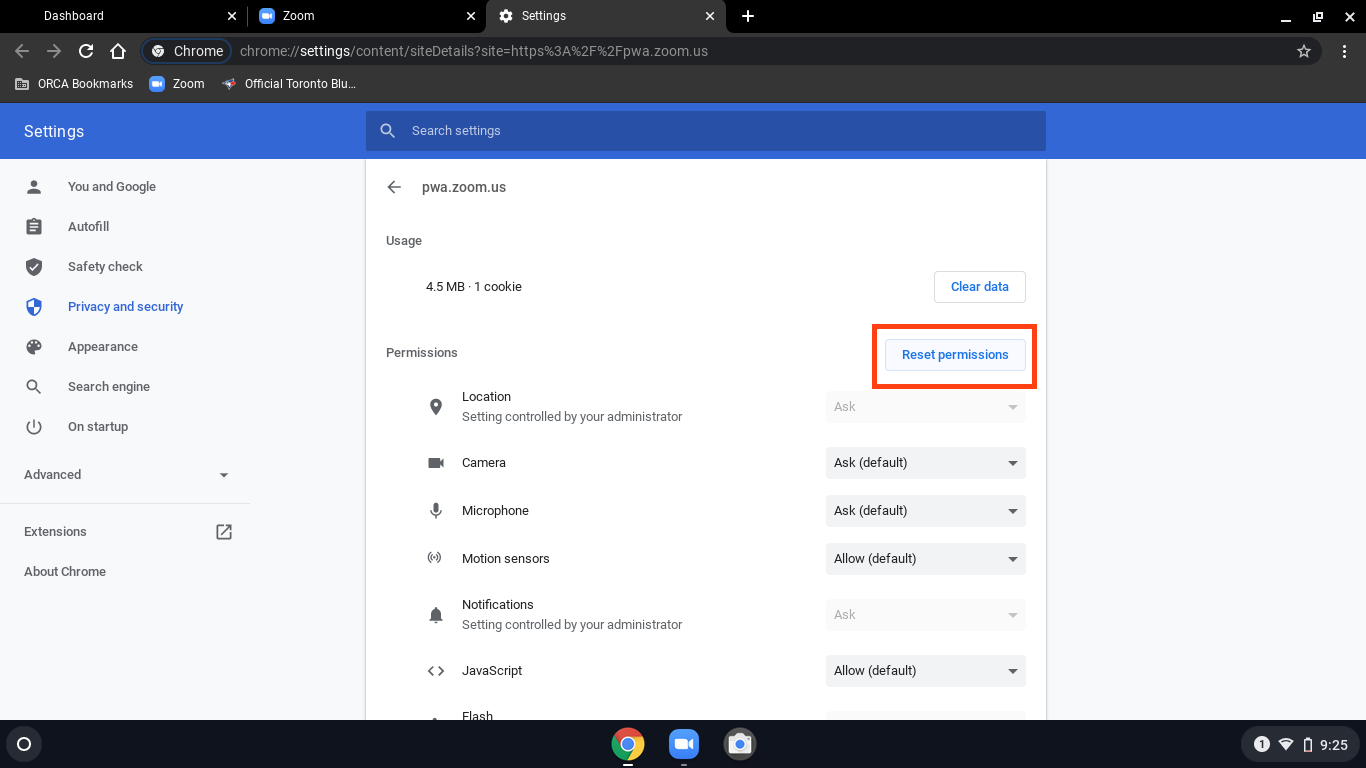
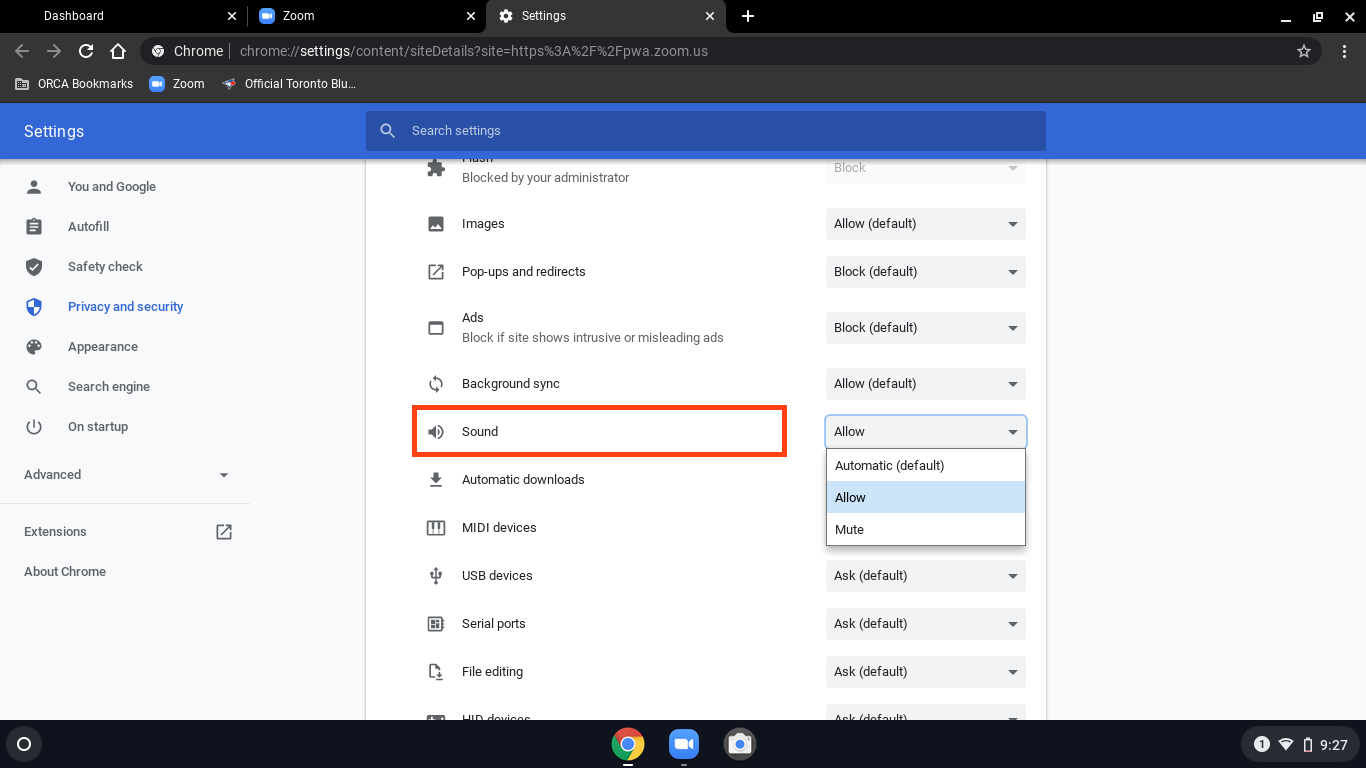
4. Be sure that your Sound settings are set to "allow". Alternatively you may change settings from "mute", refresh the page, and then change back to "allow".
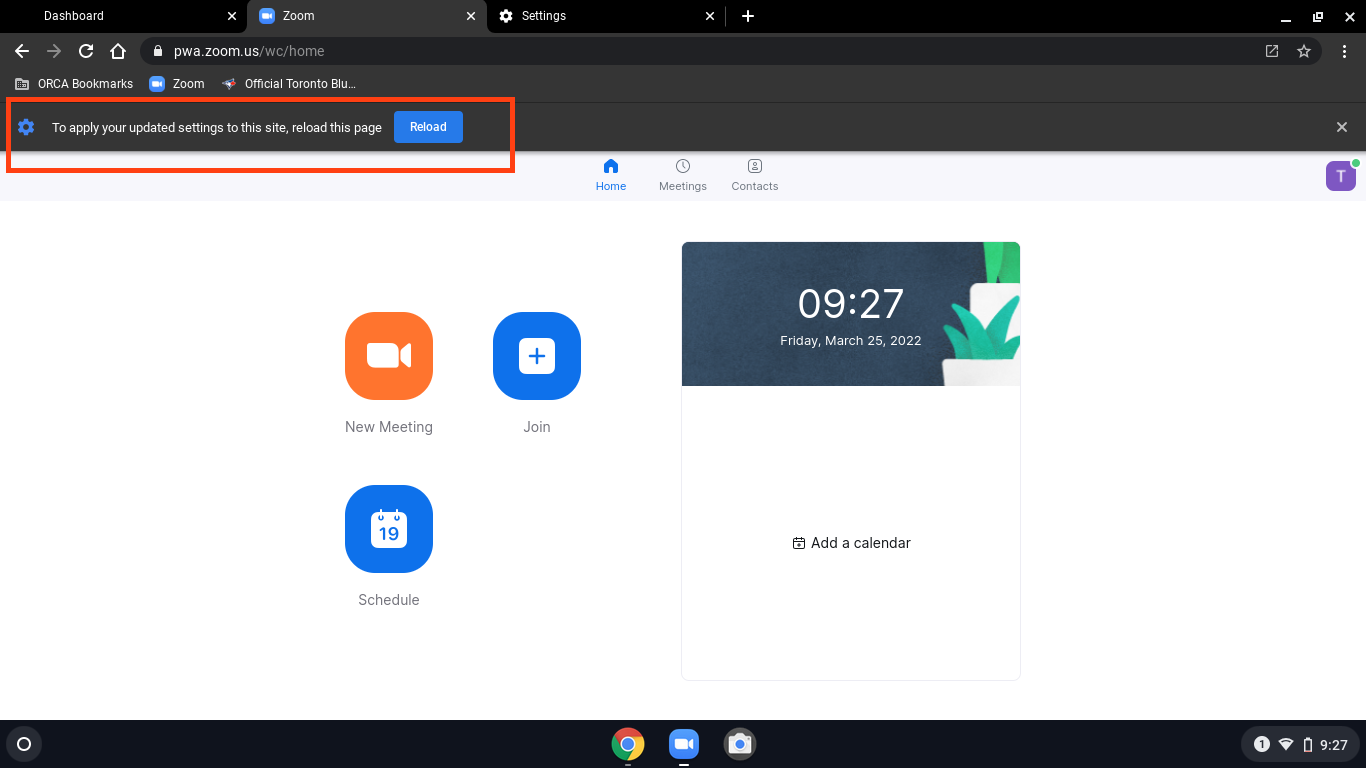
5. Go back to Zoom tab to reload your new settings!
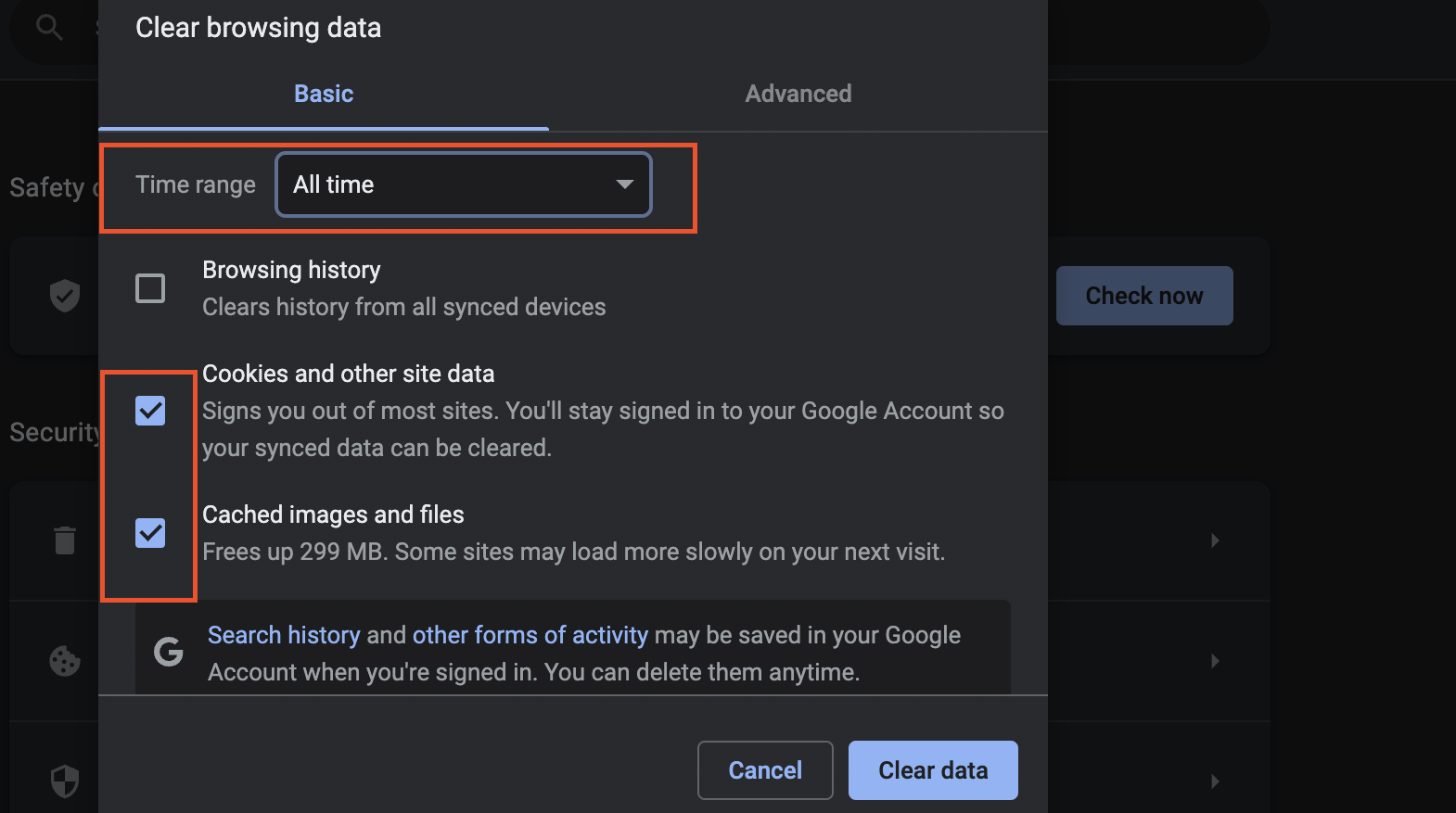
7. Go back to your settings tab, select "Privacy and security" on the left side of the page and click on "Clear browser data". Your Time range should be set to "All time". Clear your data!
8. Reload your Google Chrome browser. Close the Settings and Zoom tabs in the browser and restart your Zoom app. If you were in a meeting while editing these settings you will need to leave the meeting and join back for them to take action.
Checking the volume on your Chromebook
If you can't hear anything you should first try to see if you have the volume turned down on your Chromebook. You can see your volume settings by clicking on the section in the bottom right of the screen that contains the time and battery display, and verifying that the volume is not set to 0, or slid all the way over to the left-hand side. The volume increases as the dot moves to the right of the window.
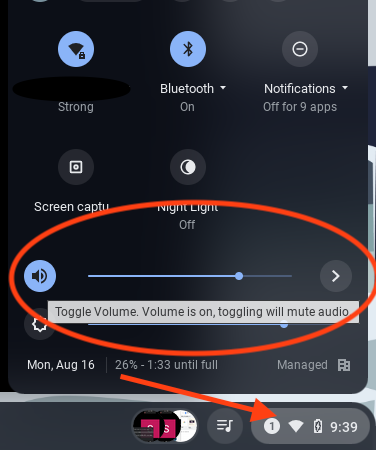
Using a headset: Wired
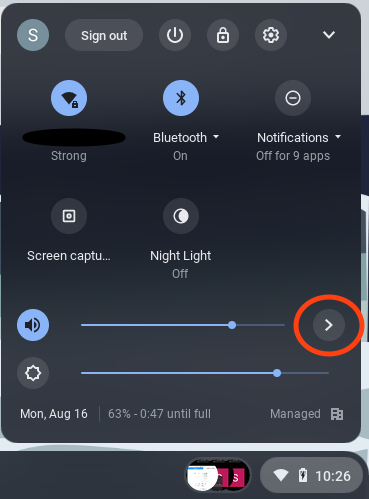
If you are using a wired headset, first check to see the headset is completely plugged into the port on the computer. After you confirm that the headset is plugged in properly, click on the section in the bottom right of the screen that contains the time and battery display. View your Chromebook's audio settings to make sure that your headset is selected. Click the arrow next to the volume to open your audio settings and check that your headset is selected as the input/output.
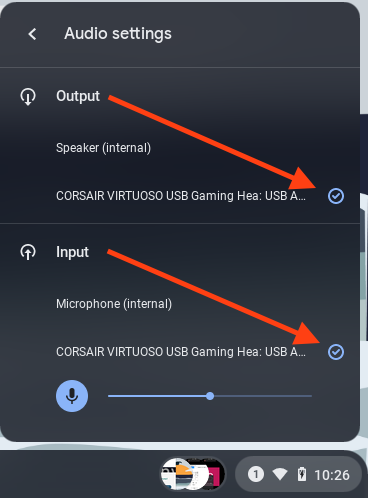
If everything appears correct in your Chromebook's "Audio Settings", you can then go into your Zoom audio settings to make sure that your headset is selected. You can open the Zoom audio settings menu to by selecting the arrow near the microphone.
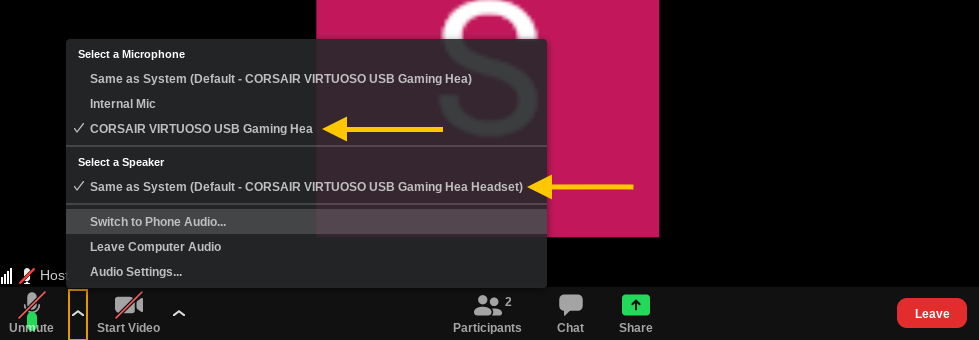
If your headset has its own volume controls you should also check that those are turned up. If your headset is not available as a choice you may need to check that it is connected correctly.
Using a headset: Wireless
If you are using a wireless headset, first check that the headset is powered on and charged. Is your headset paired to the Chromebook? When you go into the Bluetooth menu, the Bluetooth icon should say that it is on. When you click the Bluetooth icon it will open your Bluetooth settings. Your headset should be listed under Paired devices. If your headset is not listed in Paired, be sure that your headset is turned on and searching to be paired. It should come up as an option to be added on your Chromebook. Once you are sure that your headset is connected you need to check that the headset is selected as the input/ output for sound. Make sure that the volume is turned up on the headset.
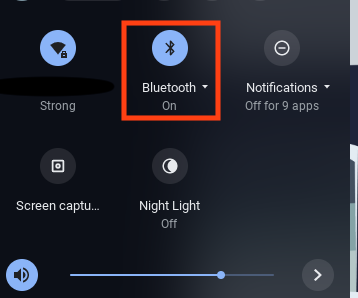
When you are looking in your Zoom class you can open the menu to view your sound settings by selecting the arrow near the microphone. Be sure that your headset is selected as the input/ output as well.
Switch to your phone for audio
Is your audio still not working? You may wish to try to use a phone to complete the Zoom class and reach out to the tech team once the Zoom class has ended.
In your Zoom class window select the arrow next to the microphone to open your Zoom audio settings. There is an option to switch to phone audio.
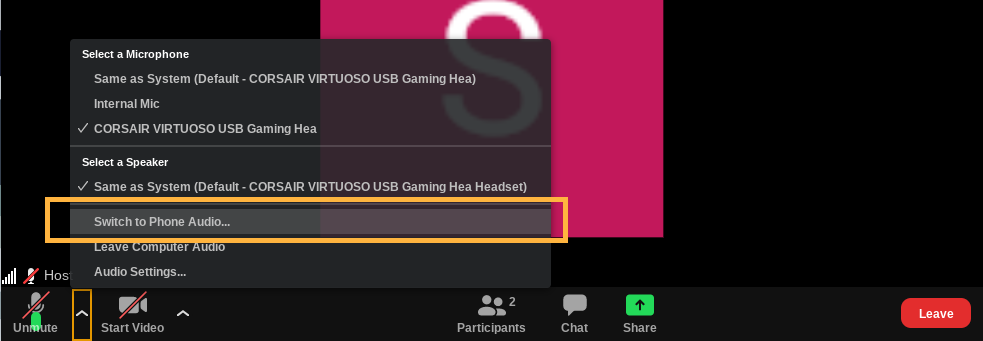
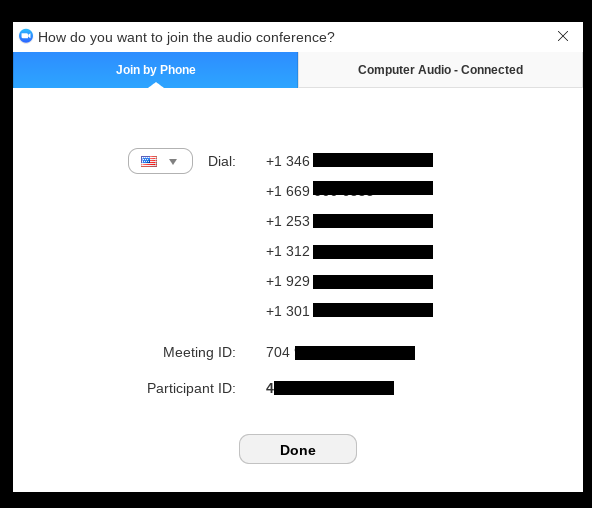
When you chose to switch to phone audio you will be presented with a list of phone numbers. These numbers differ based off of your current location. Call the number that is closest to your location, this is to help you have the best audio connection over the phone. If for some reason the locations will not show, you can try calling the first number. If you have a fuzzy connection, you can try another number until you have a good connection. You call the number, enter the meeting ID when prompted and you should have audio through your phone. Be sure to mute yourself on your phone.
Note: You will still only have video on the Chromebook.
Questions?
If you still need help or have questions please reach out to the tech team directly!
How do I get technical support?