
It can be difficult to manage your Observer account when you are Observing a large number of students. Canvas displays all of your students' classes on the dashboard and Calendar together, instead of making a new calendar view for each student, so sometimes it can be difficult to tell which class corresponds to which students. Luckily, there are some things you can do to manage a large number of students more efficiently.
Check who you're observing
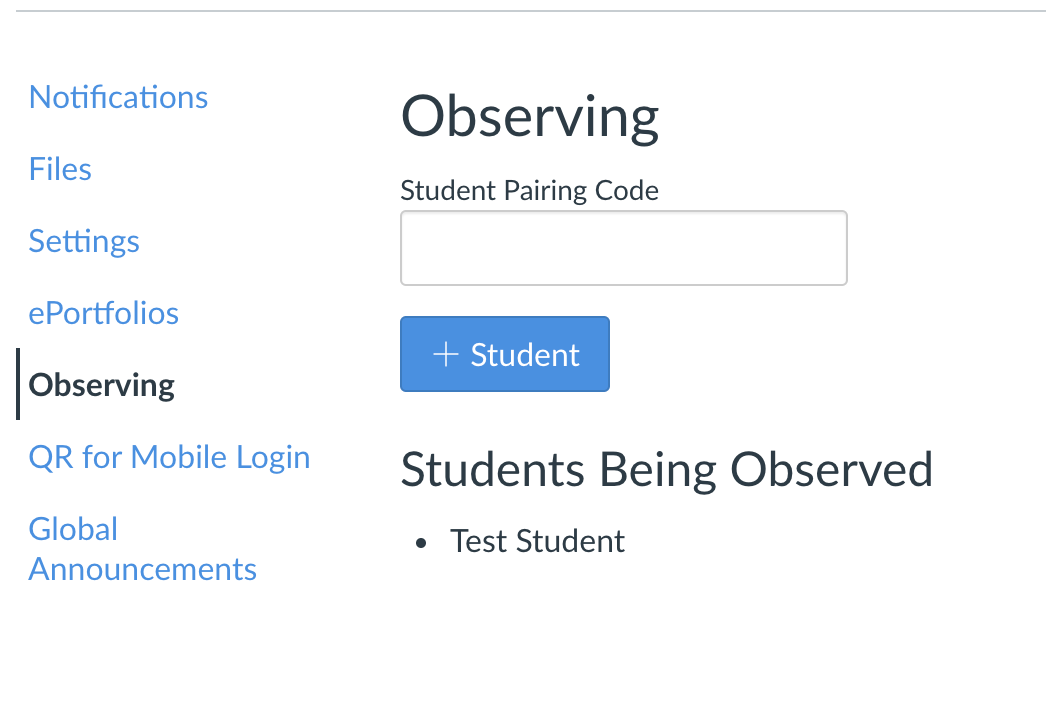
To check who you're observing, click on Account and then Observing. You will see this screen, with a list of the students you are observing.
Manage the courses on your dashboard
To manage which courses show up on your dashboard, click on Courses on the left sidebar, and then All courses. You will see a list of courses that you are enrolled in (as an observer). Star the ones you want to appear on your dashboard--you can have up to 21 courses on your dashboard.
Color code, nickname, and arrange your courses
When you go to your dashboard, you will see course cards for each course. The courses you've starred will appear here--if you haven't starred any courses, you will see the first 10 courses you're enrolled in. You can change the color of a course by clicking the three vertical dots in the top right corner of the course card, and picking from the available colors. Changing the color of a course changes both its overlay color and the text color of the course name. We recommend color coding your courses so that one color corresponds with each student.
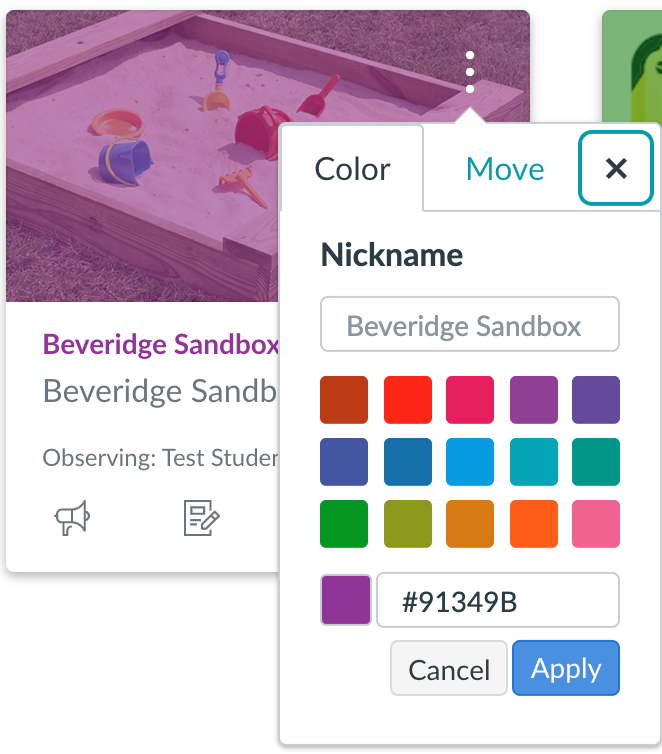
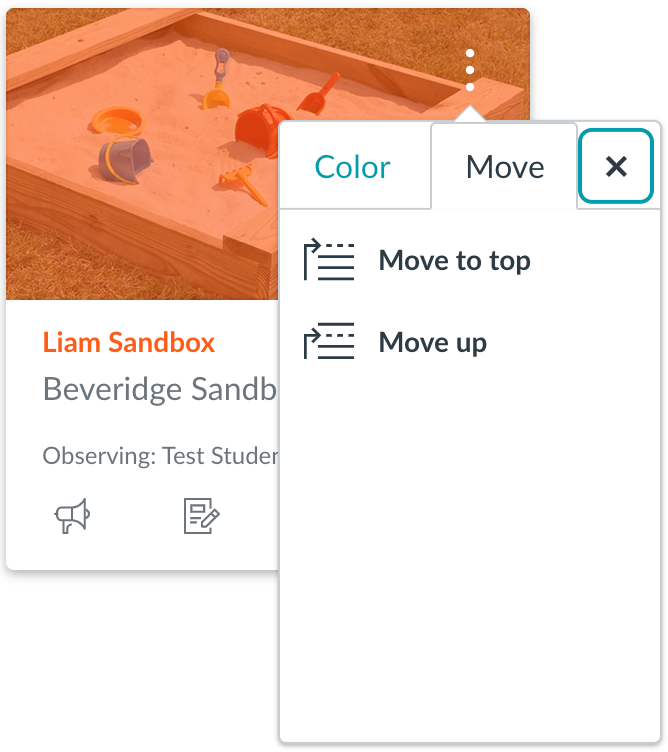
You can also add a nickname for the course (only you will see this). You can move the course by switching to the Move tab, and selecting which direction you want to move the course in. Courses can also be moved by clicking and dragging them to a new location.
Managing your calendar
The colors and course nicknames you set on your dashboard will apply everywhere in your Canvas Observer account, including the Calendar and the Canvas inbox. For more information about using the calendar in Canvas, check out the article below. Note that you will have your own calendar at the top of the list, which should be blank--you can hide it, or leave it visible. Canvas currently limits the number of course calendars visible to 10, but you can subscribe to the calendar feed with Google Calendar as a workaround for this.
How do I best manage observed student calendars?
Managing your inbox
Setting nicknames for your courses will be extremely helpful for using the Canvas inbox feature. We recommend setting a nickname that tells you which student is in the course, and what the course is--something like "Emma English". For more information about using the inbox in Canvas, check out the article below.
How do I message a teacher in Canvas?
Try the parent app!
The Canvas parent app will not give you access to as many features as accessing Canvas through your web browser, but it can make managing a large number of students easier. In the parent app you can switch between views for each observed student, and view individual calendars for each student. Here is our guide for setting up the parent app:
How do I access the Canvas Parent App?
As always, if you're still having trouble managing multiple students in Canvas, feel free to reach out to the tech team for additional support.
You can also check out our Observer Day in the Life course for a more in depth look into Observer Accounts.