
The Canvas Parent app is a quick and user-friendly way to locate your student's courses, grades, and assignments. It can be especially helpful for parents/guardians who are on-the-go, or observing two or more students. Let's take a look at some of the best uses of the Canvas Parent app!
If you haven't already installed and logged into the parent app, the following article includes instructions on how to do so:
How do I access the Canvas Parent App?
Switching between students:
You can easily switch between students that you are observing by tapping on the profile icon at the top and selecting your other student(s). 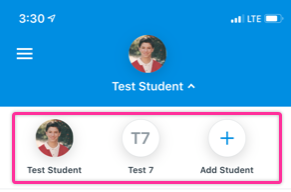
Adding students:
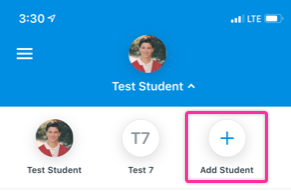
From this menu, you can also add a new student you are observing through the following steps:
- Tap on the student's icon and tap "Add Student"
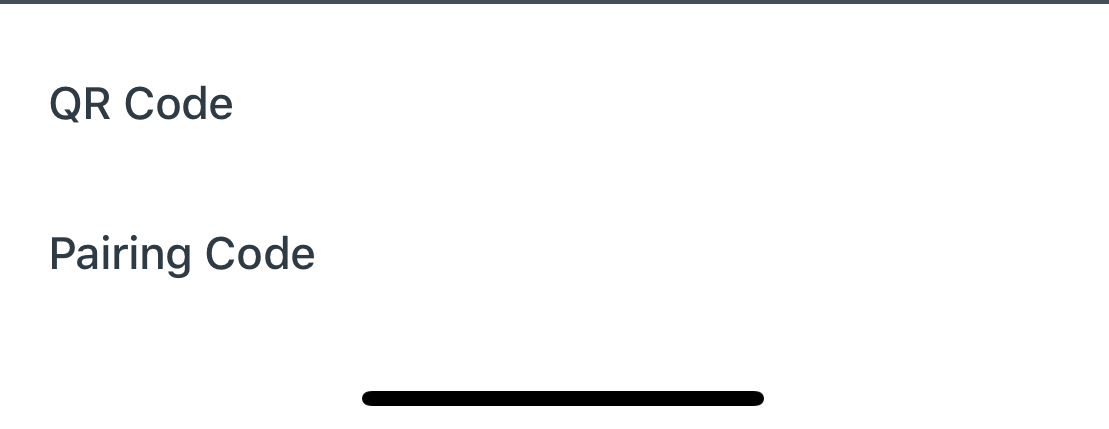
- Next, tap "Pairing Code"
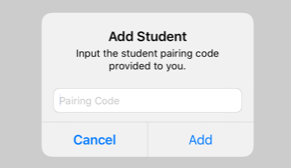
- From there, type in a student pairing code and tap "Add" to finish. Your new student will then be added!
View your Canvas inbox:
One benefit to the app is that you can easily access your inbox and view messages from teachers:
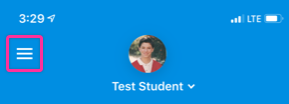
- To view your inbox, tap on the three stacked lines on the top left of the app.
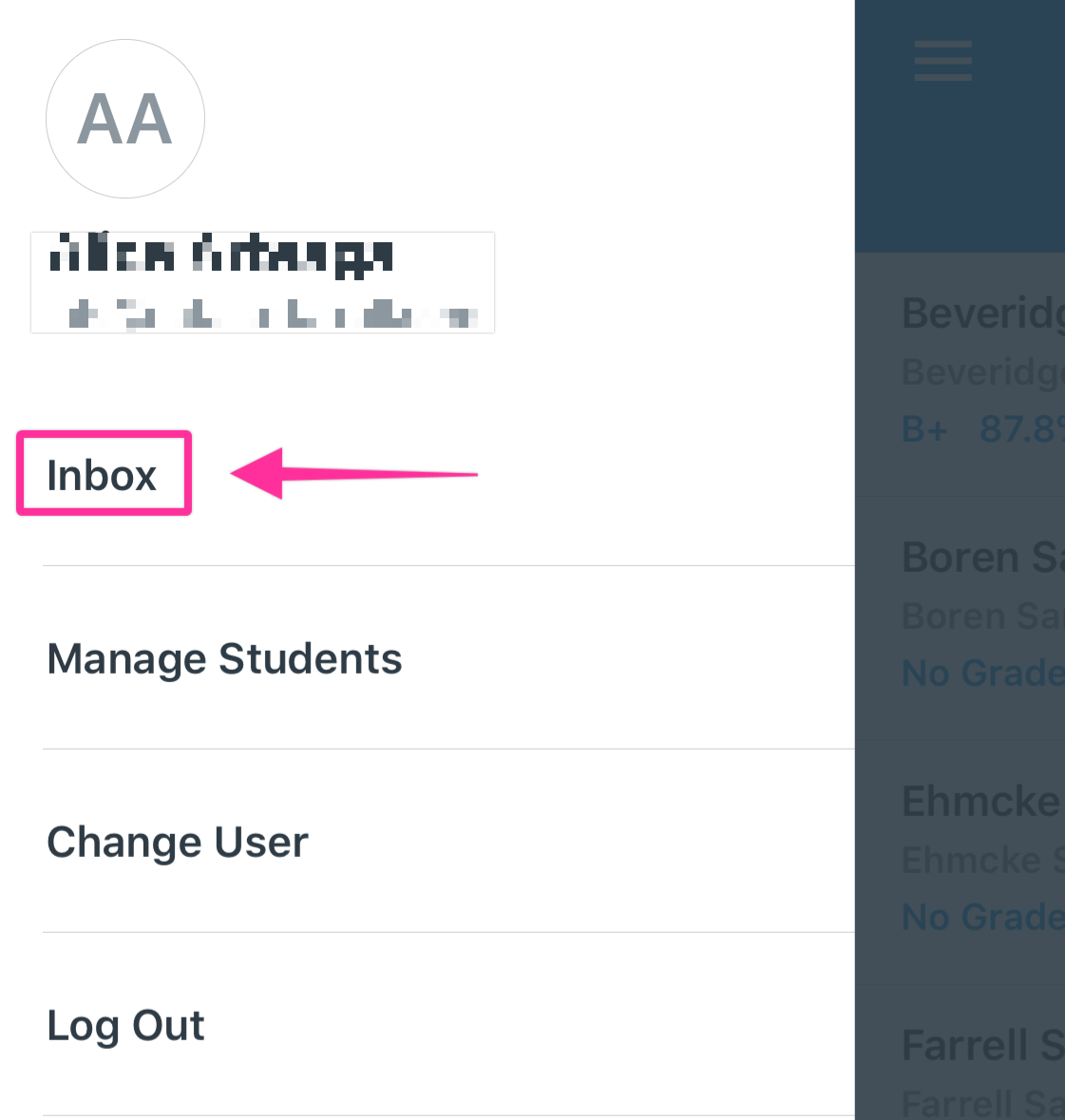
- Next, tap on "Inbox".
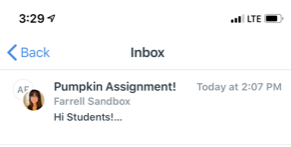
- Now, you're in your inbox!
View grades and student calendars:
Let's also add the fact that you can effortlessly view grades from your student’s courses on the main page:
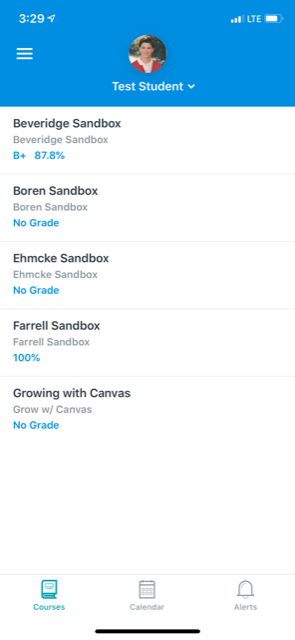
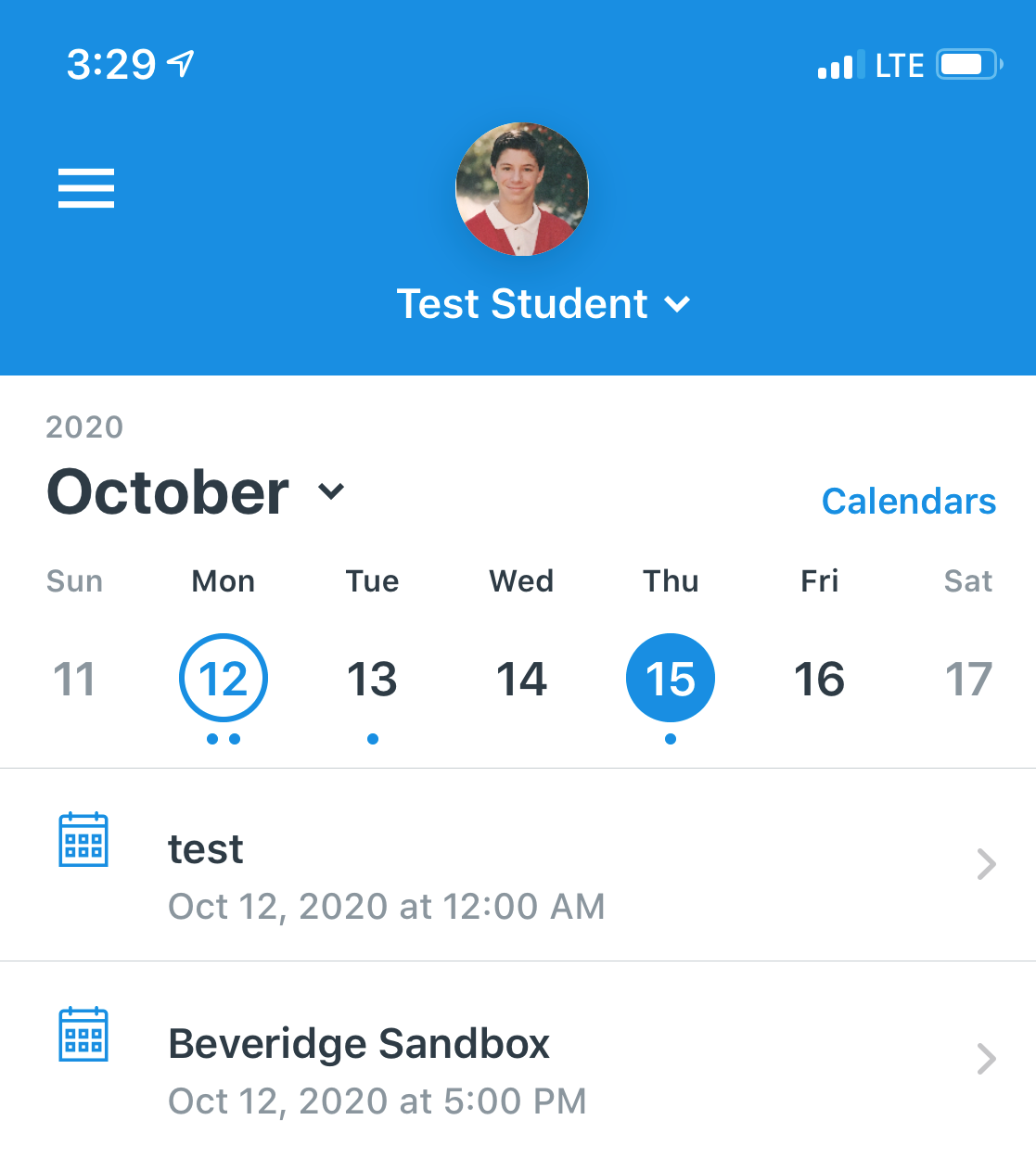
You can also easily view your student’s Calendar events:
If you're running into any issues with these steps do not hesitate to reach out to our support team! Take a look at the article below to see how you can reach us.
How do I get technical support?
You can also check out our Observer Day in the Life course for a more in depth look into Observer Accounts.