
You might find yourself in a situation where you'll have to reset your Chrome settings to default. In this article, we will go over the steps on how to do so:
Reset Chrome settings steps:
- Open Chrome.
- At the top right-hand corner of your Chrome browser, click on the 3 stacked dots icon
 and from the dropdown menu, select "Settings".
 - Scroll to the very bottom and click on "Advanced".

- Next, click on "Restore settings to their original defaults".

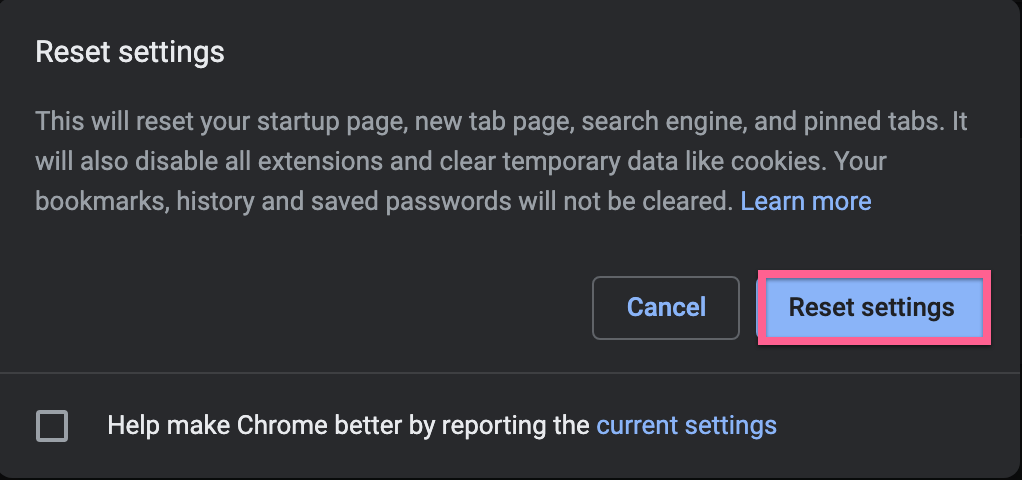
- A pop-up will then appear that will let you know this action will reset your startup page, new tab page, search engine, disable all extensions, etc. Your bookmarks, history, and saved passwords will not be cleared. If you have anything that needs to be saved, make sure to do so before resetting your browser.
- Click on "Reset settings".
And that's all there is to it!
If you have further questions, don't hesitate to contact our support:
How do I get technical support?