
If your chromebook is not charging, or will not turn on, please follow the steps below. Often, this issue can be resolved with a quick fix.
- Plug your chromebook in to its charger, and disconnect any additional usb devices.
-
Push and hold the Power + Refresh buttons for 10 seconds. Once 10 seconds has passed, you can let go of both buttons.
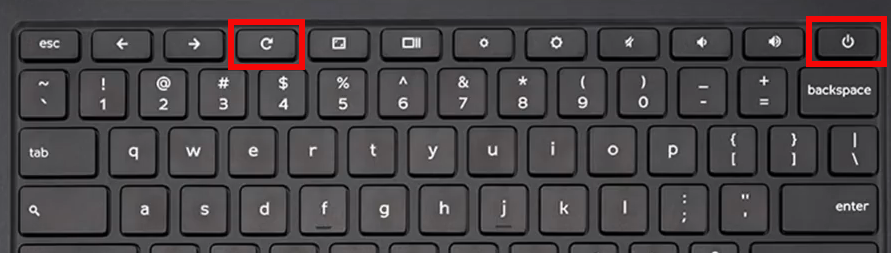
- Then, try turning the chromebook on again. If it is not working, try step 2 once more.
- If it still isn't working, check to see if the light on the left side of the computer is lit up. If the light is on, proceed to step 7.
- If the light is not on, try plugging your charger into a different wall outlet, and plug the other end of the charger into the port on the opposite side of the chromebook. Then, repeat step 2. If that does not help, try using a different charger if you have one available.
- If the steps above do not work, please try holding down the Power button for 5 seconds, and then tap the Power button and the "esc" key simultaneously until the Chromebook powers on.
- If the chromebook will not turn on or charge after trying these steps, we can provide further assistance. Please write a message to helpdesk@oregoncharter.org including the issue that is coming up, the name of the student who's chromebook this is happening on, and let us know that you have tried these steps.
If you used a different charger and it worked, send us a message including the name of the student who's charger is broken, and we can mail a replacement charger.
While you wait to hear from us, you can always access school on a personal device by following this article:
How to Log into Canvas on a Personal Device