
There are a few different ways that you can save a photo from the web on to your Chromebook:
Save from the web:
- Right-click on the photo you wish to save and select "Save Image As" to save to your Chromebook.
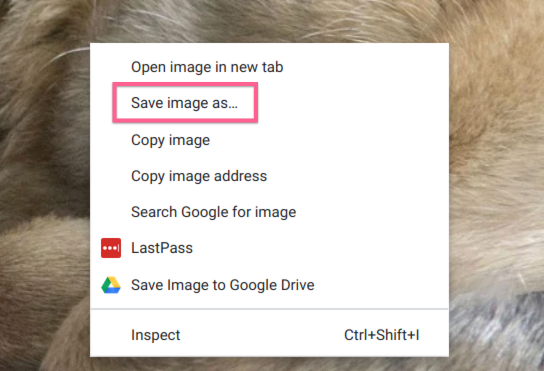
- You can choose a location of where you'd like to save the photo. Otherwise, it'll save in your Downloads folder. To do this, click "Save" on the lower right.

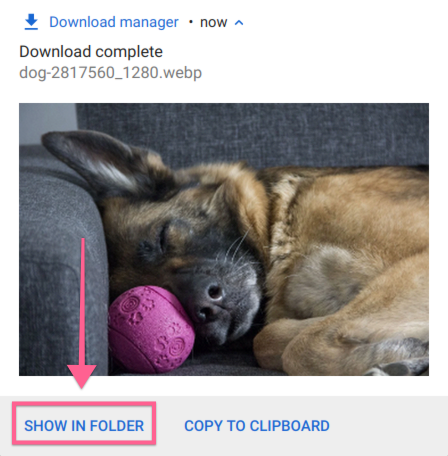
- To view the photo you downloaded, click on "Show in folder" and the image will then display.
Save to Google Drive:
- Using Google Chrome’s extension “Save to Google Drive” is an easy way to conveniently save photos from the web. You can find the chrome extension by clicking here and choosing “Add to Chrome”. Then, choose “Add extension”.

- Navigate to the web page where you are wanting to save the image. From that web page, click on the Save to Google Drive extension icon
 found next to the search bar of your Google Chrome web browser.
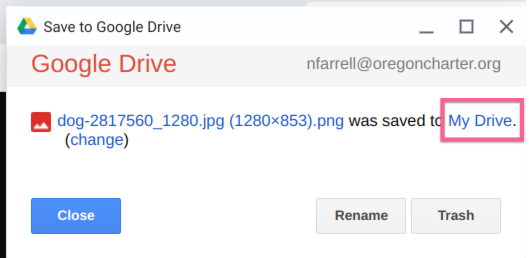
- Next, you window will pop-up showing your photo was saved to "My Drive". Click on "My Drive" to view your saved photo.
That's all there is to it!
If you're still running into issues with saving a photo from the web on to your Chromebook, don't hesitate to reach out to support:
How do I get technical support?
How do I include a photo from the web in a Canvas assignment?