
If the trackpad on your chromebook is not working as expected, try the following steps to fix it:
- Disconnect any wired or bluetooth mouse you may have connected to your chromebook.
- Make sure there is no dust or dirt on the trackpad.
- Press the "Esc" key several times.
- Drumroll your fingers on the touchpad for ten seconds.
- Turn your Chromebook off, then back on again.
If after following the above steps, your trackpad is still not working, try performing a hard reset of your chromebook. A hard reset is a way to clear out any corrupted memory and will not harm your Chromebook. Push and hold the Power + Refresh buttons for 10 seconds. Once 10 seconds has passed, you can let go of both buttons.
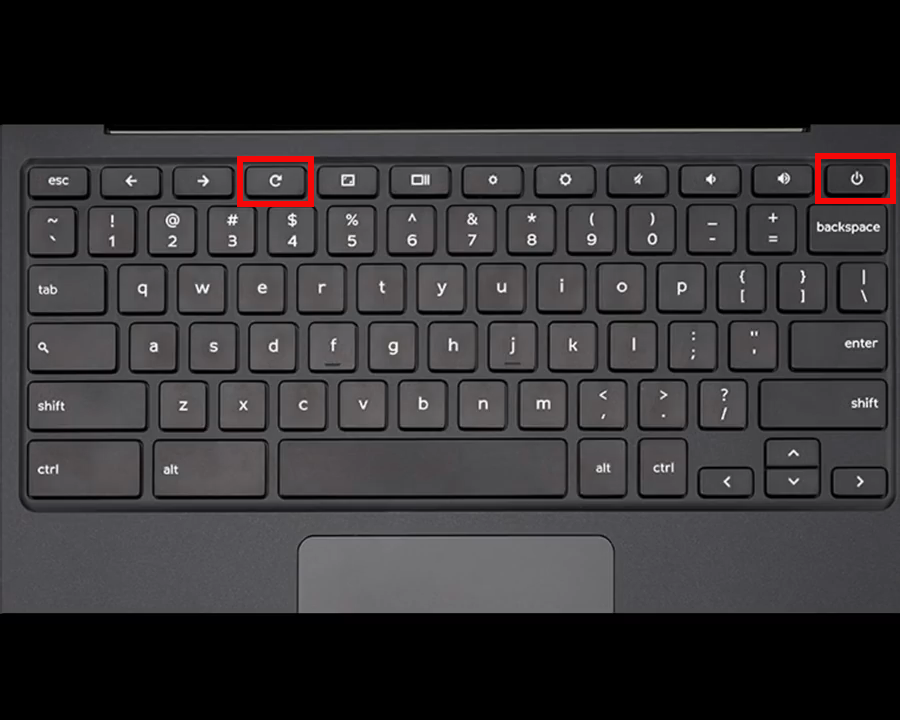
If after trying the above steps, and performing a hard reset, you are still having problems, please reach out to the Tech Team for additional help. Check out the following following article for how to get technical support: