
Sometimes when you've been viewing class assignments and zoom in to read it a bit better, the settings can become stuck. Instead of dealing with an extreme close-up of your coursework, you can follow these steps and get your screen back to normal:

One of these sound like your exact issue? Click to go straight to the fix!
Only one page is zoomed in/out
If only one page is zoomed in too much (for example, your email page or a course syllabus), this can be a very quick fix:
- If you are zoomed out too far, you can zoom in by pressing Ctrl + Plus (+)
- If you are zoomed in too closely, you can zoom out by pressing Ctrl + Minus (-)
- If you prefer to reset the zoom level back to the default, press Ctrl + 0 (zero)
Return to top
All pages are zoomed in/out
If all of the websites you visit just seem larger and you're able to see tab names as well as your clock, you may have just zoomed in or out of your whole desktop too much. This can be fixed by using the following key combinations on your Chromebook:
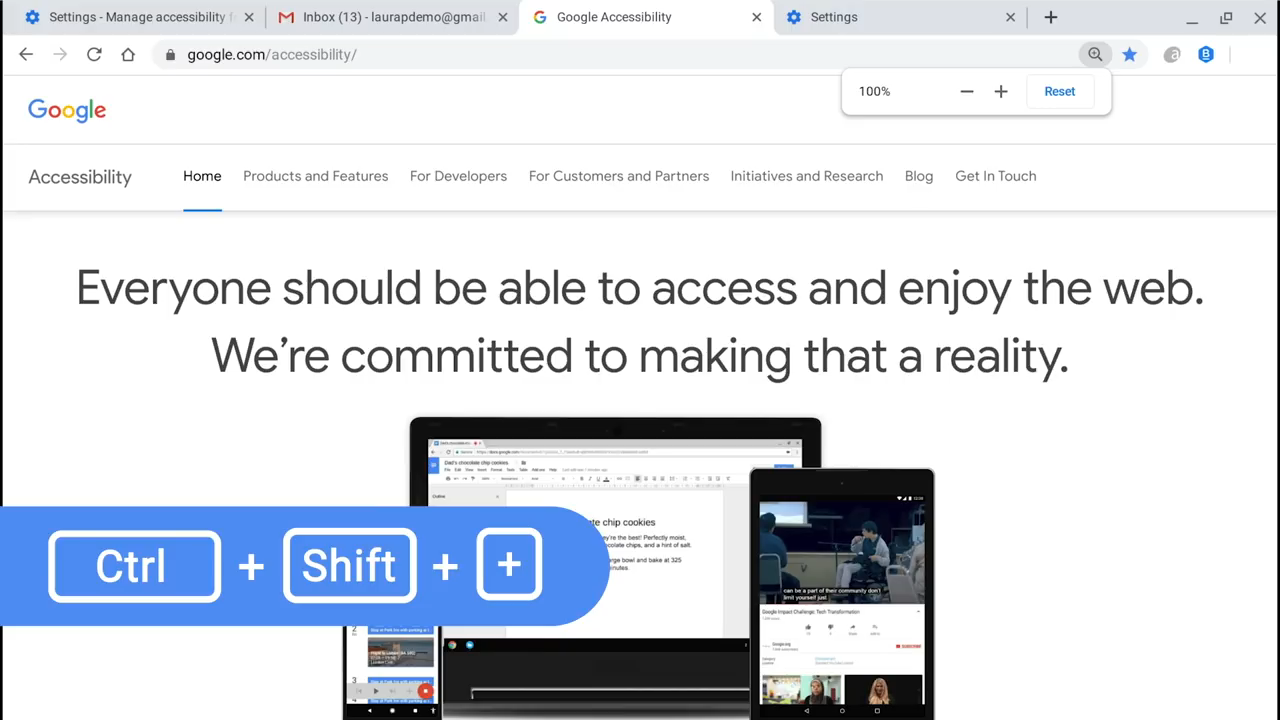
- If your screen is zoomed out too far, you can zoom in by pressing Ctrl + Shift + Plus (+)
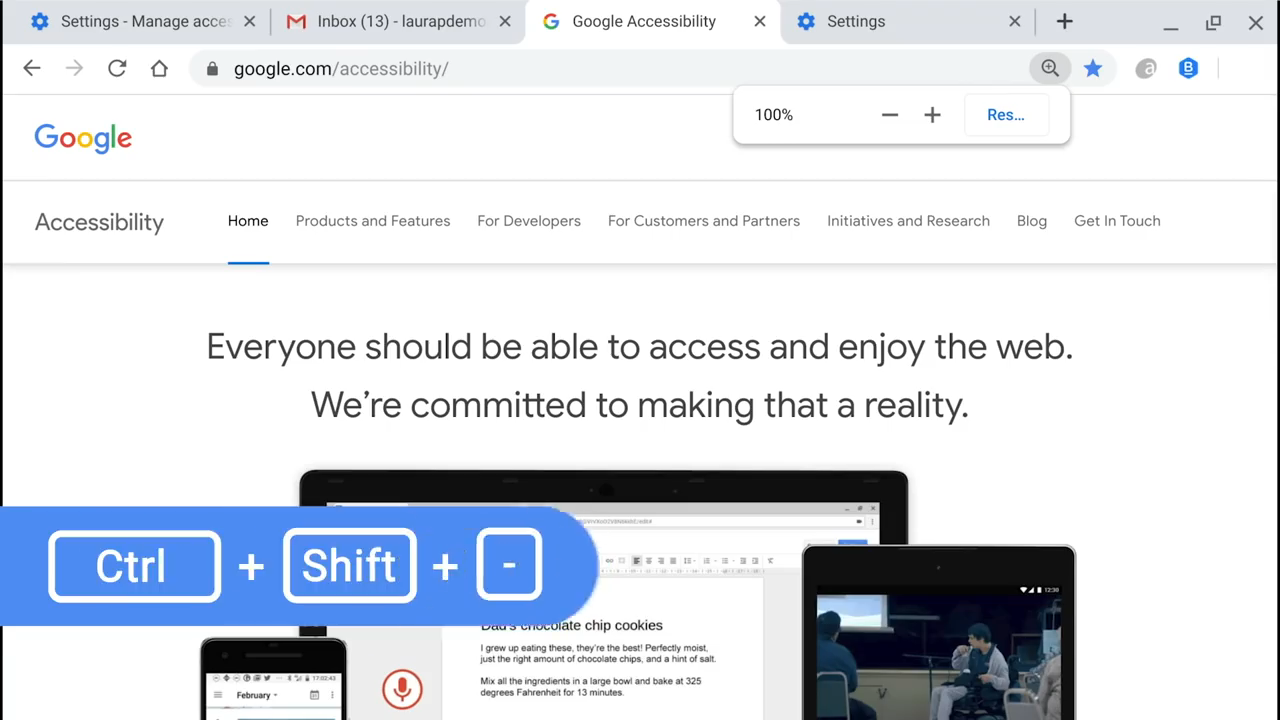
- If your screen is zoomed in too far, to zoom out press Ctrl + Shift + Minus (-)
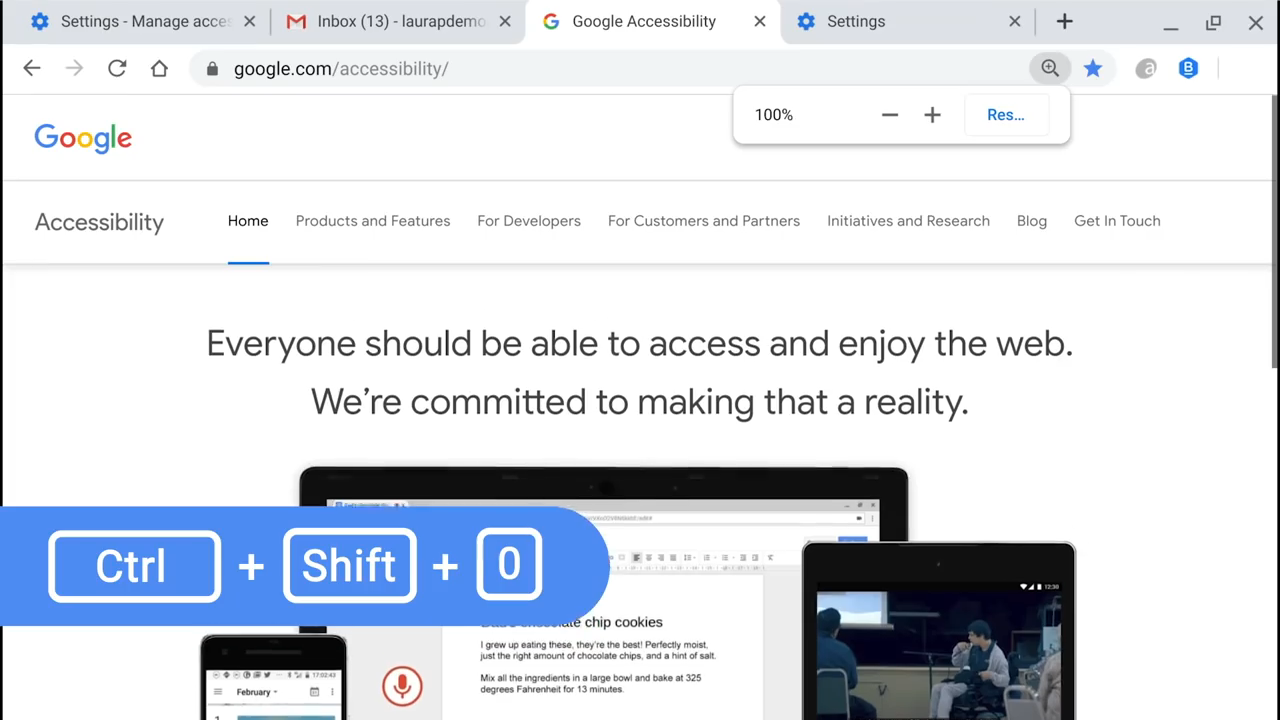
- If you would like to reset your zoom settings completely, press Ctrl + Shift + 0 (zero)
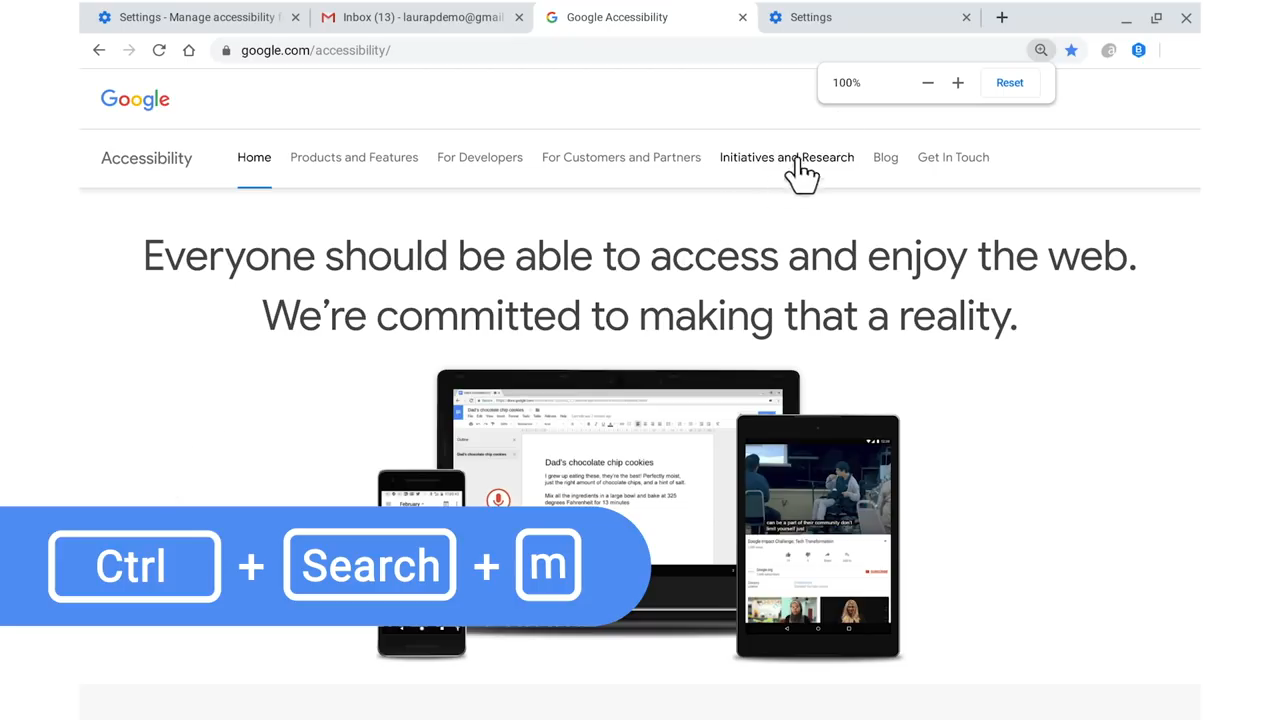
If you are unable to see your tabs or the clock and instead can pan around the screen with your trackpad, you may have enabled the Magnify settings on your Chromebook.
- To turn off the magnifying features completely and go back to your default settings, use the key combinations Ctrl + Search (Magnifying glass) + m
Still not working?
If you're still not able to get the proper zoom settings, don't hesitate to get in touch with our support team! You can find all the ways to contact them in this article: