
Google drive is a place where you can store files from your computer on to the cloud. You can upload files onto Google Drive from your computer, or create files in Google Drive and then access them from any computer with an internet connection! If you have schoolwork on your computer that you need to move into your google drive, here are the steps!
Opening google drive
Opening Google Drive on your Chromebook:
To open Google Drive on your Chromebook, simply click the Google Drive icon in your apps. It looks like this:
For more information on finding an app, check out this article:
How do I find apps on my Chromebook?
Opening Google Drive on a computer other than your Chromebook:
Open up a web browser like Chrome, Firefox, or Safari, go to drive.google.com, and log in with your ORCA account. This method will also work on your Chromebook!
Uploading a File or Folder
To upload a file from your computer onto Google Drive, click the New button.
In the drop down menu, click File Upload or Folder Upload to upload a file or folder.
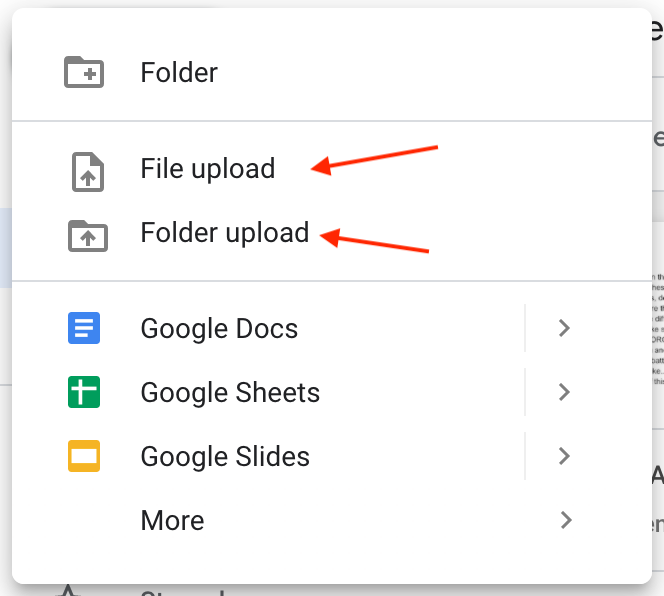
Once you click File Upload or Folder Upload your computer's "Files" window will open, and you can select a file or folder to upload.
You can also drag and drop files from your computer's "Files" window into Google Chrome. For more information on using the "Files" app on your Chromebook, check out the following article:
How do I find a file that is saved on my Chromebook?
Getting Support
If you have any questions, or if you ever run into any issues using Google Drive, check out the following article for how to get technical support: