
Your Chromebook's trackpad is the plastic pad you slide your fingers on to move your cursor or click with. The trackpad on your Chromebook has a number of useful shortcuts that can let you quickly navigate between multiple tabs or windows. If you are used to using a different computer than a Chromebook, you will notice that the Chromebook trackpad works a little bit different than your Mac or PC. But with these tips, you will be using your trackpad like an expert in no time!
Tap or Click with two fingers to "right click"
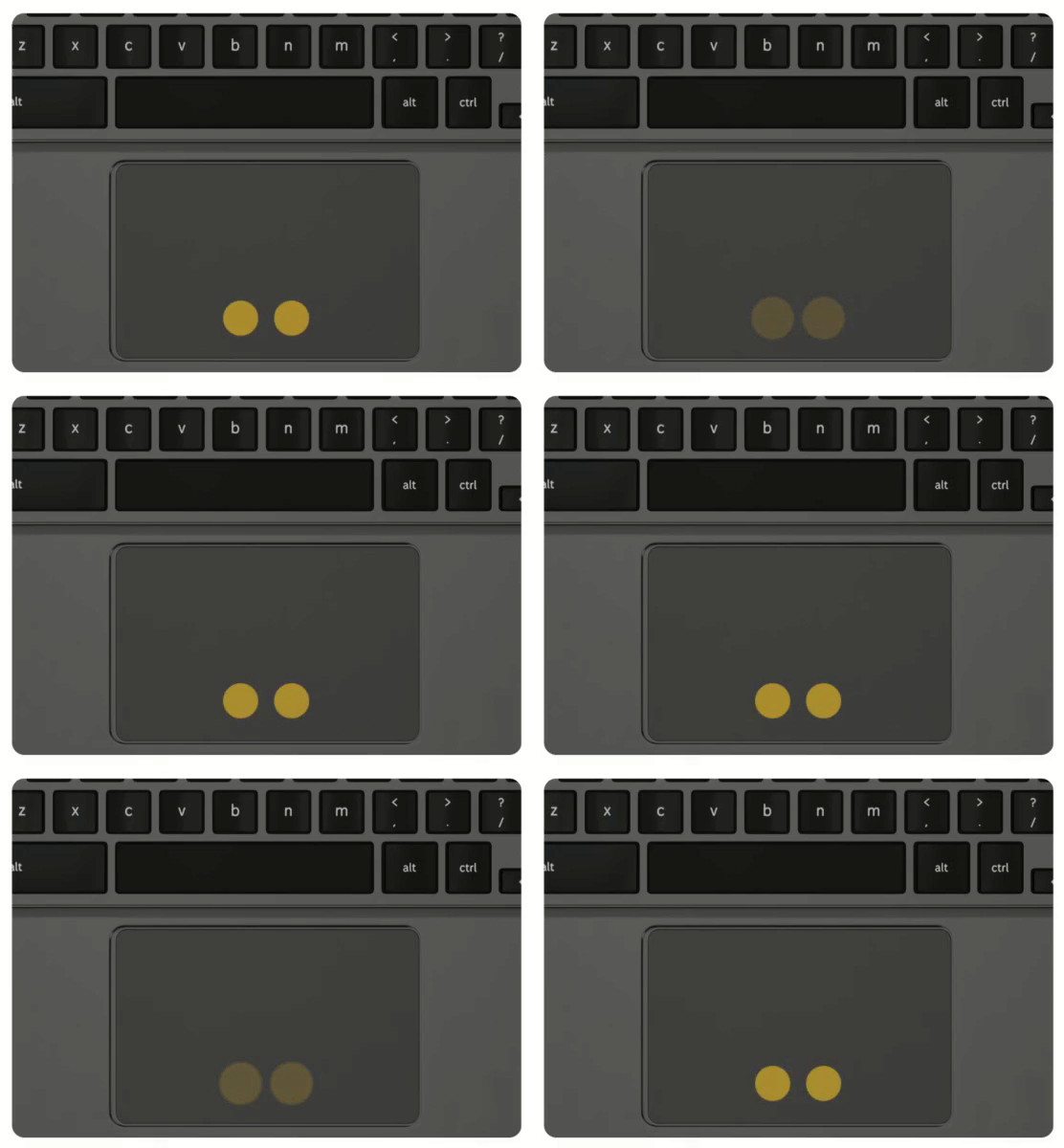
If you lightly tap, or click your trackpad with two fingers, a menu with multiple options will appear next to your cursor. This is the equivalent of clicking the right side of a mouse, or "right clicking." The menu that appears is context sensitive, and will change depending on what your cursor is clicking on. For example, if you click a link, it will give you the option to "open link in a new tab," or "open link in a new window."
Swipe with two fingers to scroll
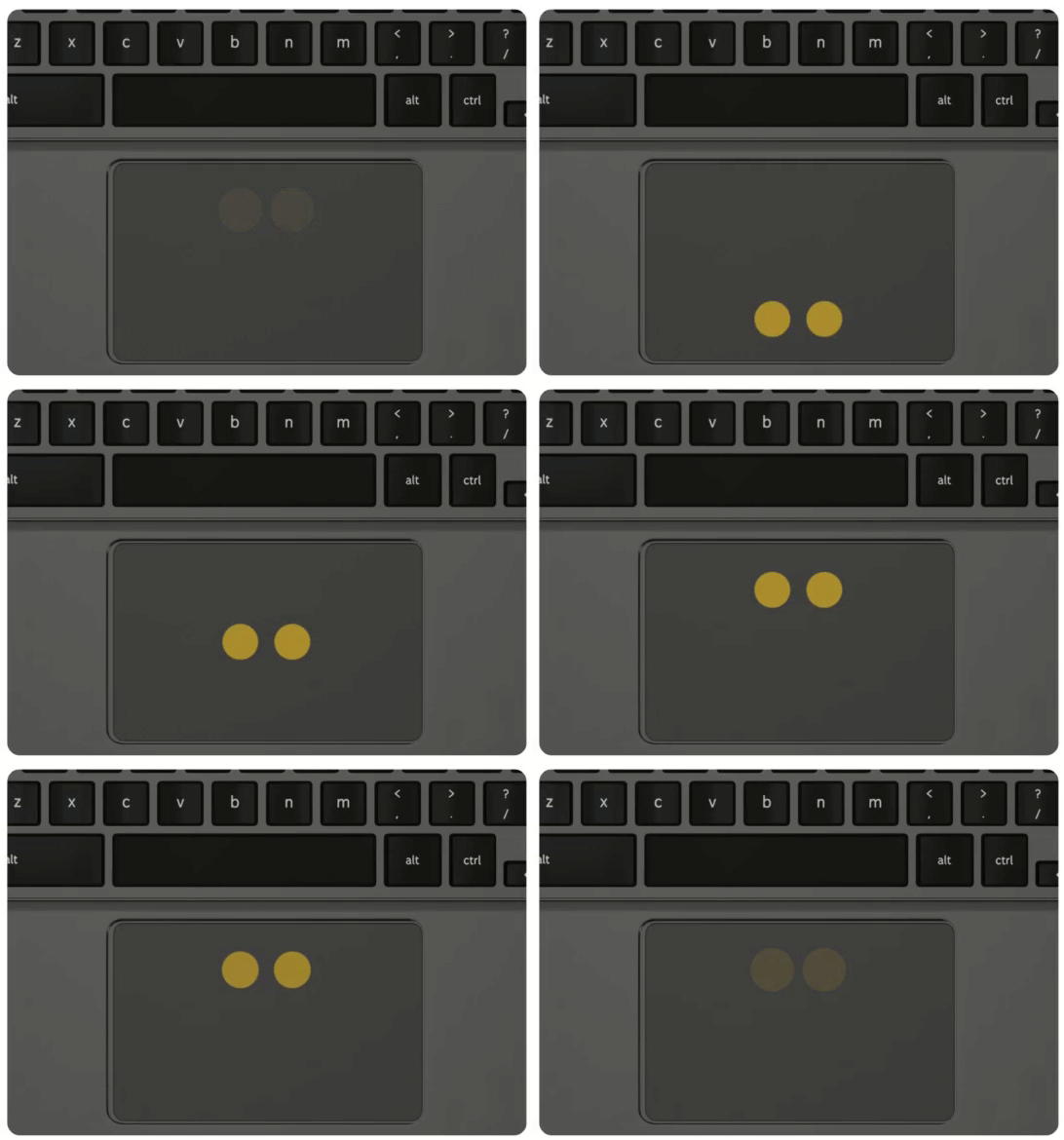
To scroll on a web page or document, place two fingers on the trackpad and move them up and down to scroll up and down, or left and right to scroll side to side.
Swipe left or right with two fingers to go "back" or "forward" between pages
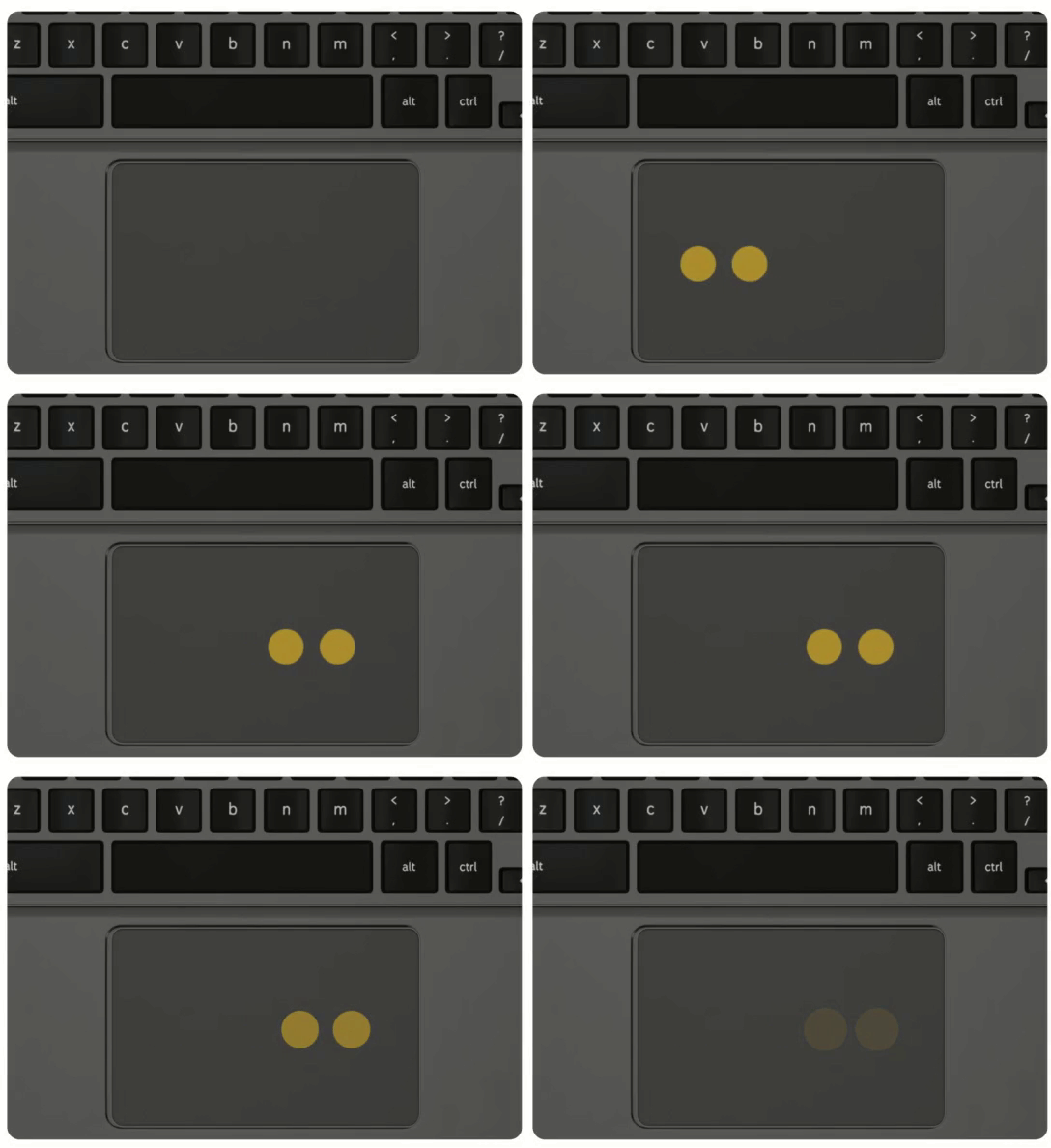
In chrome, to go back to a page you were just on, swipe left with two fingers. To go forward to a page you were just on, swipe right with two fingers. This works the same as pressing the "back" or "forward" buttons in chrome.
Tap or click with three fingers to open a link in a new tab
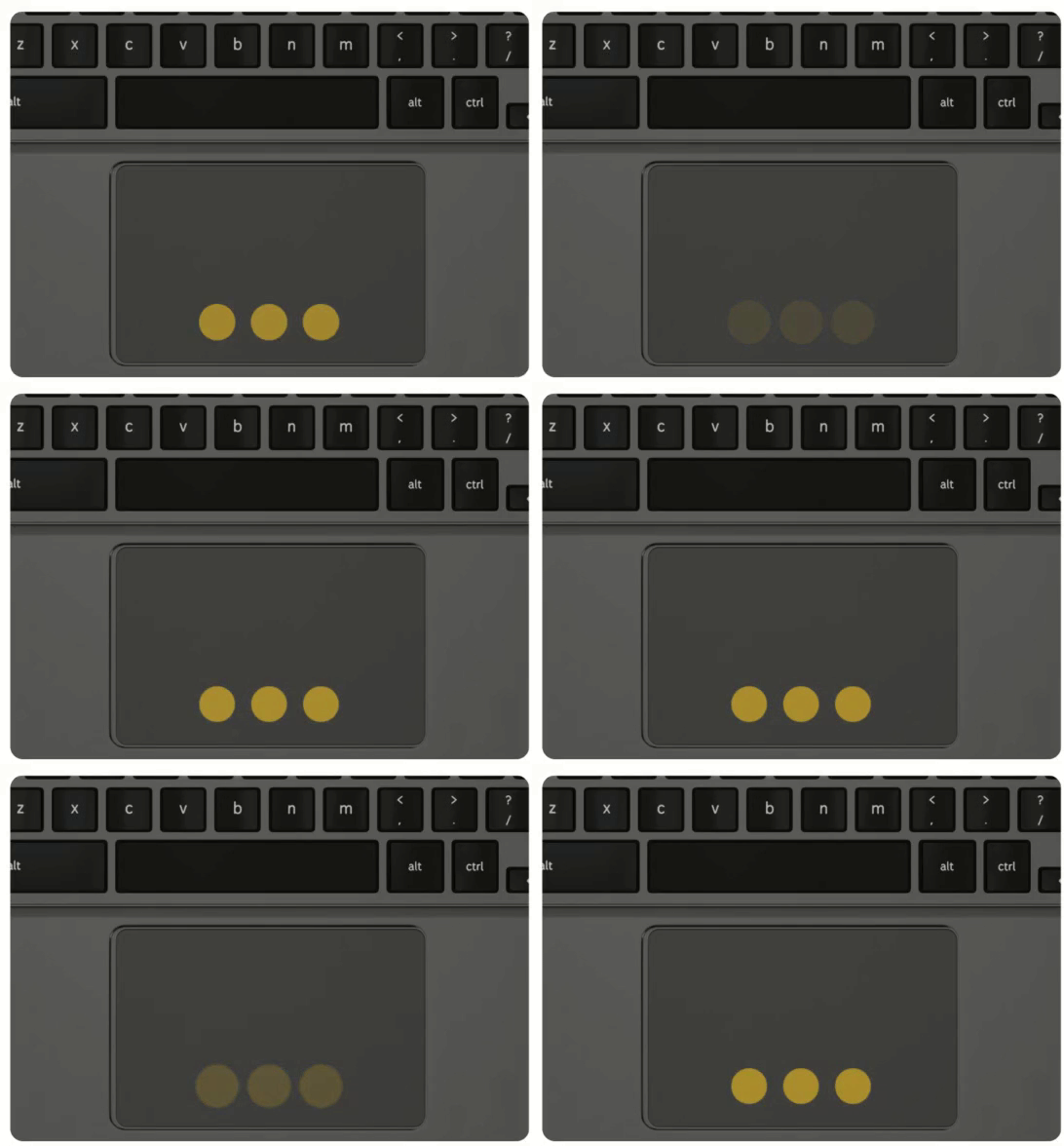
In chrome, to open a link in a new tab, move your cursor over the link, and tap or click with three fingers. A new tab will open for the link you clicked.
Swipe left or right with three fingers to move between tabs
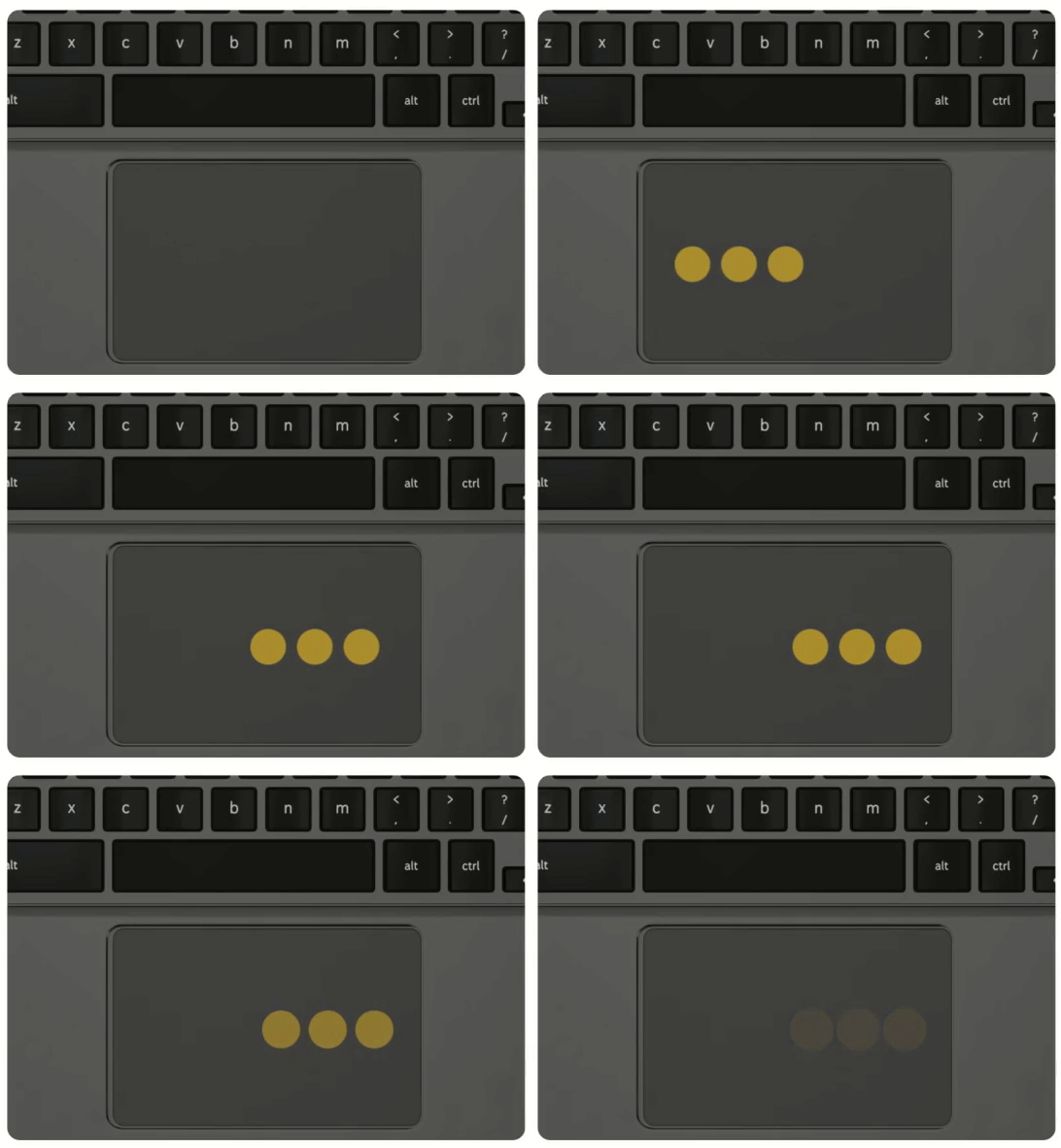
In chrome, to change which tab you are on, place three fingers on the trackpad and swipe left or right. While swiping, different tabs will light up, and you will automatically switch to them as you move your fingers.
Swipe down with three fingers to see all open windows
To see each window or app that you have open, place three fingers on the trackpad and swipe down. From here, you can click a window to open it, or swipe up with three fingers to return to the window you were last on.
If you have any questions, check out the following article to learn how to get in touch with tech support: