
If you ever need to copy text or an image from one place on your computer and paste in another place, you can use the "Copy" and "Paste" feature on your Chromebook.
Copying
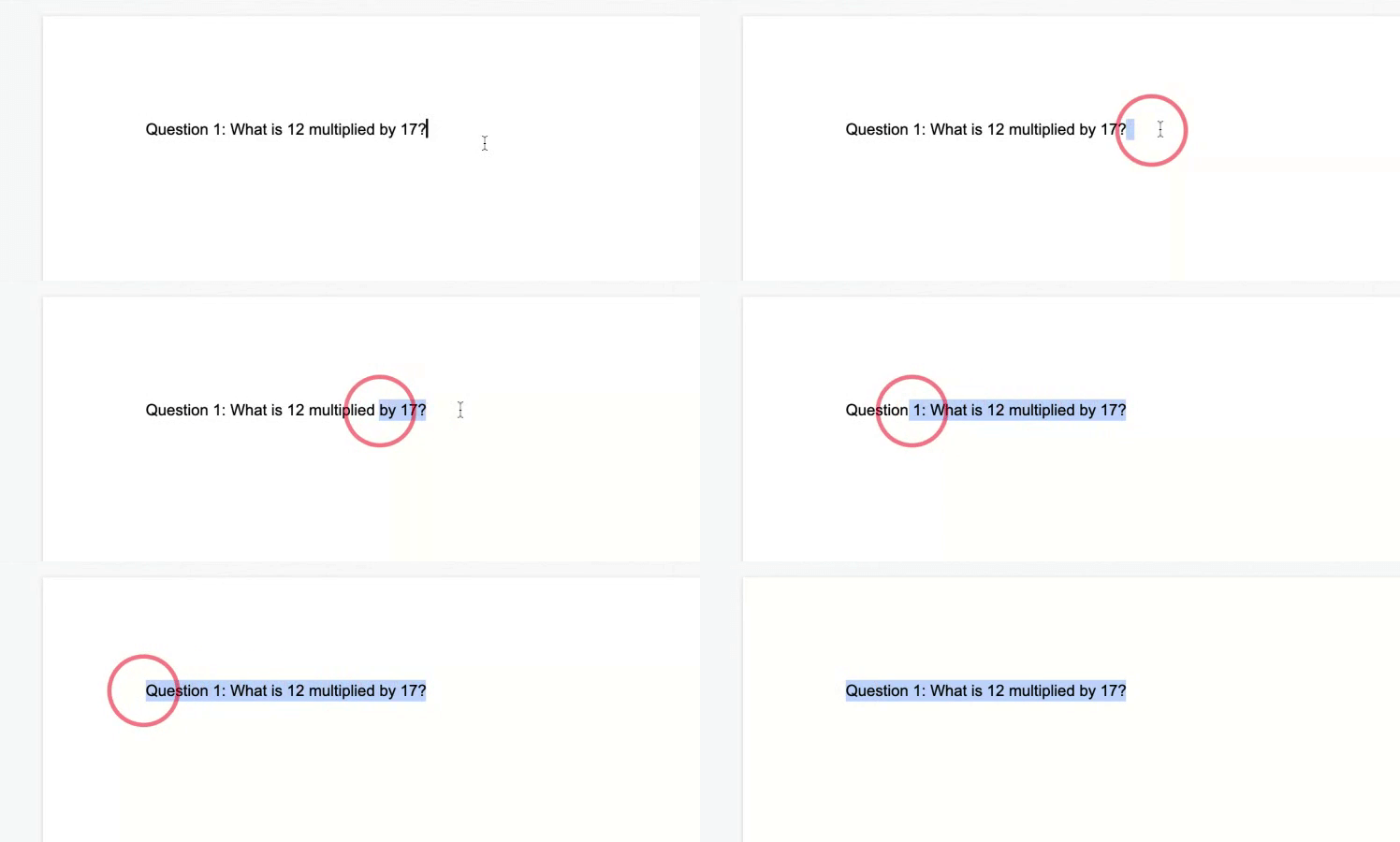
- To copy text or words, first highlight the text by clicking and dragging your mouse while still holding down on your trackpad or mouse.
- Next, hold down the alt button and click on the highlighted text, or tap on the text with two fingers on your touchpad.
- Click "Copy" in the menu that appears, and the text will be copied to your clipboard.
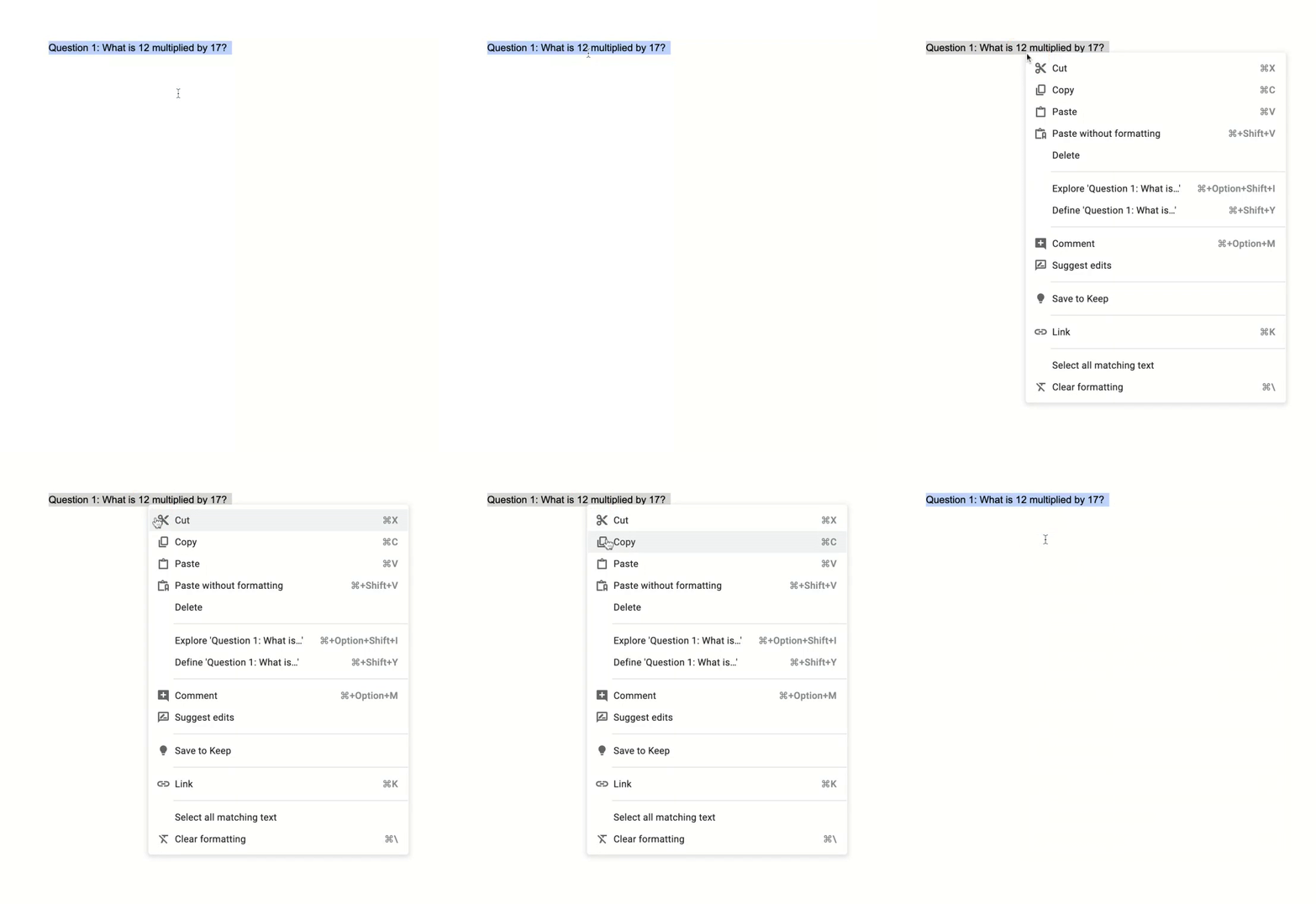
To copy an image or picture, hold alt and click on an image, and then select "Copy" in the menu that appears.
Pasting
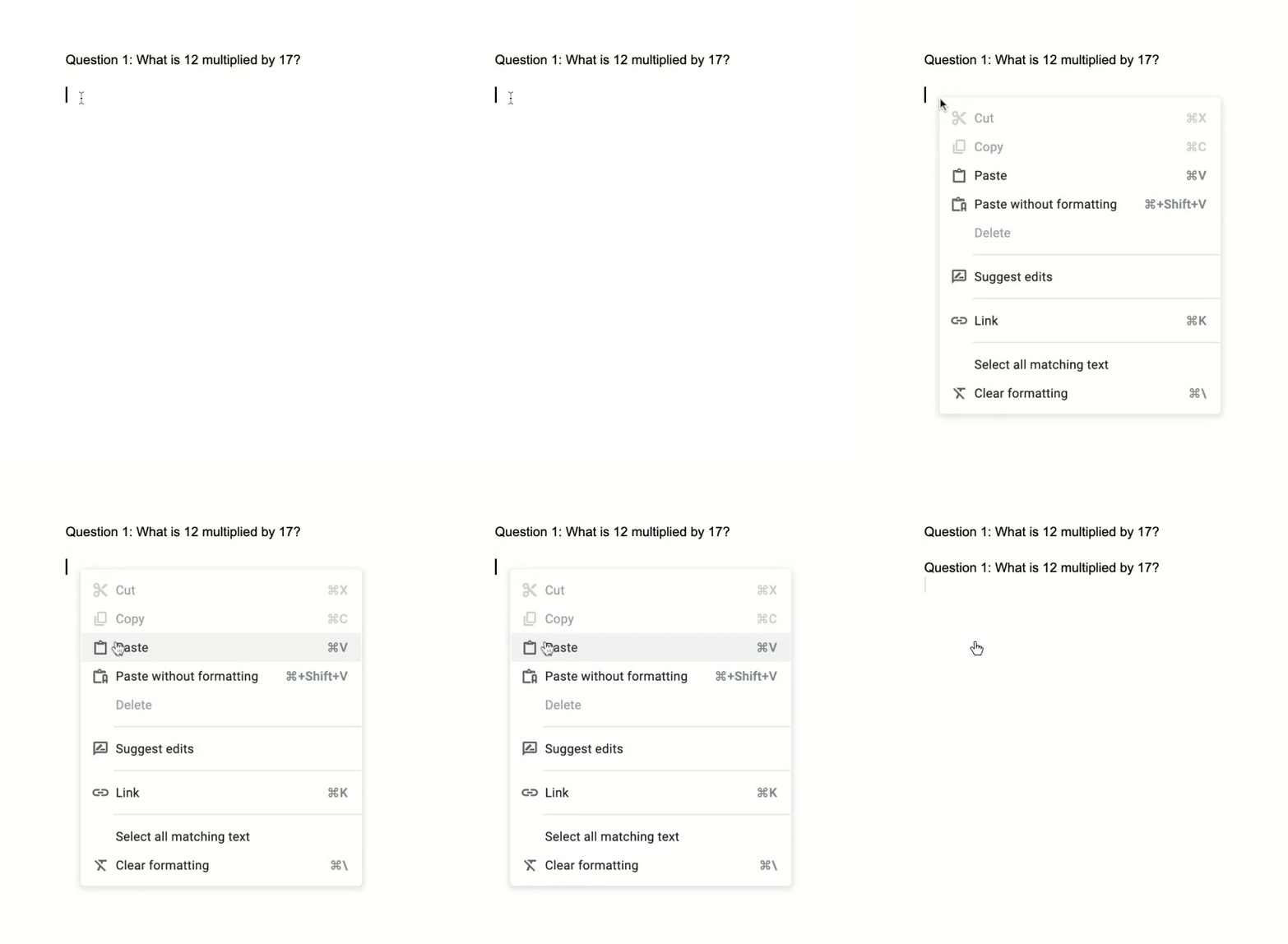
- To paste your text or image you copied to your clipboard, move your cursor
 to where you want to paste.
 - Next, hold down the alt button, and click on your touchpad or mouse, or tap with two fingers on the touchpad.
- Select "Paste" to paste your text or image.
Shortcuts!
Instead of pressing alt and clicking to select copy and paste from a menu, you can hold ctrl and press c to copy text or images you already have highlighted to your "clipboard", and then hold ctrl and press v to paste the last thing you copied to your "clipboard".
Check out this article for a full list of Chromebook shortcuts:
Which keyboard shortcuts are useful on my Chromebook?
If you run into any issues copy-pasting or require further assistance, check out the following page for information on how to get connected with the support team: