
Canvas has several apps so that students and parents can use to easily access Canvas content on a smartphone! This article is for Parents, Guardians and Observers--for more information about logging in to Canvas as a student on an IOS or Android device, check out the following articles.
How do I access ORCA programs on an iOS device?
How do I access ORCA programs on an Android device?
To access the Canvas Parent App, download it from the Apple or Google Play store, and open it on your smartphone. Make sure you're downloading the Canvas Parent app instead of the Canvas Student app--the Parent app will have a blue logo, where the Student app is red.
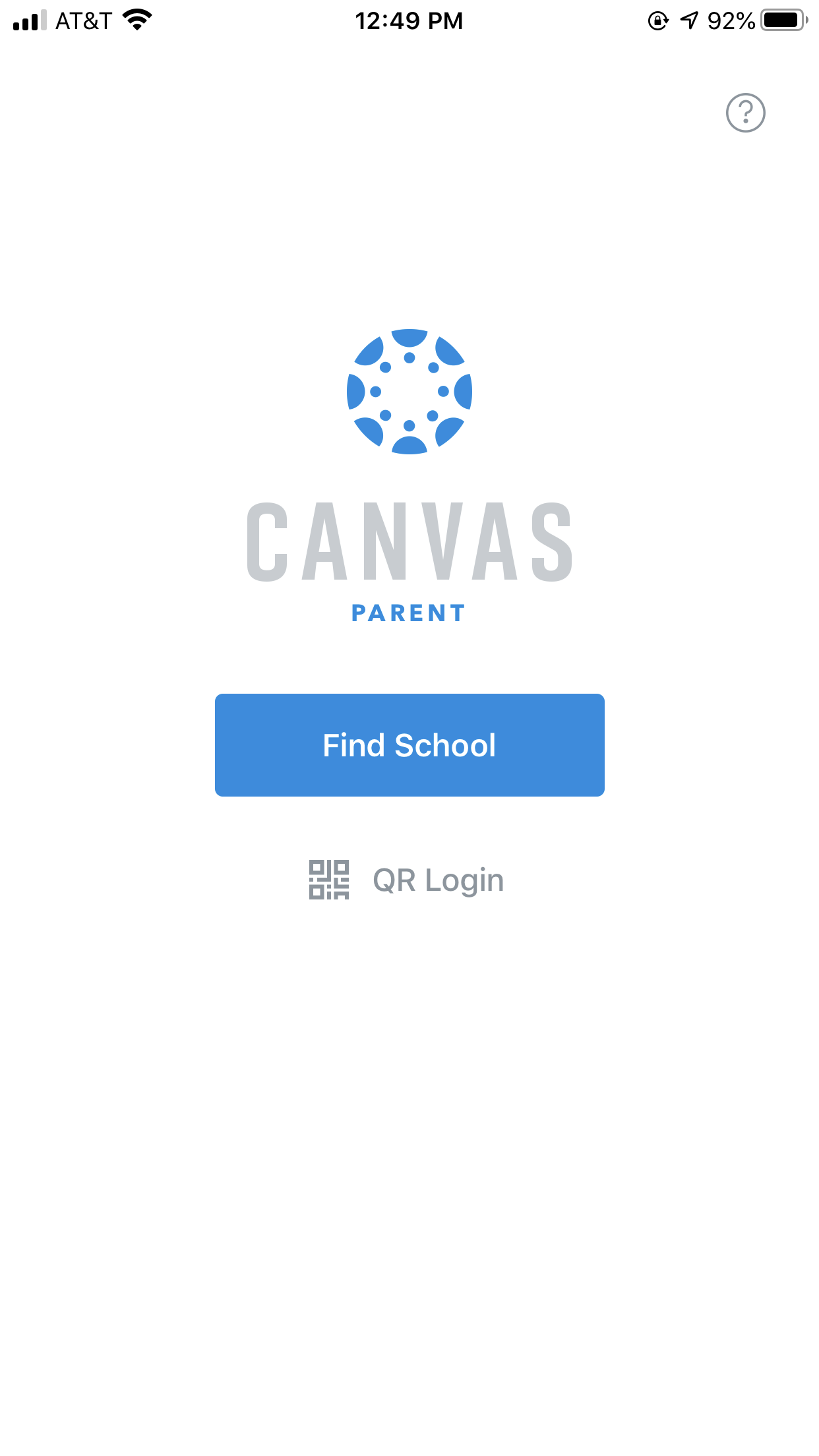
To log in, first click the Find School button.
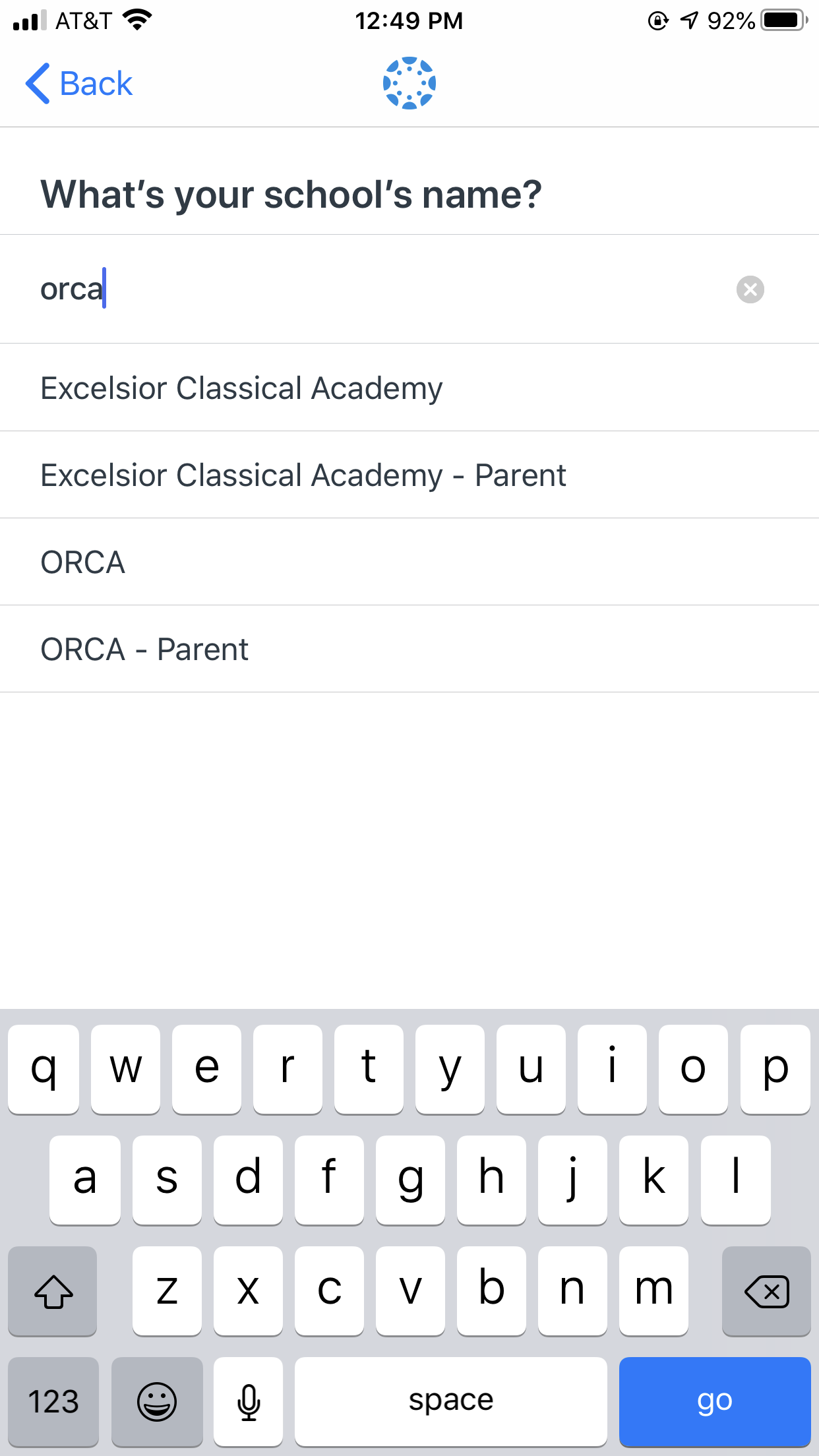
Under "What's your school's name?" type in ORCA--note that searching for Oregon Charter Academy will not return any results. Select the ORCA - Parent option.
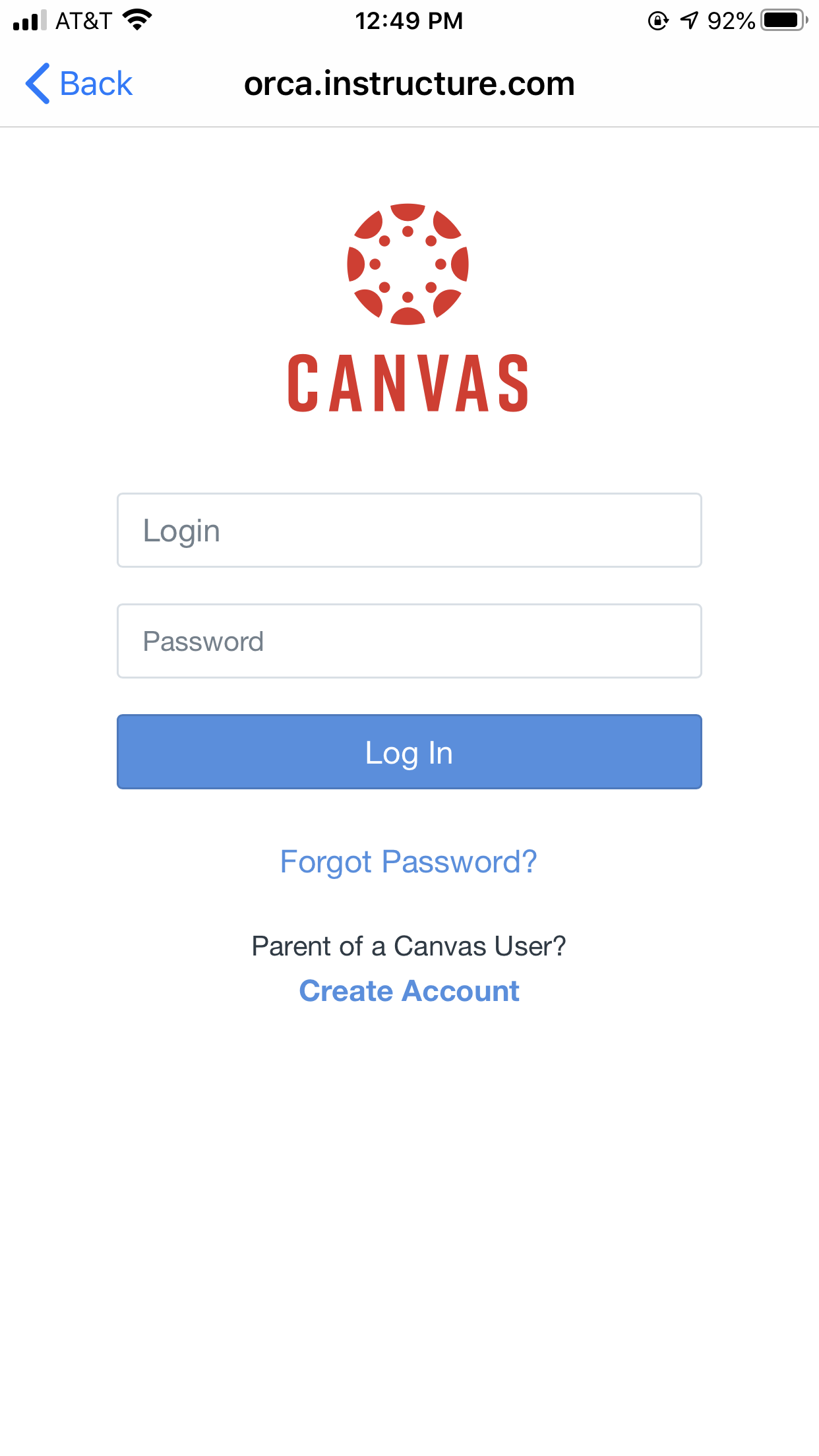
You will see the login screen below. If you've already created your account, you can use your email and password to log in to the Canvas Parent app. If you have not yet created your account, click "Create account" and use your student pairing code to set up your account.
That's it, you're logged in! Now you can view your student's calendars, assignments, grades, and more while on the go. For more information on using the Canvas Parent App, check out the following article:
What are the best uses of the Canvas Parent app?
Having trouble getting logged in to the Canvas Parent app? Reach out to our tech team for more help.
You can also check out our Observer Day in the Life course for a more in depth look into Observer Accounts.