
You may sometimes want to install an app or extension on your Chromebook--they can be very helpful for productivity, and can help you do things like hear written text read out loud! It's easy to install an app or extension on your Chromebook, just follow these steps.
1. Open Chrome and go to the Chrome Web store (you can find it by Googling chrome web store).
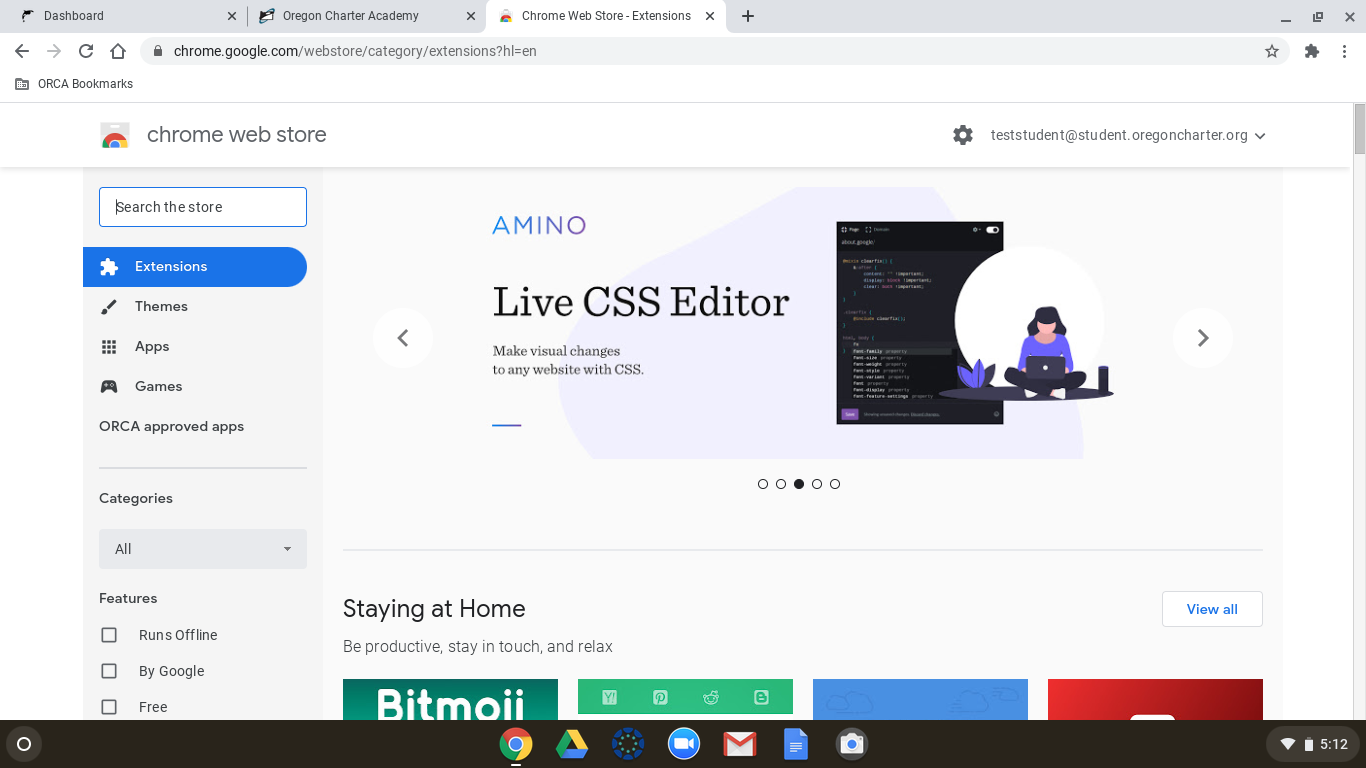
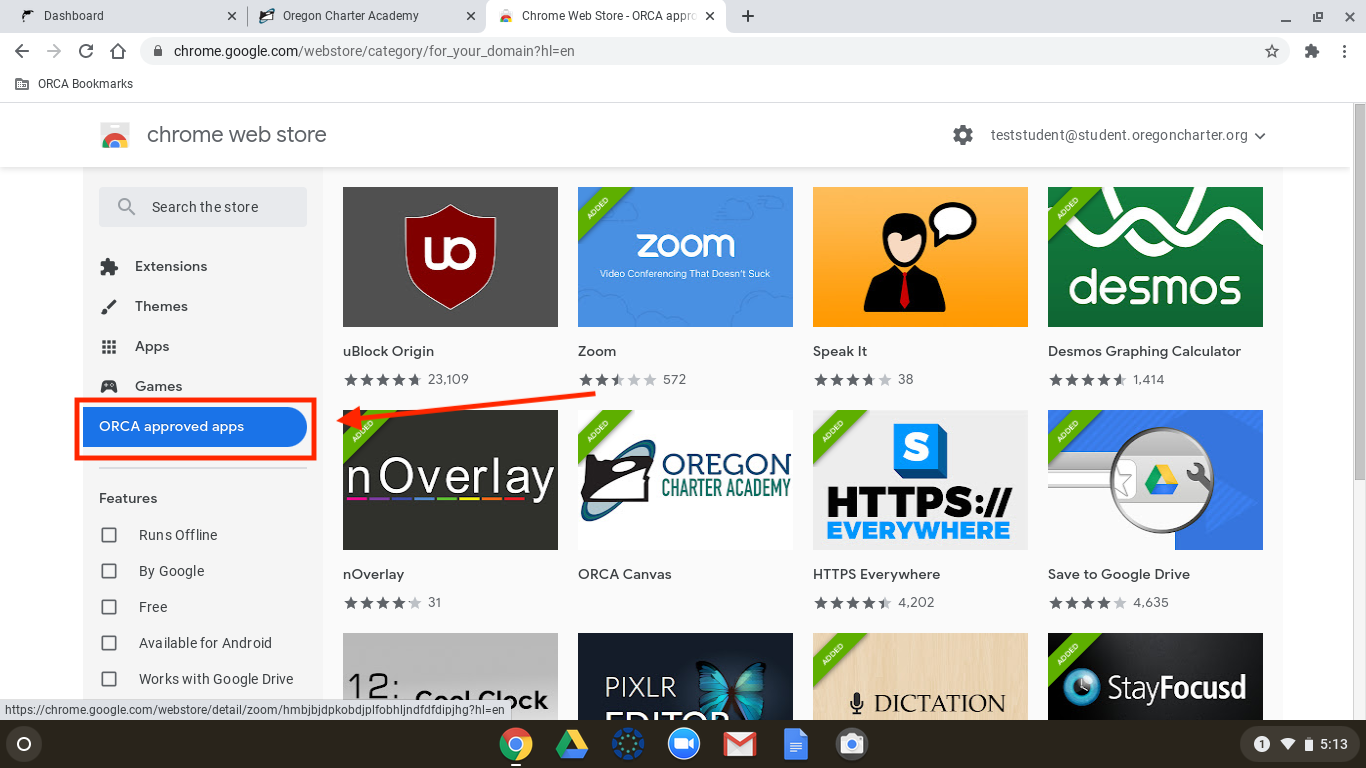
2. If you already know what app or extension you want, you can click in the "Search the store" box and start typing the name. If you don't, you can click on ORCA approved apps on the left hand side of your screen to browse approved apps.
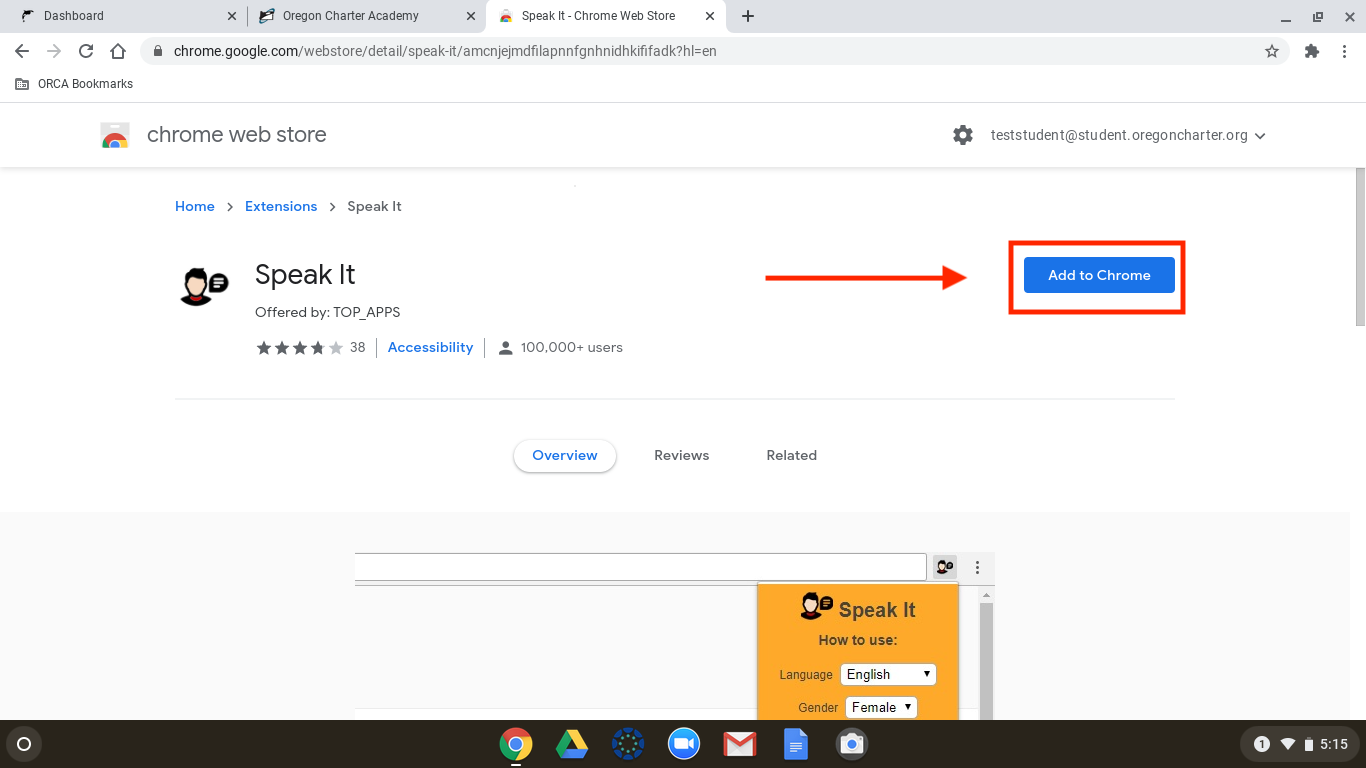
3. Click on an app to see an overview, and to install it! Once you're on the page, all you have to do is click the blue Add to Chrome button in the top right corner. Then, click Add extension. If you see a message saying that the app has been blocked by admin, that means it's not an approved app or extension.
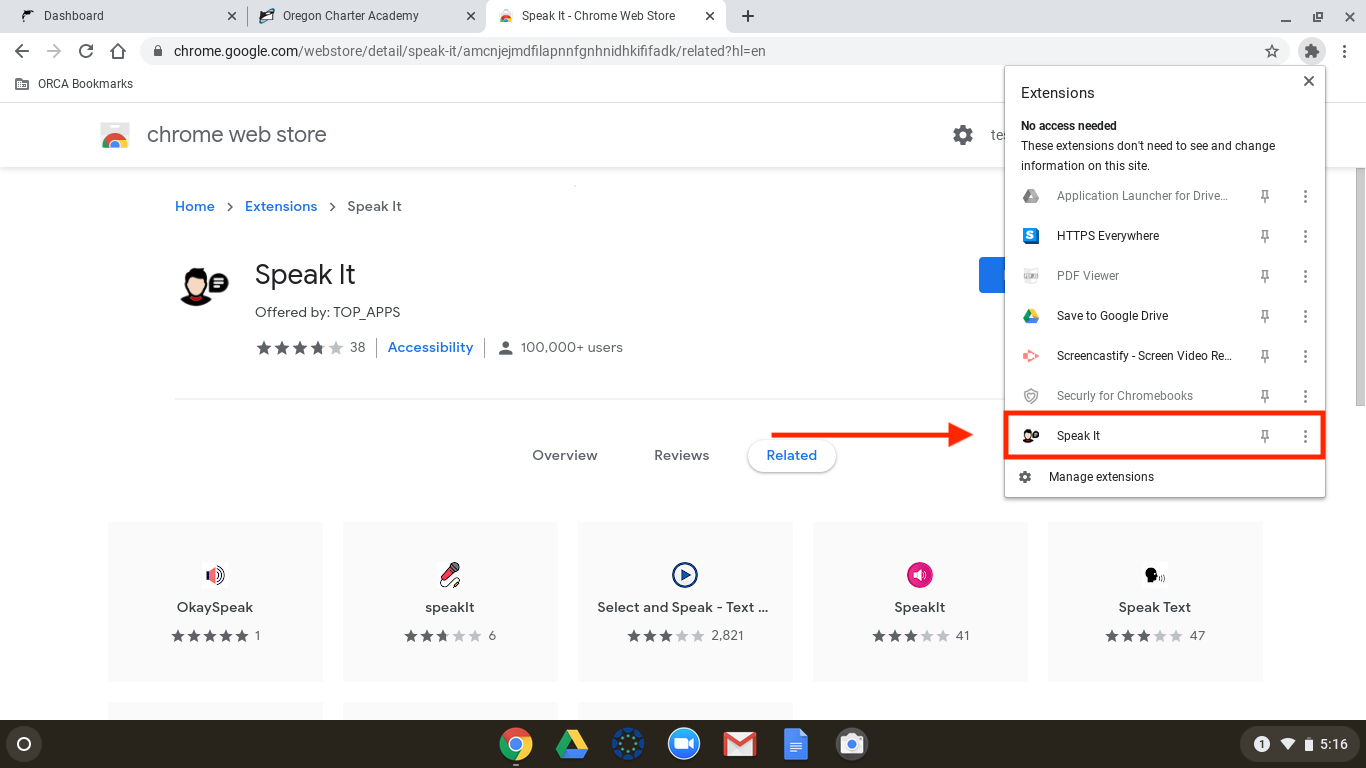
4. Your extension has been added to Chrome! You can see it by clicking the puzzle piece in the top right of your screen. Click on the extension to use it! If you'd like it to show up without clicking on the puzzle piece, click the Pin icon beside it to pin it to the top of your browser.
That's it! ORCA teachers can request educational apps or extensions to be added to the approved list. To submit a request, please let the teacher know to contact the tech team! If you need more help, feel free to reach out to the tech team by following the steps in the article below.