
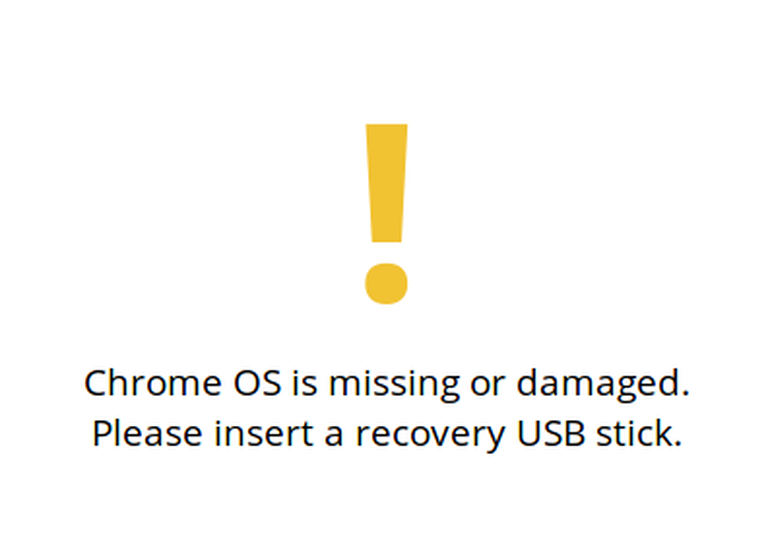
If you come across an error message that looks something like the image below when you open up your Chromebook, follow the steps below to get back to your school work as quickly as possible.
1. First, reach out to tech support to request that one of our support agents perform a 'powerwash' (or factory reset) on your device.
- Please be aware that this will erase any information saved on your Chromebook's hard drive. Fortunately, most of your work is probably saved to Google Drive or Canvas, so you will only lose any photos, videos, or downloads saved in your Chromebook's files.
2. If the powerwash doesn't work, and you have access to a USB flash drive with 8gb of free space, feel free to attempt an OS recovery by following the steps laid in this resource from Google.
3. If you don't have access to a USB flash drive, or you simply don't feel comfortable attempting a recovery, please reach out to to the support agent you were working with before to request a replacement Chromebook. The support agent will talk you through the process.