
Sometimes you need to move a photo off of your phone or tablet onto your Chromebook for homework. Follow along below to be able to do this:
USB Cables
Your Chromebook is set up to take two types of USB cables -- USB A and USB C. Here are some of the most common cables you might run across:
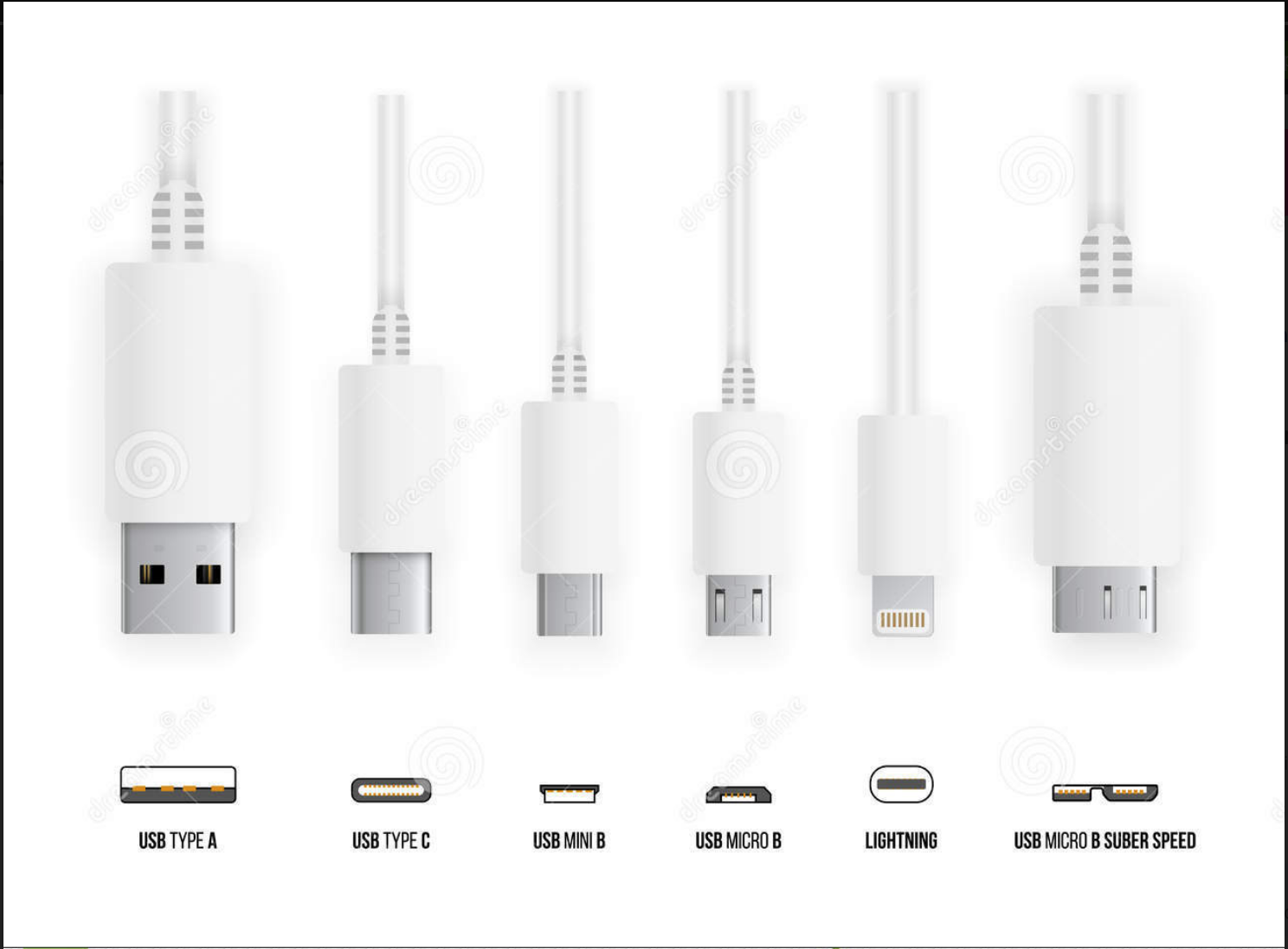
Typically, the USB Type A end that you see in the above picture will be plugged into your Chromebook and the other end into your device. Depending on the type of phone or tablet that you have, your cable will look differently -- if you don't see your cable above, it may be best to look at your manufacturers website for more information. Your specific phone or tablet set up may be unique -- once you plug it in, you might need to okay it connecting to your Chromebook.
Phone or tablet is plugged in
Now that you have your USB cable plugged in to both your Chromebook and phone or tablet, it's time to find it on your Chromebook!
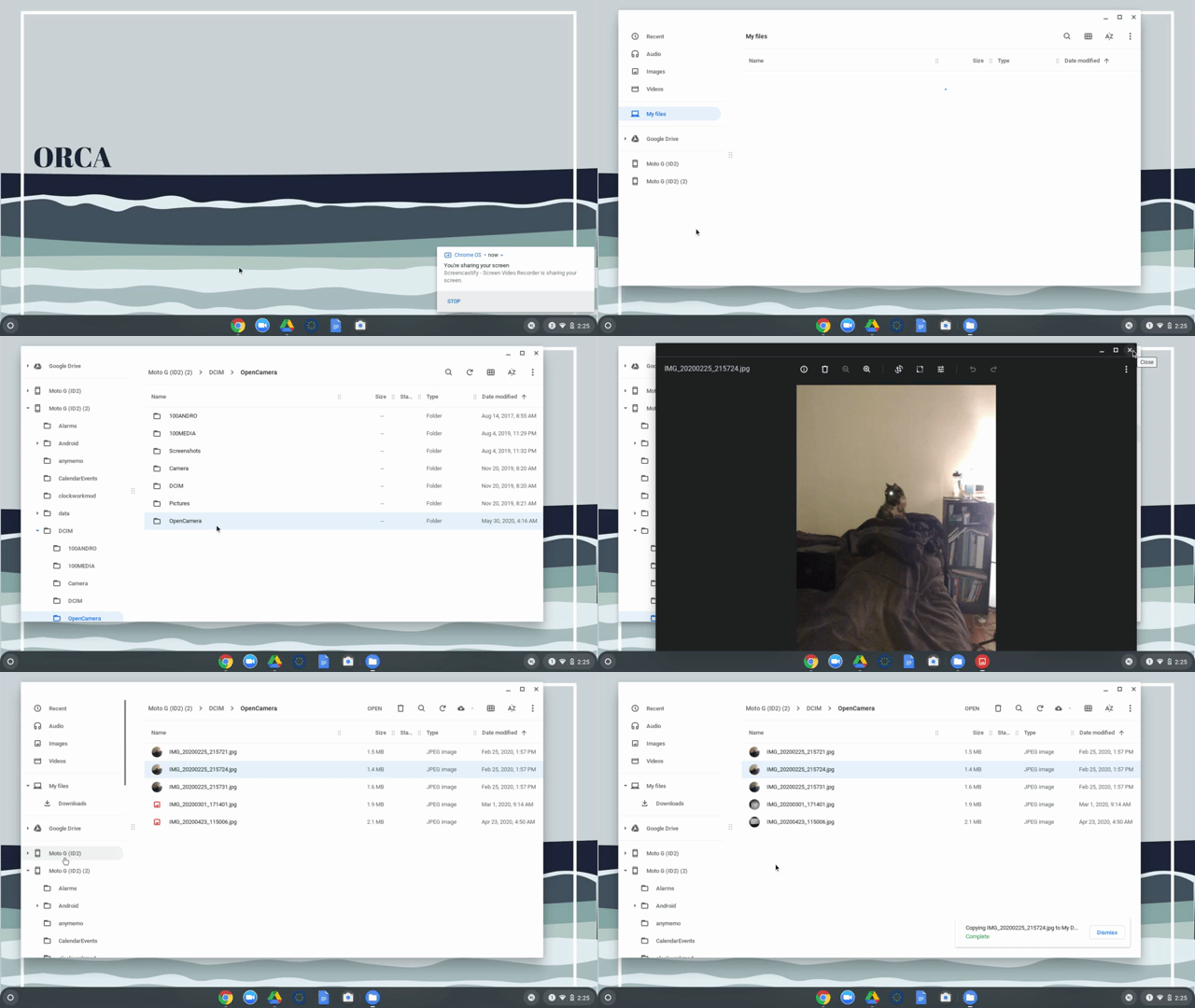
- Click on the white circle icon in the bottom left corner of your Chromebook to pull up your apps and open the Files app.
- You should see your device connected on the left side of the screen -- your device name will typically be the model of phone or tablet but this can vary.
- Navigate to your photos folder, this will depend on your phone or tablet as well as the app you use but normally will be saved in your Pictures folder.
- Find the photo that you want to use.
- Once you've found it, drag it into the Google Drive folder -- now this is available in your Google Drive!
- You can now disconnect your phone.
Having trouble?
If you're not able to get your phone to connect or aren't seeing some of the above steps on your Chromebook, don't hesitate to get in touch with our support team!