
Chromebooks do not have a built in clock app, which can make it a little confusing to change time zones, and set alarms or reminders while using your Chromebook. This article will walk you through options for each of these issues!
Setting reminders using Google Calendar
Changing time zones
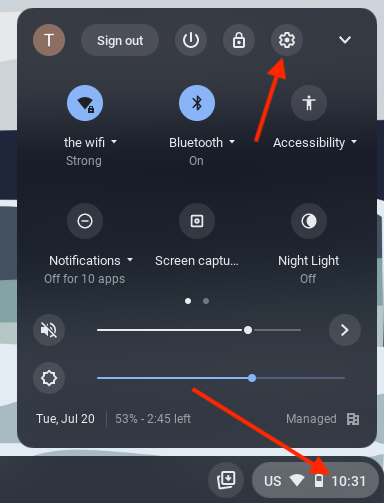
To change the time zone your Chromebook's clock is using, click the time in the bottom right corner of your Chromebook, and click the gear icon to open your settings.
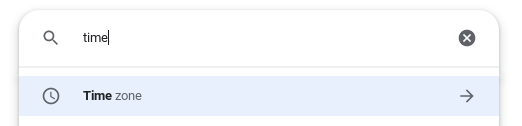
In the search bar at the top of the settings menu, search for "time," and select "Time zone."
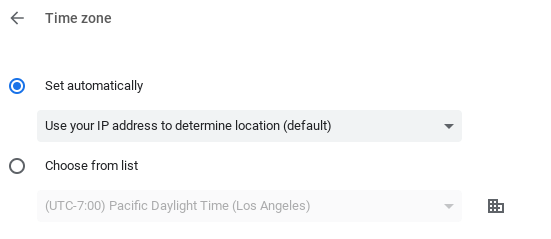
Then, select "Set automatically" to have your Chromebook detect your time zone based on your location. This will only work if you are connected to the internet.
Automatic selection can sometimes be inaccurate, so if the wrong time zone is selected automatically, you can select "Choose from list," and use Pacific Daylight Time to make your Chromebook switch to the same time zone ORCA uses (or to whichever time zone you would like to use).
Setting an alarm or timer
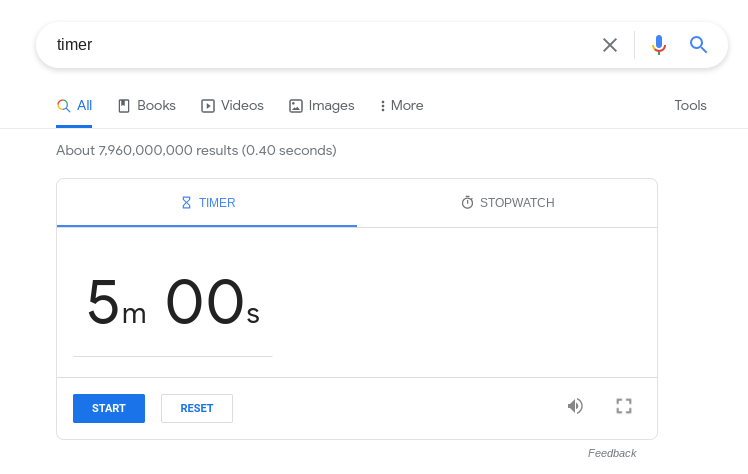
Unfortunately, Chromebooks do not have a built-in alarm or timer function. If you don't have a phone available, and want to set an alarm on your Chromebook, you can find a variety of online alarm clocks by google searching for "alarm." Additionally, google has a free timer available, if you google search "Timer." As long as your Chromebook stays on, and you don't close the timer tab, Google will sound an alarm after the set time has been reached.
Setting reminders using Google Calendar
Since recurring alarms cannot be set on a chromebook, you may find it useful to create a recurring calendar reminder to remind you of your class times, or any other events or deadlines. Follow these steps to create a calendar event with notification reminders:
- Go to calendar.google.com
- To create a new event, click on the date and time you want to create the event for, or follow the steps in this guide for additional options.
- Add a title, and select "Reminder" to make your event a reminder.
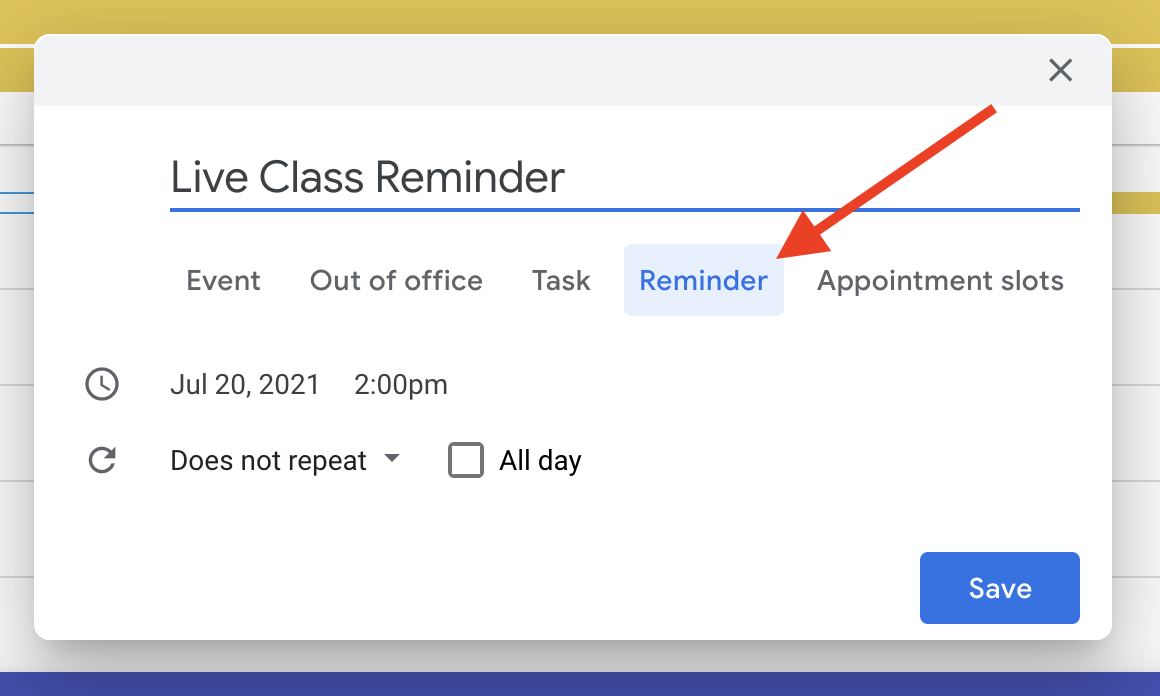
- You can click the drop down menu that says "Does Not Repeat" to change the event to a repeating event. This can be useful for weekly live class reminders.
- Click "Save" when you have finished setting your reminder's details.
- If this is the first time you have created a calendar event or reminder, you will be prompted to enable notifications from Google calendar:
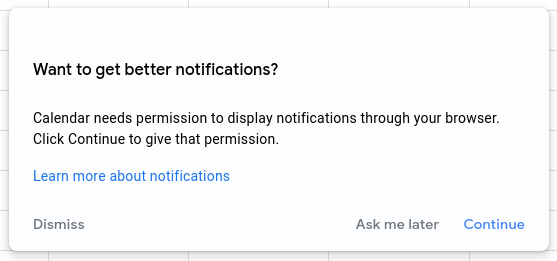
Click continue, and then click "Allow" in the prompt that appears to ensure that you are notified about the reminder.
If you have any additional questions about using the clock on your Chromebook, or setting timers and reminders, please don't hesitate to get in touch with the Tech Team: