
Sometimes you will need to take a picture with your camera built into your Chromebook. When you use the Camera app, how do you save your photos, and where do you find them? This guide will show you how to accomplish this.
NOTE: Try out these guides if you are trying to take a picture or video within a canvas assignment, or a Canvas Discussion.
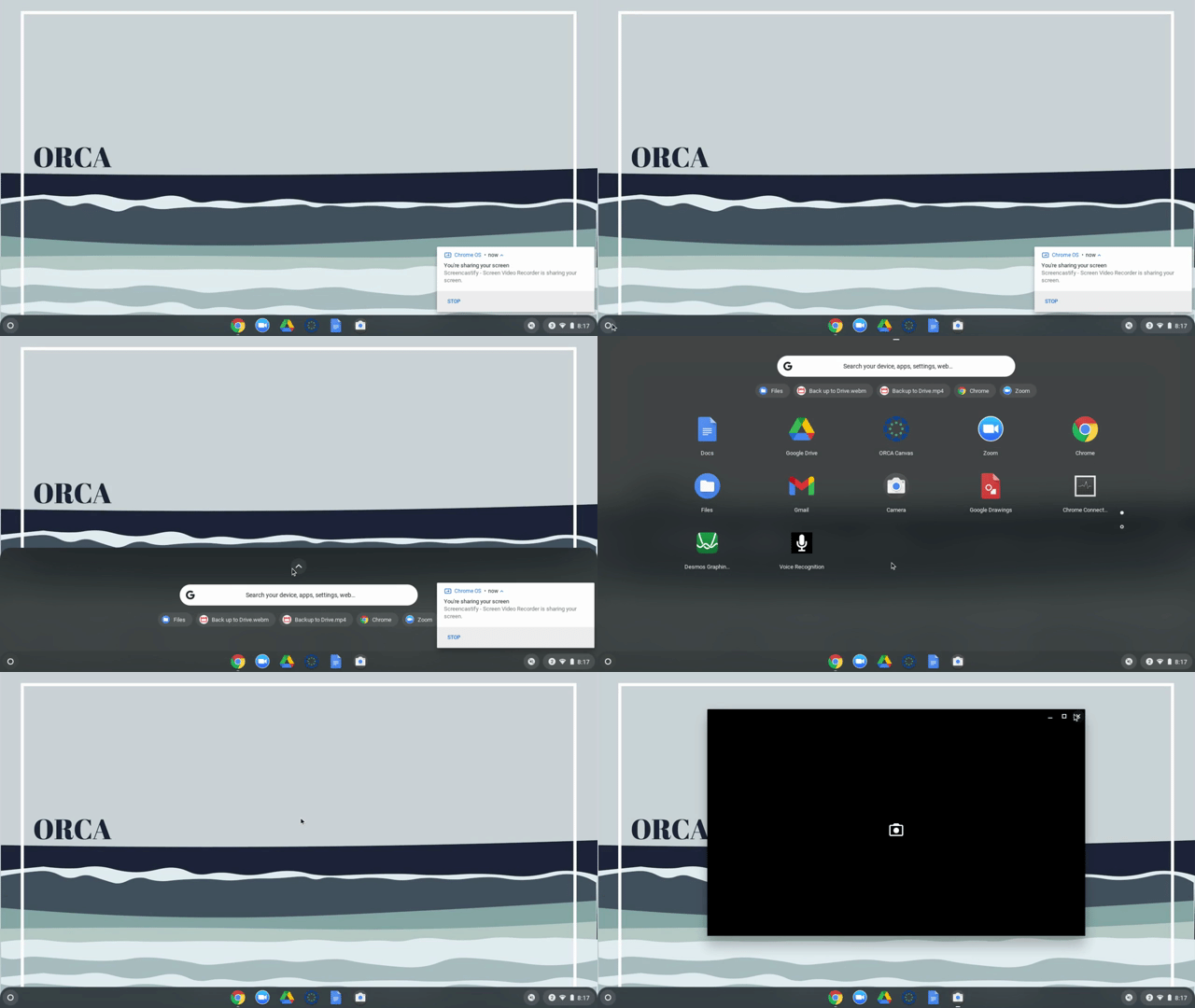
1) Open The camera app on your Chromebook. If you need help finding the app, follow along to our guide here.
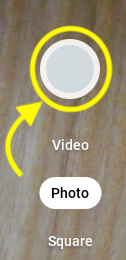
2) When you are ready, click the picture button to take your picture.
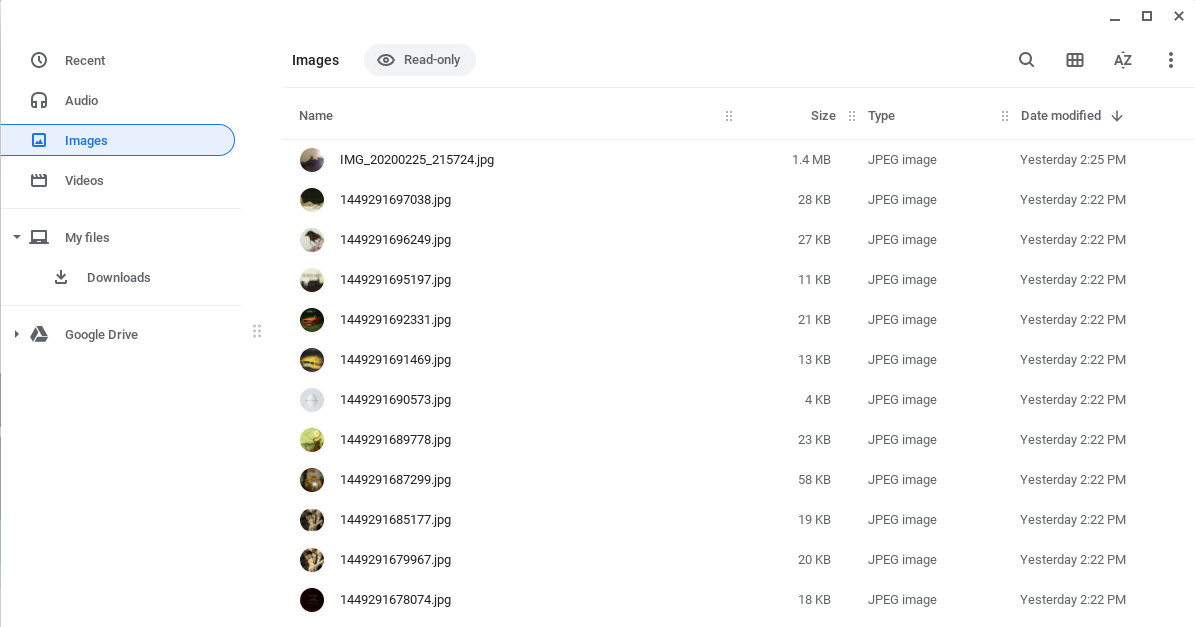
3) Your photo has been taken and is now saved to your computer within the Files app under Images. View your image by opening the Files app following step 1 again, but open Files instead of Camera. On the left side of this Files window, click on Images. Here you will see your most recent screenshot at the top of the list in the middle of the Files window.
Feel like you need your images saved to your Google Drive online? Learn how to do that with one of our other guide articles!
If you run into any issues, or have any question about your pictures, please refer to the following article for how to reach out to tech support: