
Canvas is automatically set up to send notifications to your ORCA Gmail inbox. If you want to turn these notifications off, or change how often you receive them, follow these steps.
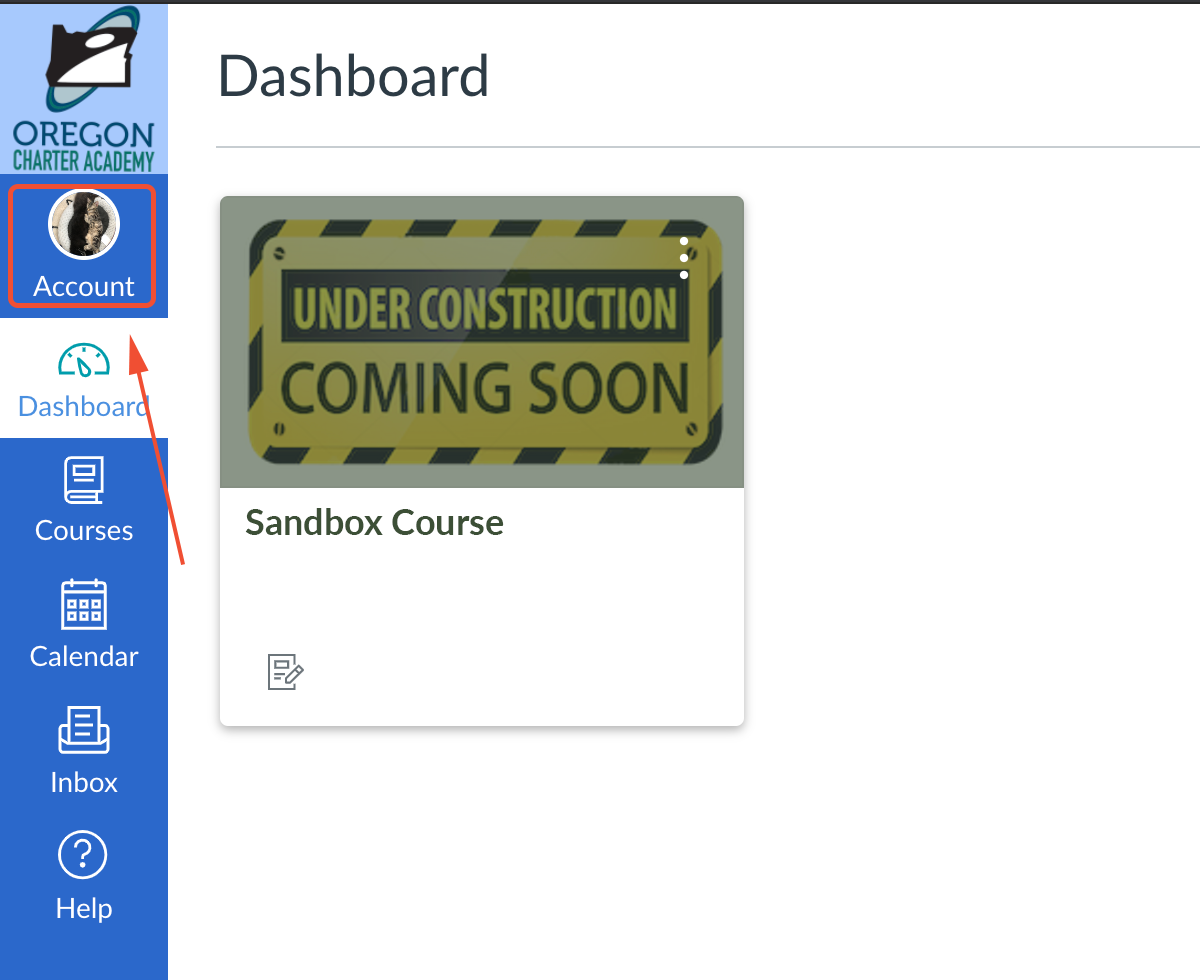
- Go to Canvas and click on Account in the top left corner of the page.
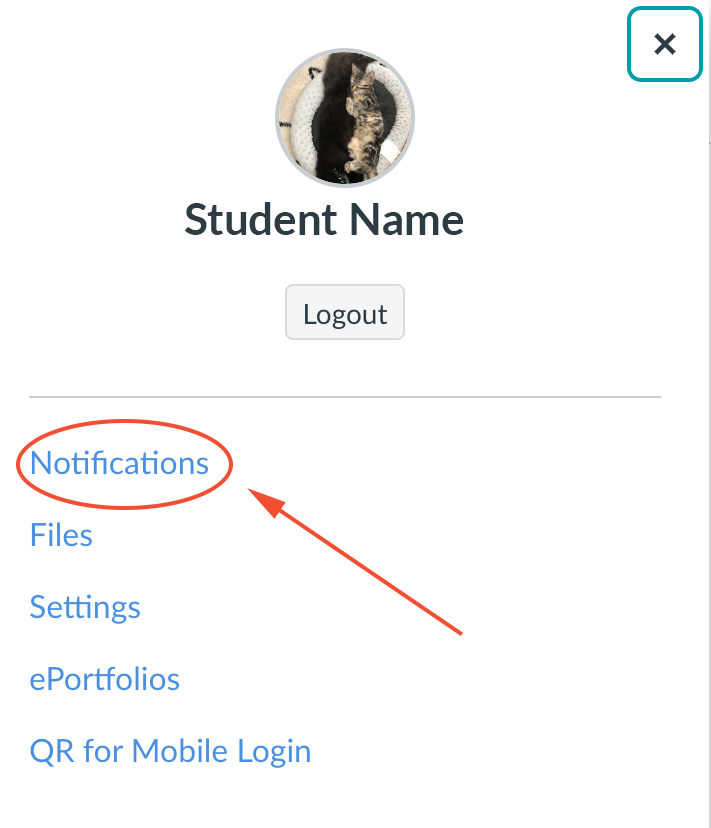
- Select Notifications from the pop-out menu.
- Here, you can set your notification preferences for each of the Course activities listed. You can choose between
Notify me right away
Send Daily Summary
Send Weekly Summary
Do not send me anything
The selected preference for each course will be highlighted in green. - Scroll down the list to select your preference for each activity!
If you would like, you can also edit your notifications for a single course in Canvas. This can be helpful if there is one course you don't need to receive notifications from, but you don't want to turn off all your notifications. The following article includes instructions for how to do so:
How can I change notification settings for a single course in Canvas?
If you are having any problems with setting your Canvas notification preferences, check out this article for instructions on getting technical support:
How do I get technical support?