
In some assignments, your teachers may enable Turnitin's similarity report. This report will estimate the similarity of your submission to other documents online, and documents that have been submitted by your peers, to detect plagiarism. Follow these steps to review the similarity report for a submitted assignment:
- Open your Canvas course, and click "Grades" on the left to view your course grades.
- Assignments that have been given a similarity report will have a flag on the right. The color of the flag indicates the similarity score that your submission received.

- Click the flag, and the report will open in a new tab.
Note: If this is your first time viewing the report, a prompt will appear to begin a tour of different settings available for the report. You can review the tour at any time by clicking the question mark icon, and selecting "View Tour."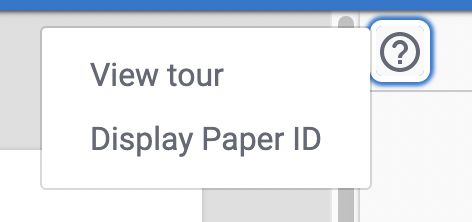
- If you believe your work is being scored unfairly, or if part of your assignment (like a quoted section or bibliography) needs to be excluded from the report, we recommend reaching out to your teacher for assistance.
The following link includes a full list of Turnitin guides available for students:
Using Turnitin with Canvas as a Student