
While most students are in the Pacific Time Zone, some students in Eastern Oregon fall into Mountain Time, or students may be traveling outside of the state with their computer! If they don't update their time zone, all of their live classes will show Pacific time and students may not realize that this isn't updated.
If you fall into any of these categories you can use the article below to help you. If you would like to skip to a particular section you can use one of these links.
How to Find Your Time Zone
Changing Your Time Zone
How to Find Your Time Zone
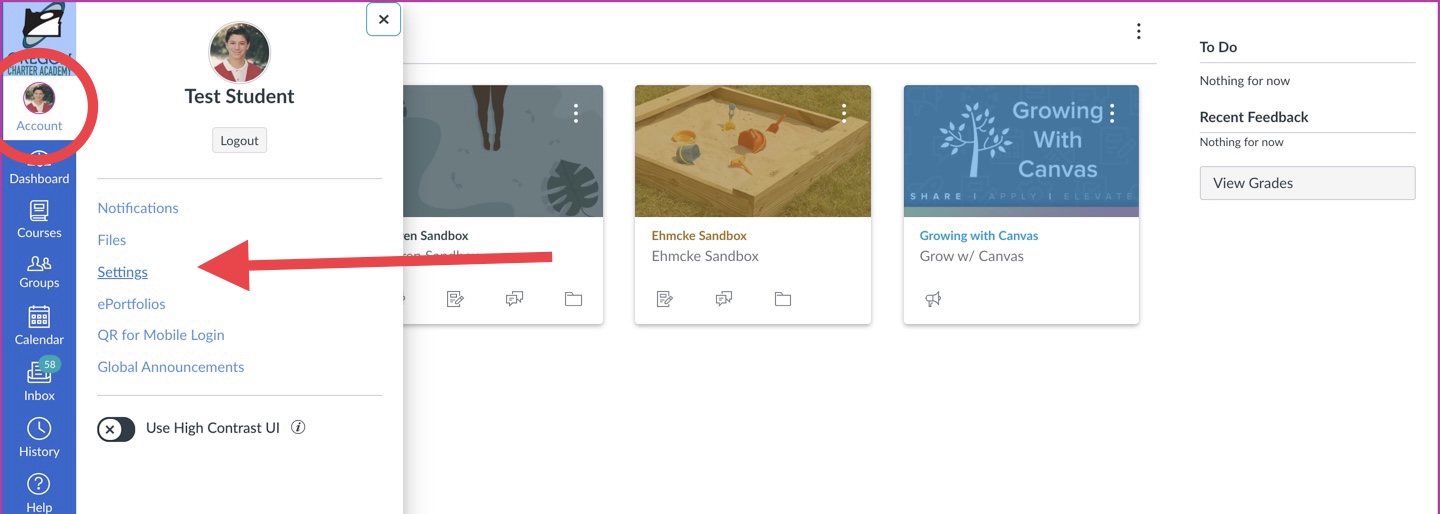
If you want to know what time zone your Canvas account is currently set to or you want to update your time zone you will first need to find your time zone status. You can do this by accessing your account settings. Start by logging into Canvas. You can select your picture to access your account and then select "settings".
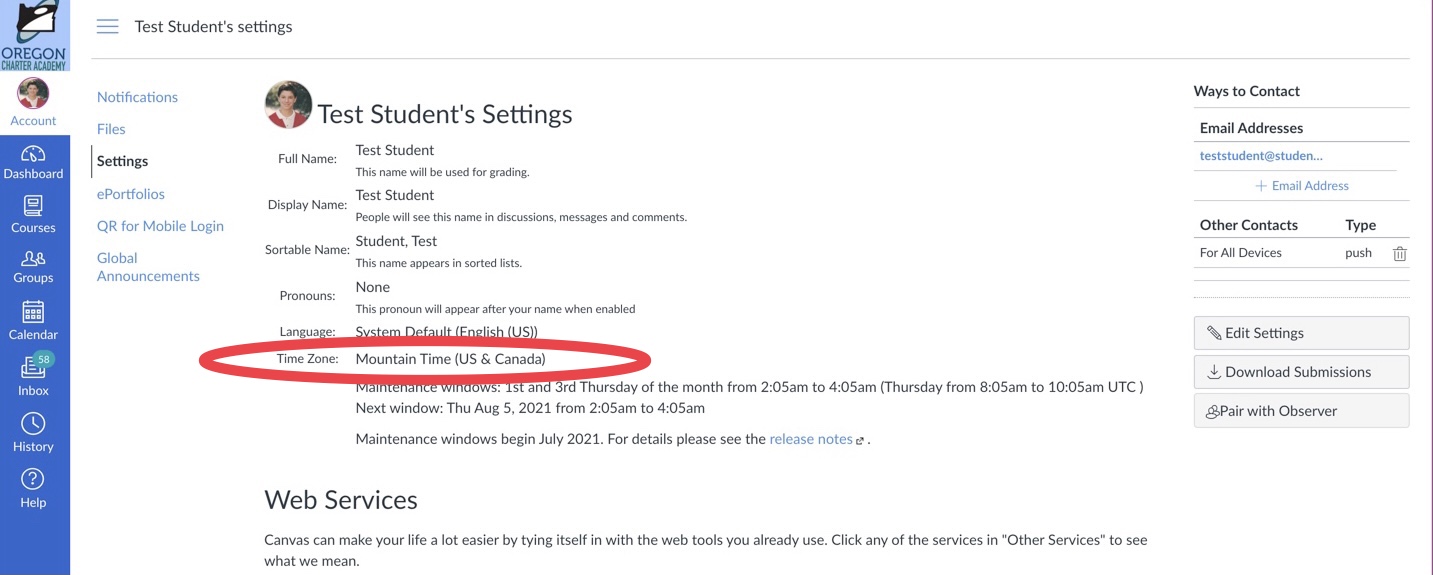
Within the setting tab you will see all of your current account settings. You will be looking for the section that says "Time Zone:".
Changing Your Time Zone
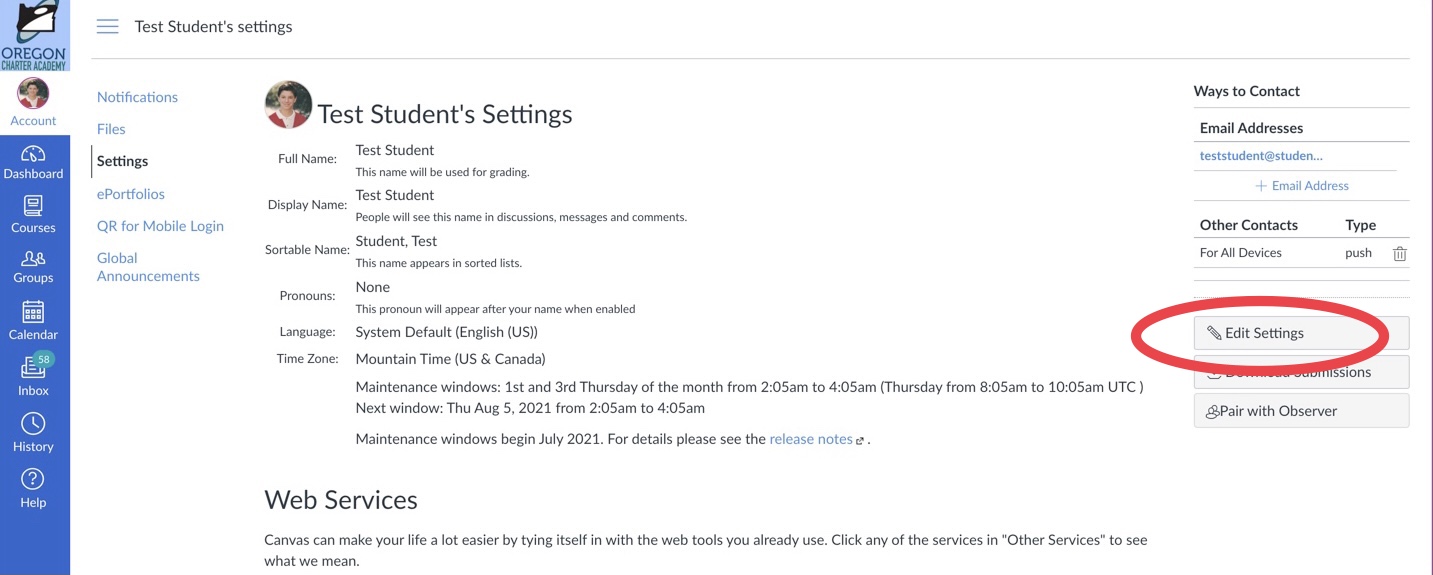
If you would like to change your time zone look to the option that says "Edit Settings".
Once you have selected your desired time zone you will need to save your changes by selecting "Update Settings".
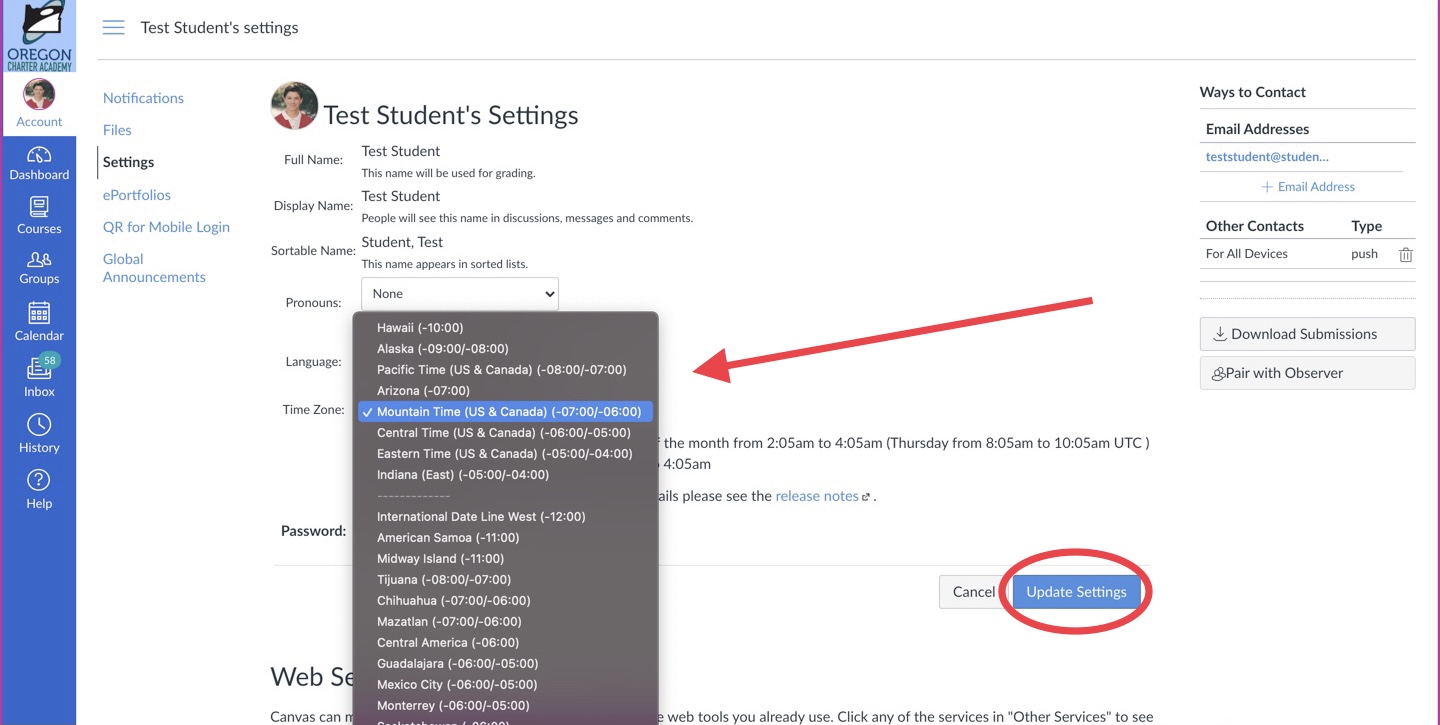
Your desired time zone should now be displayed. If you require additional help don't hesitate to reach out to our support team!