
As a student in Canvas, you’ll need to know not only how to complete and turn in your assignments, but also how to check your submissions, check your grades, and manage your work accordingly. Luckily, all of these things are easy to do in Canvas.
Wondering how to check your "what-if" grade? Jump straight to the Testing your “What-if” grades section!
Checking submission status
Canvas is a pretty reliable tool, but it’s still good to double check that you’ve submitted everything you thought you had, especially if your grades are lower than expected. To check the submission status of an assignment, go to your grades for that course (for more information about how to check your grades, check out How do I access my grades in Canvas?).
Find the assignment you want to check, and look at the Score and Status columns. What you see in these columns will tell you if your assignment has been submitted, if it’s been graded, and if it has been labelled late or missing.
Status Column
There are two statuses you may see in the “Status” column:  and
and  .
.
If the due date on an assignment has passed and you have not yet submitted it, it will look like this:

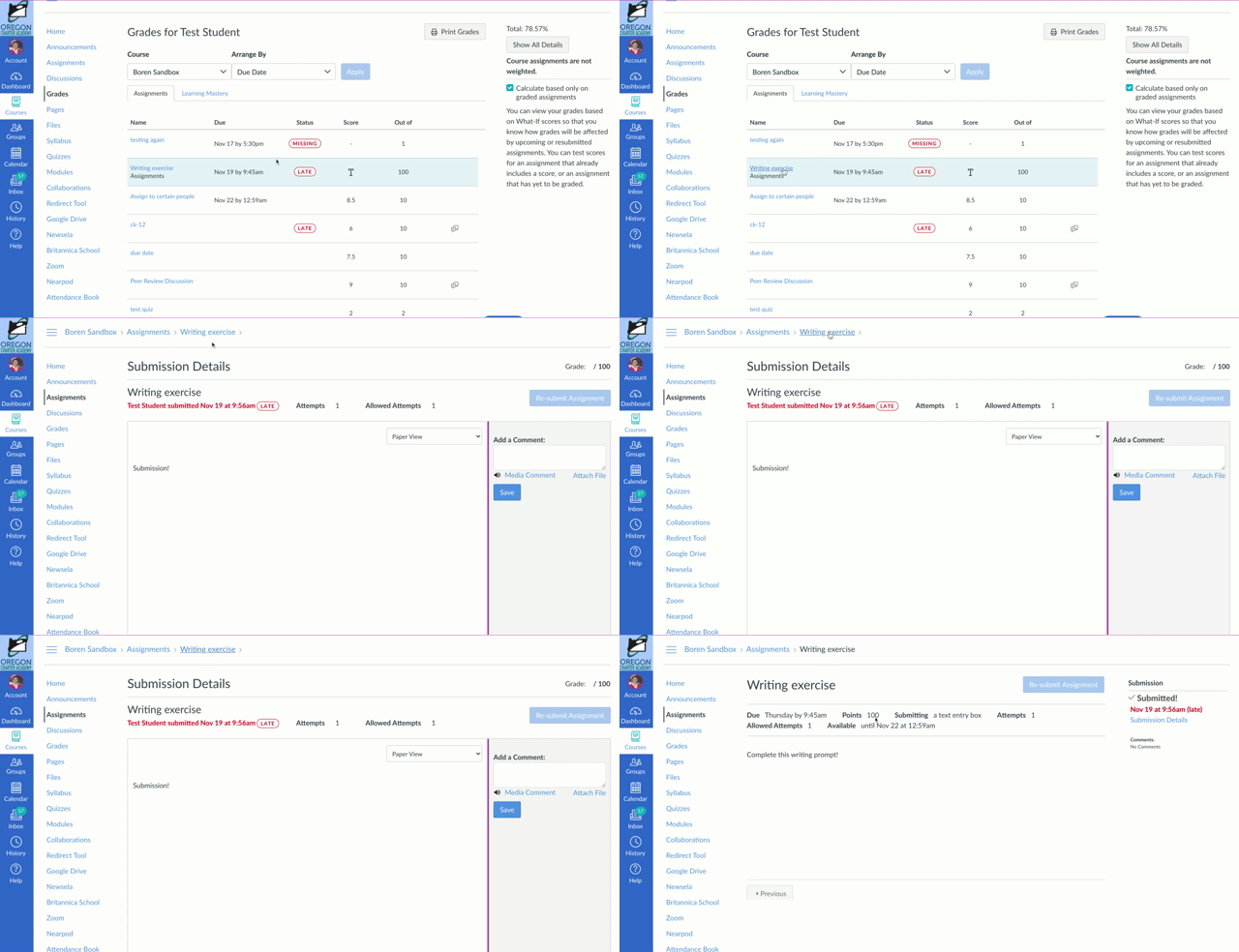
You can still submit the assignment until the “available until” date has passed, so if you have an assignment that’s labeled Missing, be sure to check if it’s too late to submit it! The “available until” date is not listed in the gradebook, but you can check it by clicking on the assignment name, then the assignment link at the top of the page, or by going through Modules.
On the assignment page, you can check the “available until” date, as well as see your submission status (if you’ve submitted) or submit the assignment (if you haven’t submitted yet).
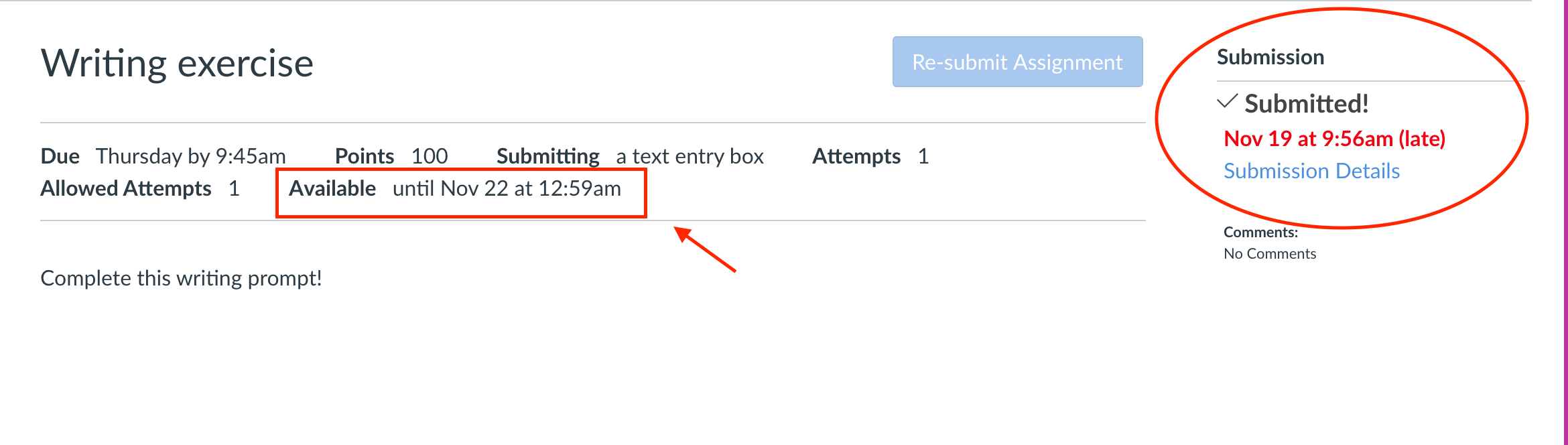
If you submitted an assignment after the due date had passed but before the “available until” date passed, you may see a label. Check with your teacher about their late policy--many teachers may not penalize you for lateness. If there’s a label on one ofyour assignments, there’s nothing you need to do about it!
Score Column
There are several things you may see in the “Score” column. Follow the guide below to see what they all mean.
 You have not submitted anything (this is basically a blank cell). If you see this, check if you can still submit the assignment in question!
 Graded discussion. Has been submitted, but not yet graded.
 File upload. Has been submitted, not graded.
 Media recording submitted, not graded.
 Text entry submitted, not graded.
 Website URL submitted, not graded.
The other thing you may see in this column is your score for the assignment--you can see what this score is out of by checking the “Out of” column to the right.
Testing your “What-if” grades
Canvas also offers a cool feature called the “What-if grade”, which allows you to enter a test score to see what your cumulative grade would be with that score. This is a handy tool for figuring out what you need to do to raise your grade.
To test a what-if score, go to the gradebook for your course. Then, hover your mouse over the item in the “Score” column for any assignment, and click on it to enter your what-if score.
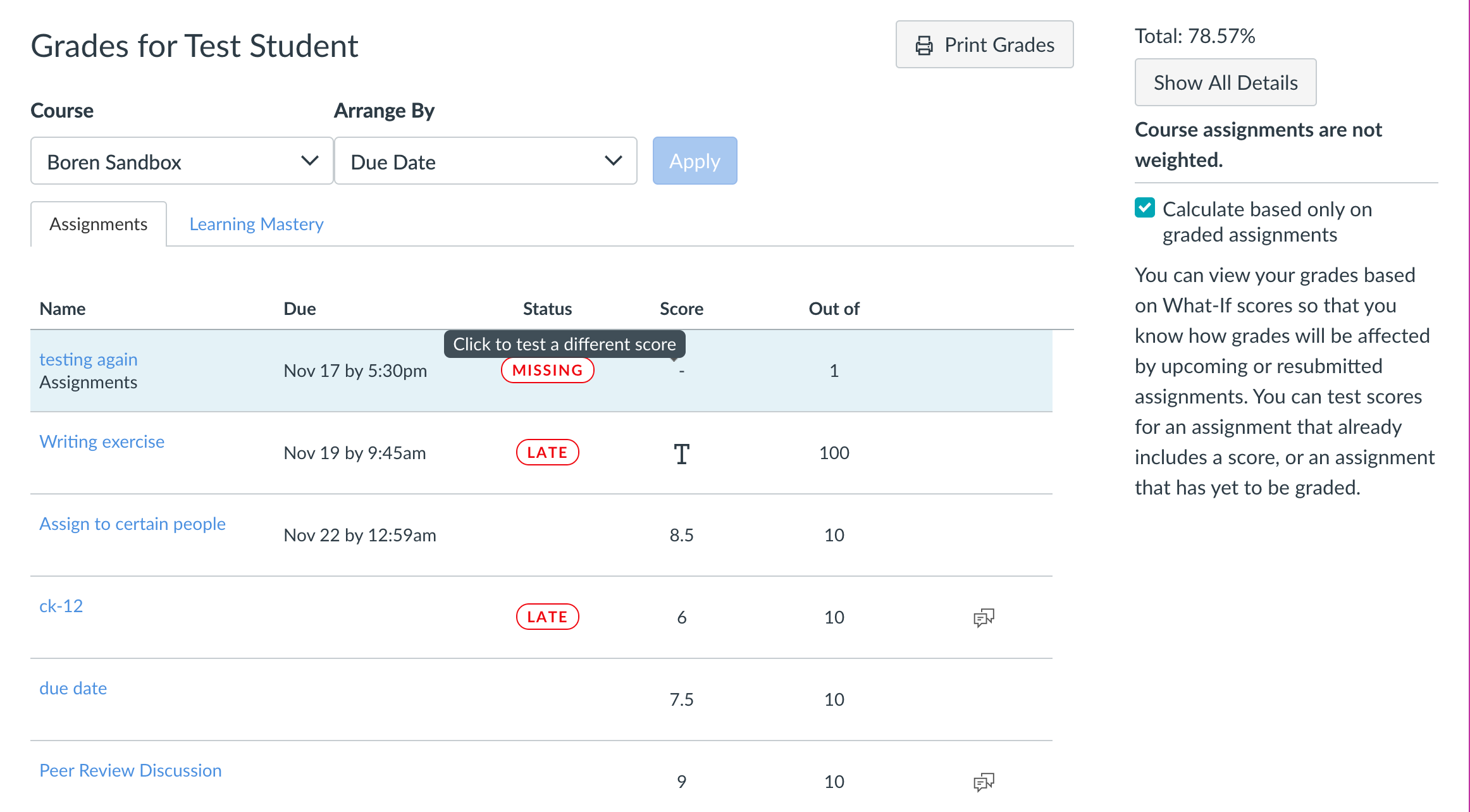
Type in a score, and hit enter--you will see your new score displayed, with a blue arrow next to it to show that this is not the score you received.

Canvas will also update your course grade in the top right corner to reflect what you would have if you had received this grade.
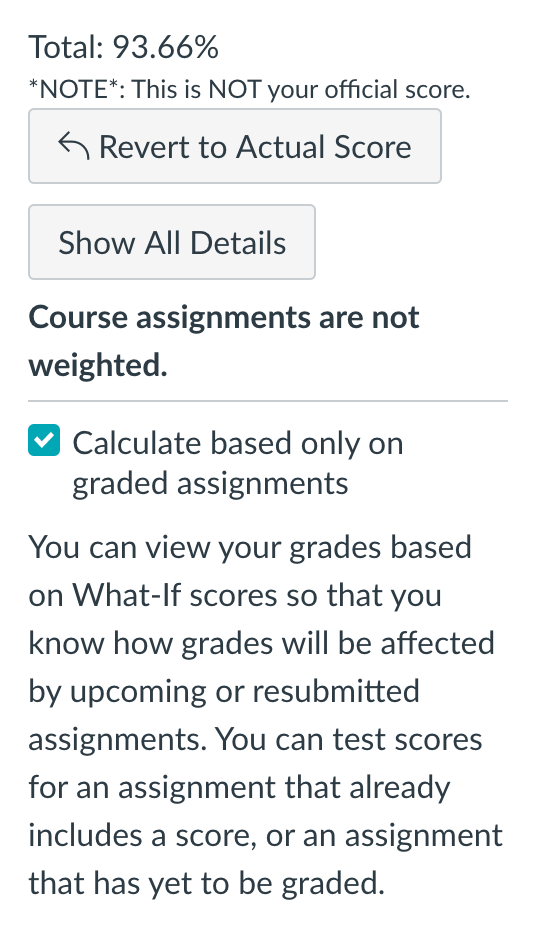
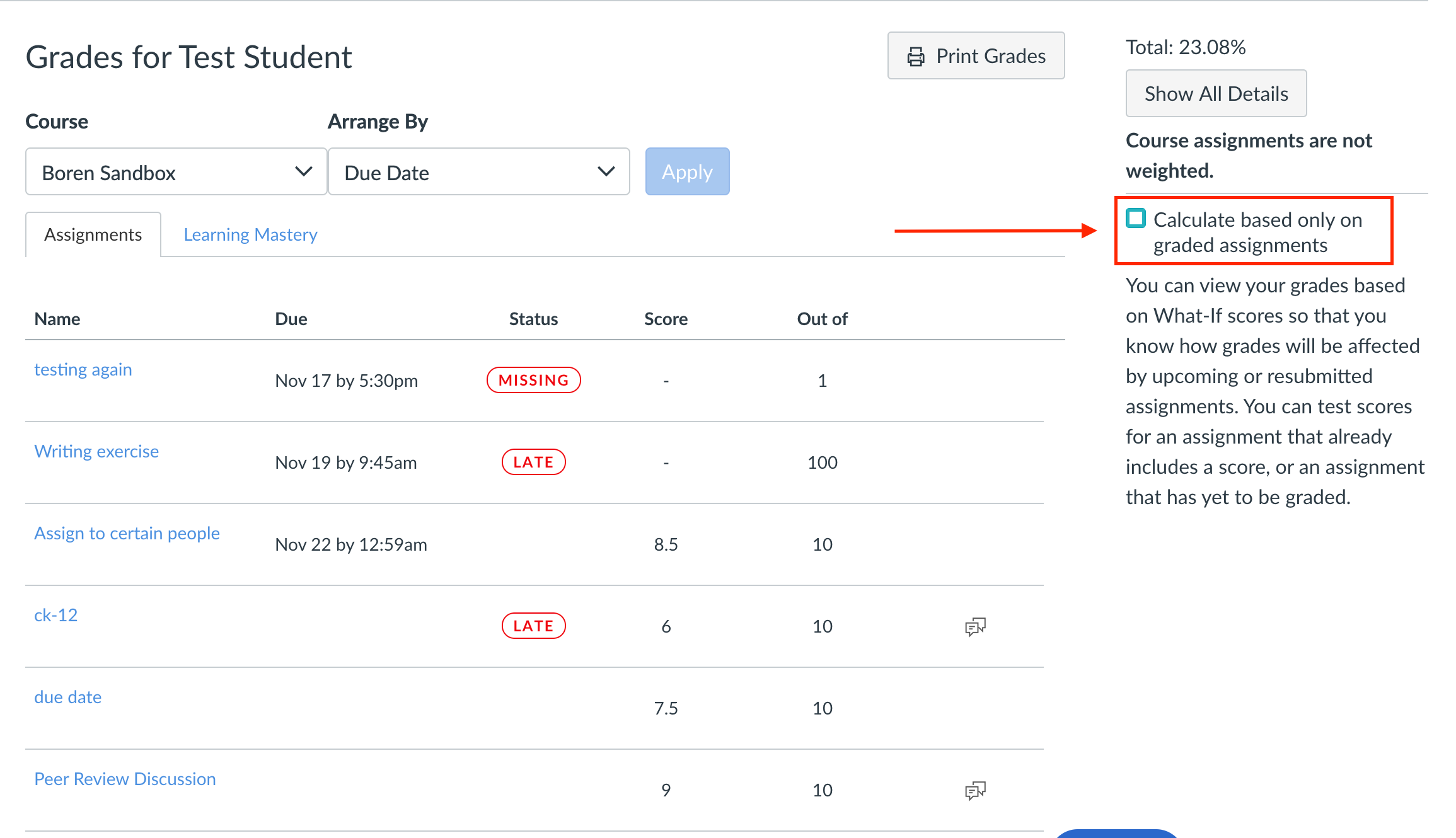
You can enter as many test scores at a time as you want. You can also uncheck the “Calculate based only on graded assignments” box (this box is checked by default) to see what grades you will need to get on upcoming assignments in order to maintain or raise your course grade.
Have questions, or need help checking what you've submitted and what still needs to be submitted? Reach out to your teacher for more academic support, or for technical support reach out to the tech team!