
The text entry box, also known as the Rich Content Editor, in Canvas is a powerful tool for typing in text responses for assignments, quizzes, and discussions, and can be further used to create context in a syllabus, page, and announcements. The box is shown on the page already when you click into and work on one of these assignments, quizzes or discussions.
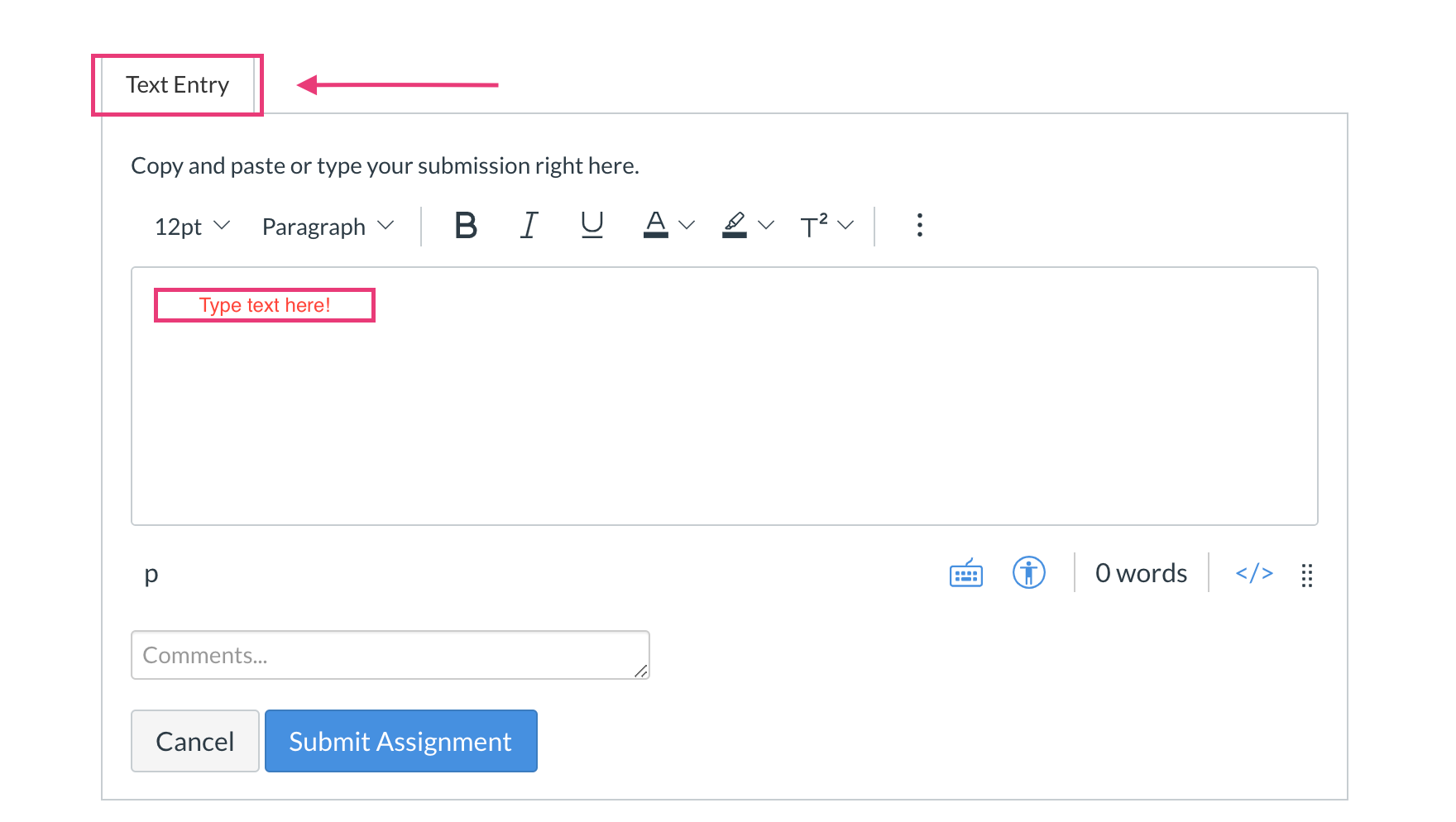
To use the text entry box, you can click your mouse anywhere in the box where it shows "Type text here!", just like in the example image below:
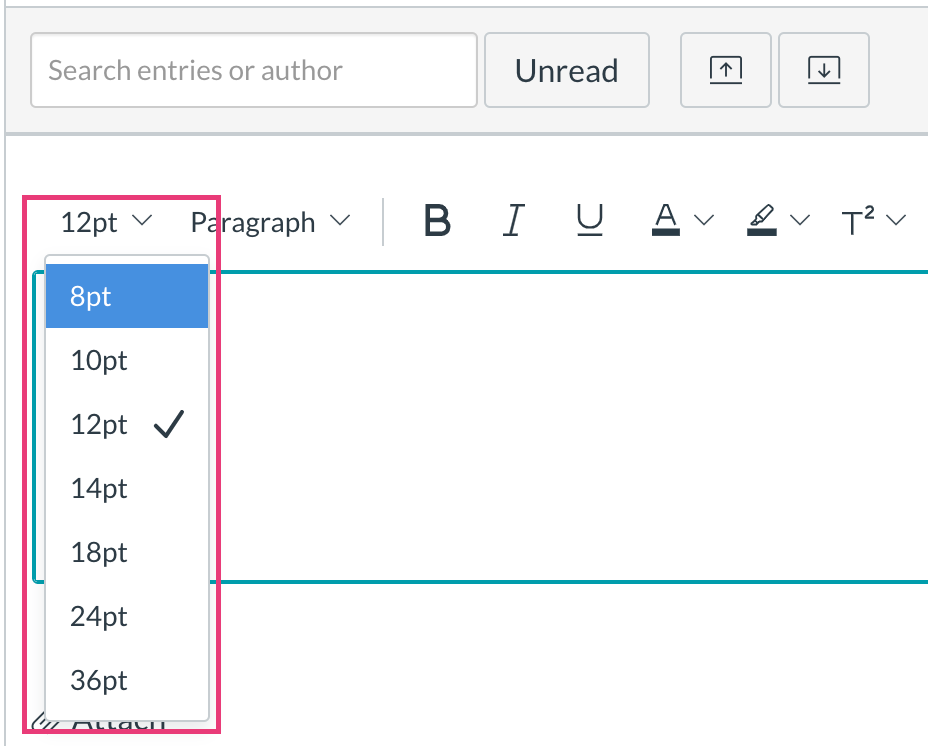
You can edit the font size in the drop down box shown below:
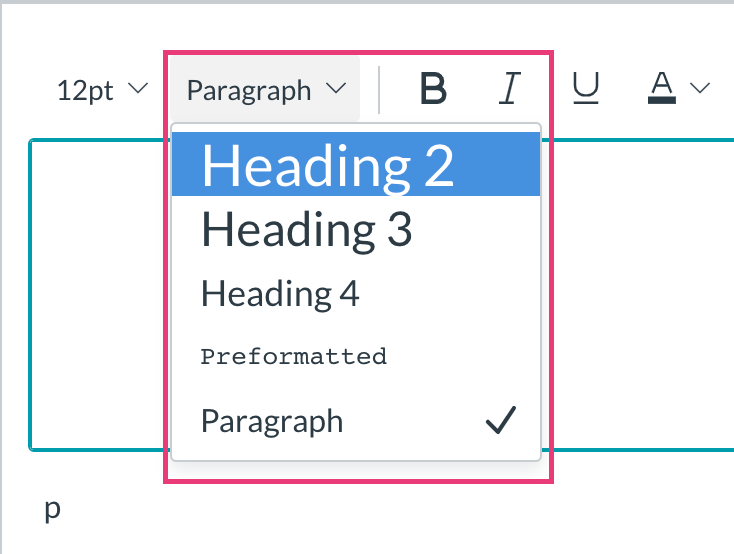
Choose between "Heading 2", "Heading 3", "Heading 4", "Preformatted", and "Paragraph" throughout your text to change the way that selected text looks:
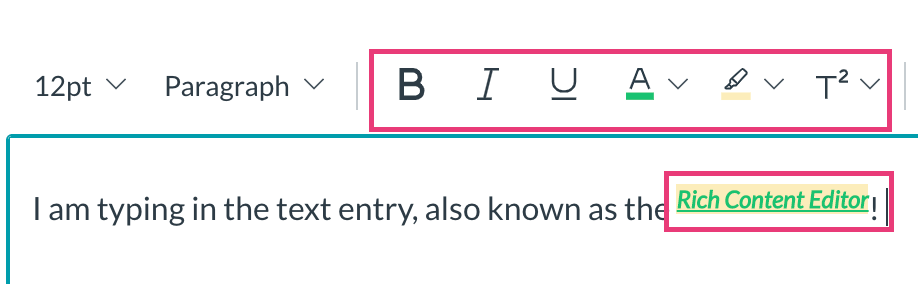
You have the ability to change your text to be "Bold", "Italicized", "Underlined", add a "Text color", add a "Highlight", and also change to "Subscript". The sample image below has all 6:
You can use the "Align" tool to align your text from left, center, and right: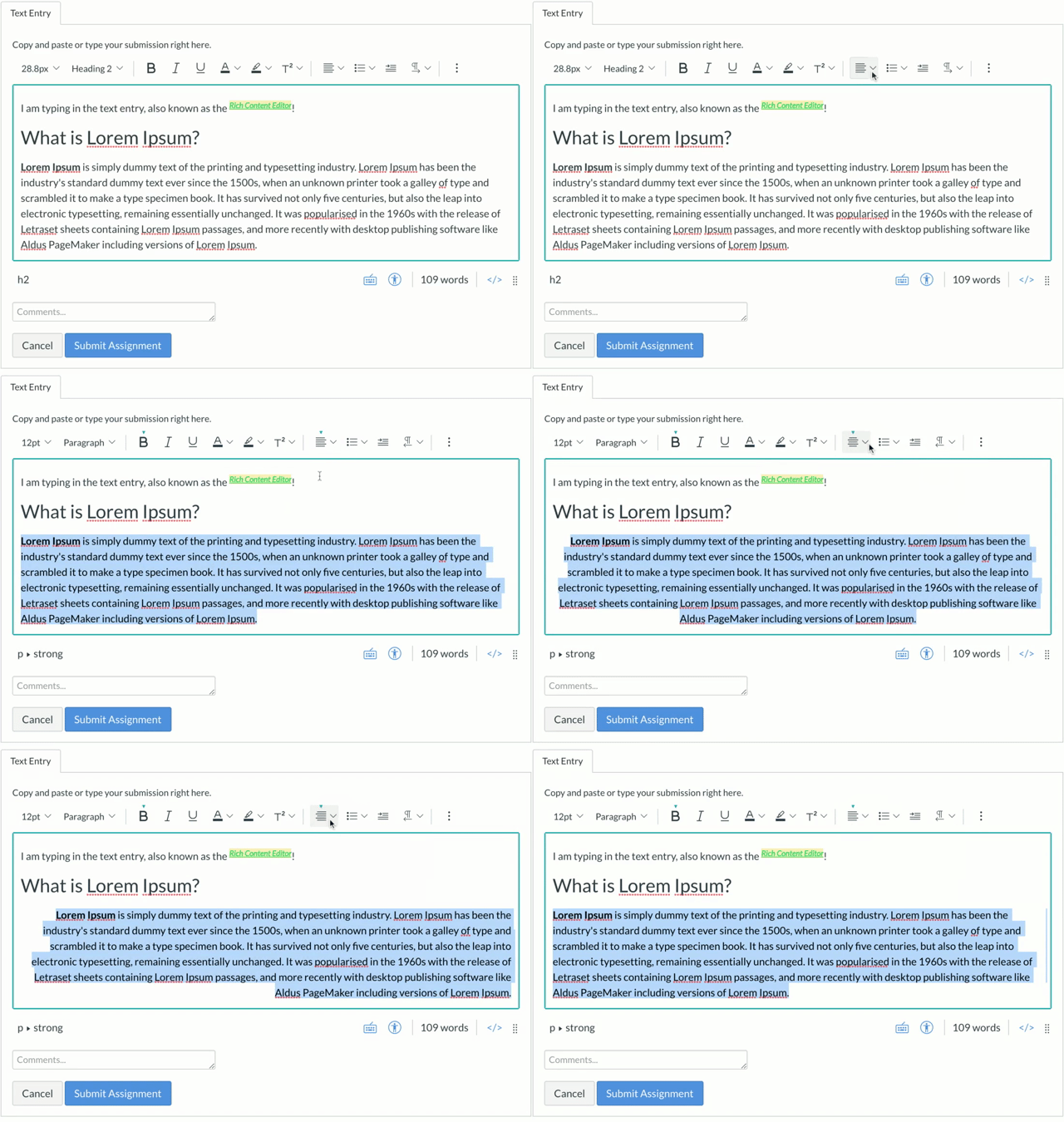
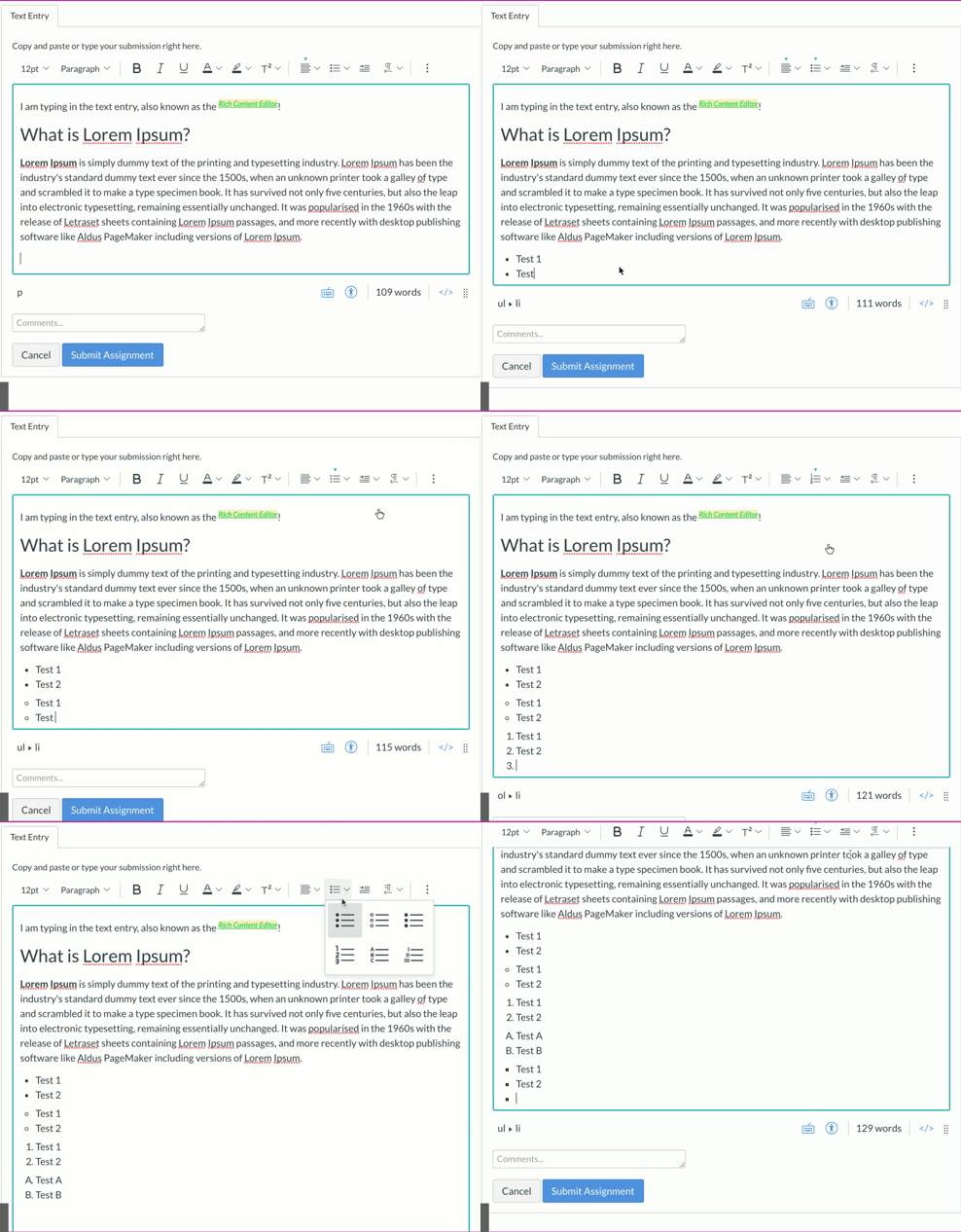
You can create ordered, unordered, numerical, alphabetical, and uppercase Roman numeral lists:
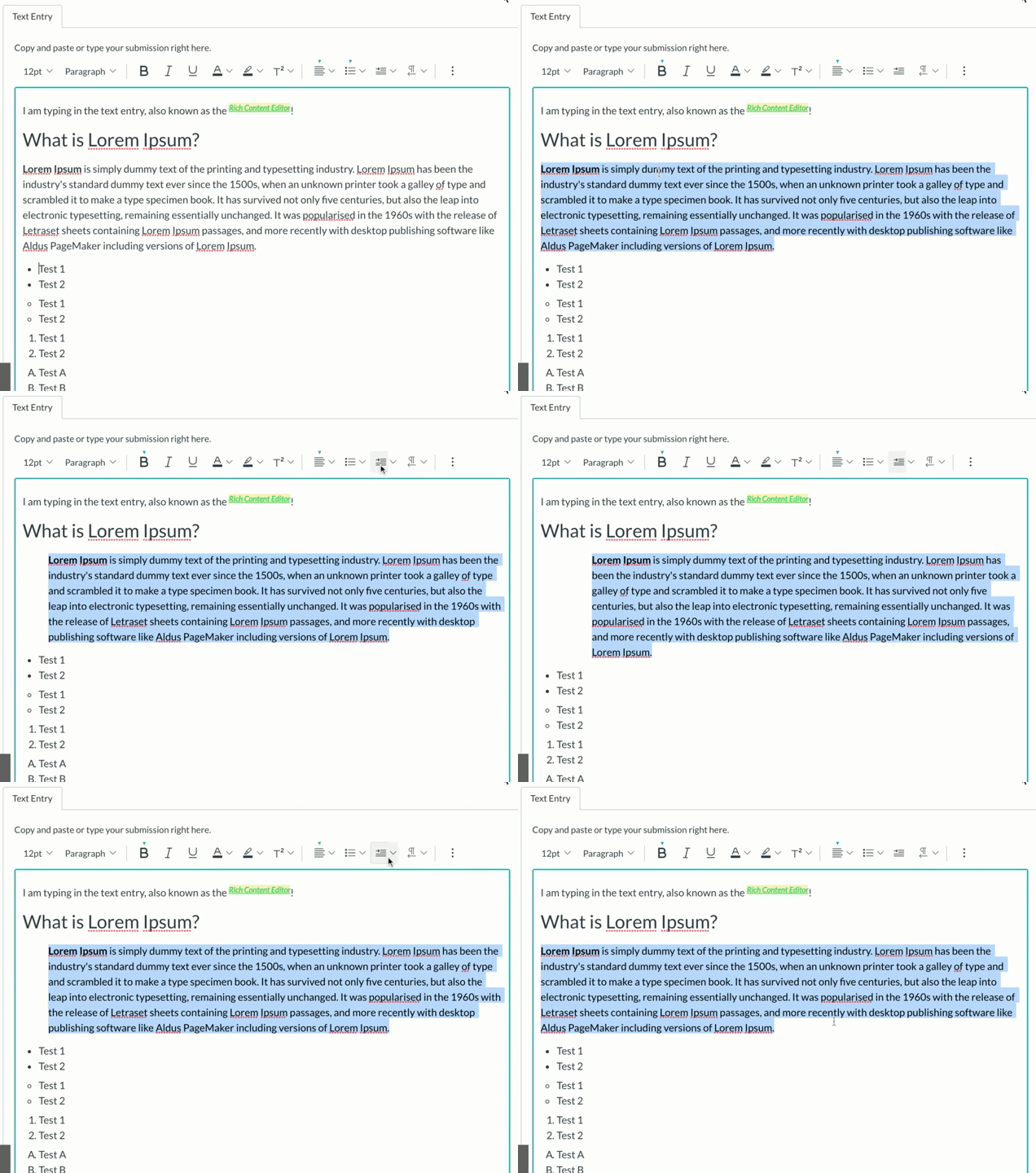
Make an indentation:
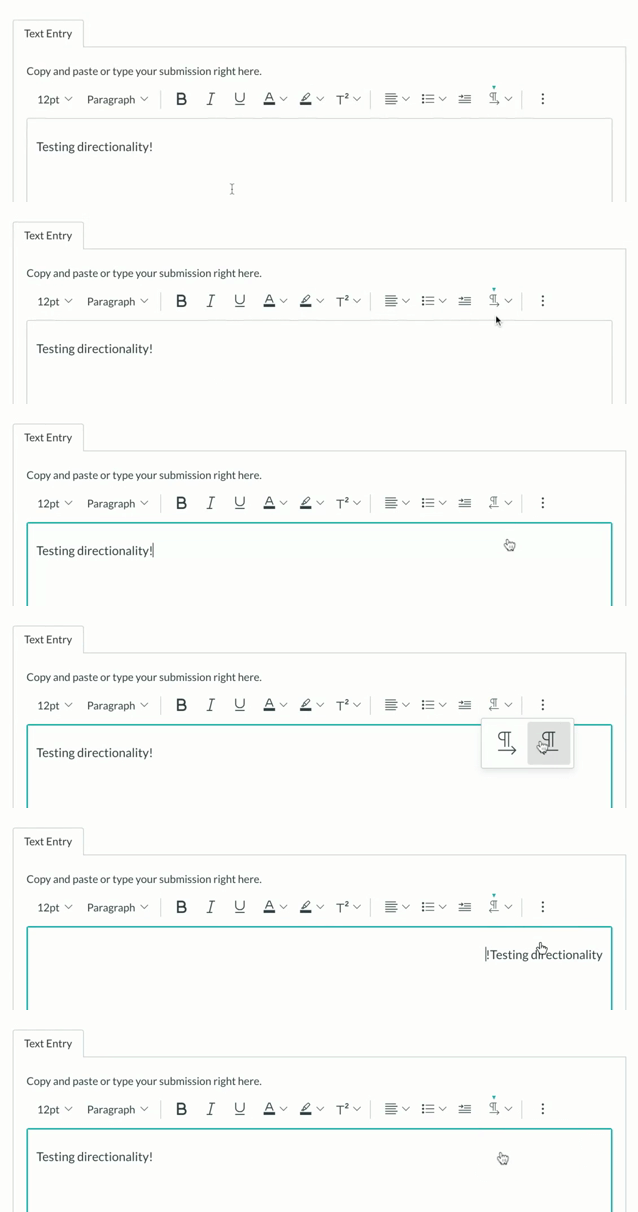
And last, but not least, Directionality:
For more help on how to use the Rich Content Editor in Canvas, please reach out to our support: