
Canvas' calendar tool is a useful way to see all the upcoming assignments and live classes for all your courses in one place.
Click the following links to jump to any of the topics below:
Opening the calendar
Viewing the calendar
Changing the color of a course on your calendar
Hiding and un-hiding a course in canvas
Opening the calendar

Viewing the calendar

On the Calendar page, you can choose to view your calendar in Week, Month, or Agenda view by clicking the buttons marked with the [1] above. Agenda view will show you an ordered list of each upcoming event or assignment you have.
The Calendar window, marked with the [2] above will display all upcoming Zoom meetings and assignments for each of your courses.
At the top of the sidebar, marked with the [3] above, there is a quick-view calendar you can use to change the day, week, or month you are viewing in your calendar. Below the quick-view calendar there is a list of courses you are enrolled in labeled "Calendars." Lastly, the "Undated," section will show you any assignments you have that do not have a due date set.

Use the arrows at the top left hand corner of the screen to change the month or week you are viewing in your calendar. If you have changed months or weeks in the calendar, you can click the "Today" button to jump back to today's date.
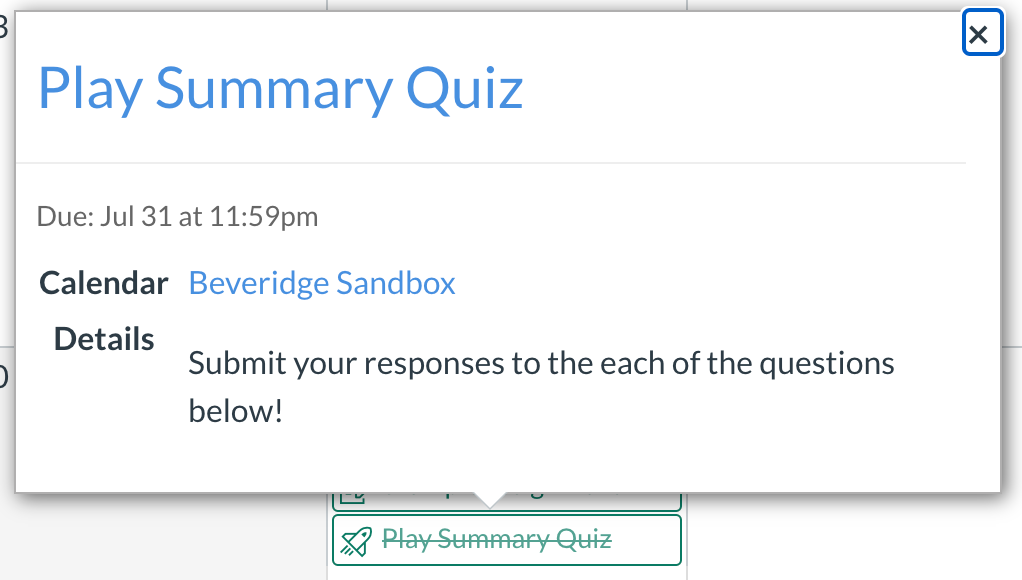
Click any assignment or event to view a pop out window with details and a link for that item.
Changing the color of a course on your calendar
Each course you are enrolled in has a color that it will appear in on your calendar. The "Calendars" section in the sidebar on the right side of the screen shows what color each course will appear in.

For example, the events and assignments for this course, "ELA 10 S2," will appear on the calendar in purple.
You may want to change the course of a course in on your calendar to make it stand out. To change the color of a course, follow these steps:
- In the "Calendars" section in the sidebar on the right side of the screen, click the three dots next to the course you want to change the color of.

- Click the color you want the change the course to.
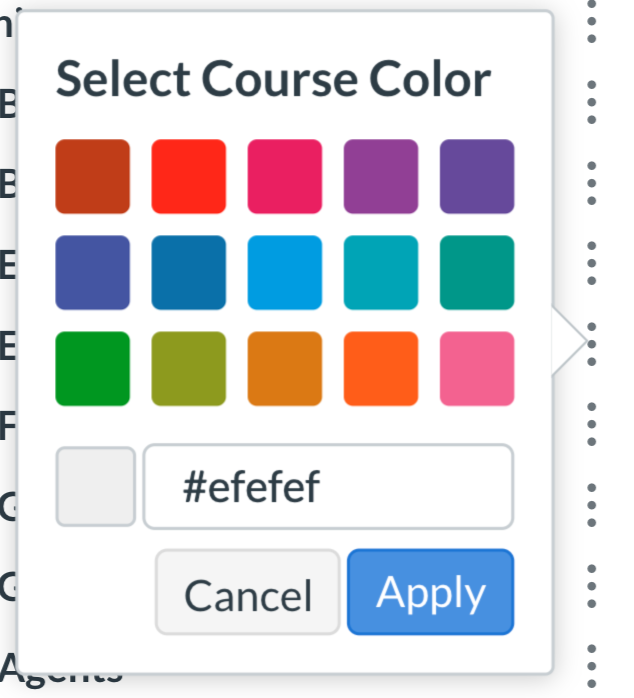
- Click "Apply" to change that course's color.
Hiding and un-hiding a course in canvas
Canvas allows you to hide and un-hide courses on your calendar. Follow these steps to hide or un-hide a course on your calendar:
- In the "Calendars" section in the sidebar on the right side of the screen, click the colored square next to the course you want to hide to hide it.

- The course will then appear greyed out in the "Calendars" section.

- Click the same square again to un-hide the course.
Note for Parents: If you have multiple students at ORCA, you may have many classes available on your calendar page. Unfortunately, you can only have 10 classes visible at once on your Calendar. We recommend prioritizing making any classes that meet often visible, and then checking the "Coming Up" section in your Canvas dashboard for a full list of upcoming due dates, or live classes.
If you have any questions about using the calendar in Canvas, check out the following article for information on how to get in touch with tech support: