
The following article includes troubleshooting steps if you aren't able to connect to wifi on your Chromebook:
Menu:
- I can't connect to my router or WiFi
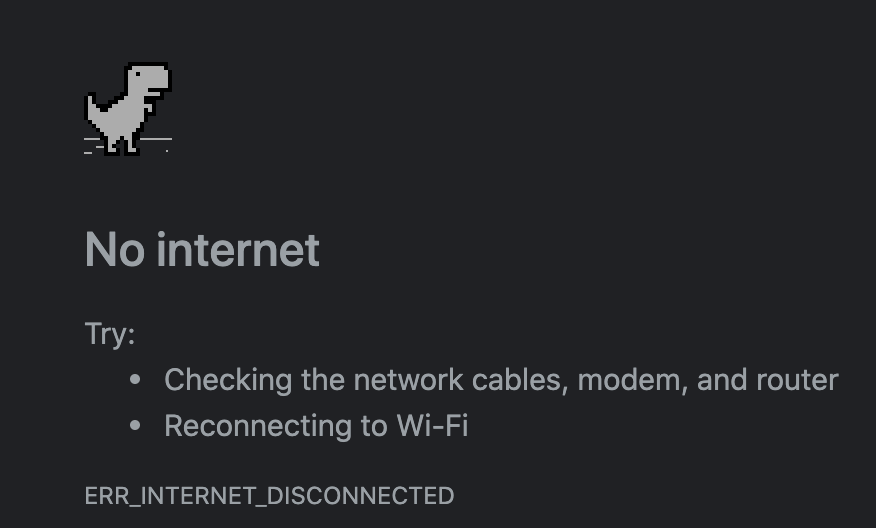
- I am connected to my router or WiFi, but I can't load web pages
- Further support
I can't connect to my router or WiFi
Connecting to your router or wifi network is what allows you to be able to get online. Following the below process should get you online again:
I can see my home wifi network in the System Menu:

Check if you're able to see if you can find your home network in the available networks. You can do this by:
- Clicking the clock to bring up your System Menu
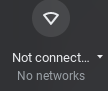
- Click on the WiFi Symbol to make sure that your WiFi connection is turned on. If it is not turned on, the symbol will be empty and show a Not Connected message below it.
- Once your WiFi connection is on, you should be able to find your home network, in the animation above, we're connecting to sysoffice5 but your network will be named something else.
- If your connection is successful, you should see the green Connected message and now be able to connect to the internet!
- If you're prompted for a password, this would be something that you and your family have set. For most routers, the password may be on the router itself near a barcode.
I can't see my home wifi network in the System Menu:
If you're unable to see your home network in the available networks here are a couple of steps you can use to troubleshoot:
- Double check the network name
- Depending on your router, your wifi network name may be kept as the default. These will usually show up as either the router model name followed by a few numbers or your Internet Service Provider's name. Ex:
- Linksys012345
- xfinitywifi
- NETGEAR99-5G
- You or your family could have also updated the WiFi name to something else besides the default. If there's a device in your home that has a working WiFi connection, for example a phone, tablet, or another computer, check which network it's connecting to.
- Depending on your router, your wifi network name may be kept as the default. These will usually show up as either the router model name followed by a few numbers or your Internet Service Provider's name. Ex:
- Move a bit closer to your router
- If you're still unable to see your WiFi network name, try moving a bit closer to your router. Much like a cell phone, you could just have bad signal where you are if you're far enough away from it. The closer you are to your router, the stronger your signal will be.
- Reboot your Chromebook
- If you're still unable to see your WiFi network, try rebooting your Chromebook. Occasionally, if a computer is on for long enough, something may not appear correctly or work as expected. You can normally resolve this by restarting your Chromebook. We have steps covered here on how to reboot your Chromebook.
- Connect over ethernet
- If none of the above works, we recommend going with a wired connection which would bypass the entire WiFi network and connect directly to your router. How far away you would be able to be will be limited by the length of your ethernet cable but this would get you up and running quickly. We have steps covered here on how to connect your Chromebook over a wired connection.
I am connected to my wifi network but can't get to any websites

If you're already connected to your network but not able to see any websites at all, follow these steps and we can get you up and running.
- Forget and then add your network again
-
Your Chromebook saves network information when you connect to a network and sometimes that information might need a refresh. To delete that info:
- Sign in to your Chromebook.
- At the bottom right, select the time.
- Select Settings
.
- In the "Network" section, select Wi-Fi.
- Select Known networks.
- Find the network you want to forget, then select More
Forget.
-
- Reboot your Chromebook
- Occasionally, if a computer is on for long enough, something may not appear correctly or work as expected. You can normally resolve this by restarting your Chromebook. We have steps covered here on how to reboot your Chromebook.
- Check on another device
- If you're still unable to get online, check on another device that can also connect to your network -- a phone, tablet, or another computer. If you're unable to get online with that additional device, go ahead and proceed with the steps below. If you are able to get online, try the steps in the I can't connect to my router or WiFi section above.
- Reboot your router
- If multiple devices on your network can't seem to get online, try rebooting your router. Each router is made a bit different and you may need to refer to the manufacturer's steps but these general steps should get you where you need to go:
-
Find the power button on the router. If your router has a power button, it will generally be on the front or top and look like this

- Press and hold the power button until all lights turn off.
- Wait 10 seconds, then power back on
- If your router does not have a power button or you are unable to find it, try unplugging the power cable for the router from the wall.
- Wait 10 seconds after unplugging it, then power back on.
-
Find the power button on the router. If your router has a power button, it will generally be on the front or top and look like this
- If multiple devices on your network can't seem to get online, try rebooting your router. Each router is made a bit different and you may need to refer to the manufacturer's steps but these general steps should get you where you need to go:

- If you're still unable to get to any website but are able to connect to your wifi network, you may need to contact your Internet Service Provider (ISP). This is the company that grants you access to the internet such as Comcast, Charter, or any number of other providers. It may be that they are having a larger problem which is preventing more than just your household from getting online.
Still not working?
If you're still not able to get online with your Chromebook, don't hesitate to get in touch with our support team! You can find all the ways to contact them in this article: