
Your teachers will schedule live Zoom classes for you and your classmates to attend. You can check the schedule of your live classes using the calendar in Canvas. Follow the steps below to join your live class:
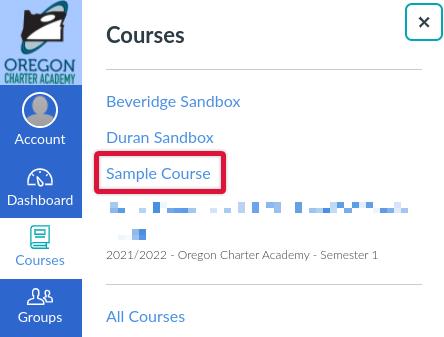
- Open your course using the "Courses" button in the sidebar on the left side of the screen.
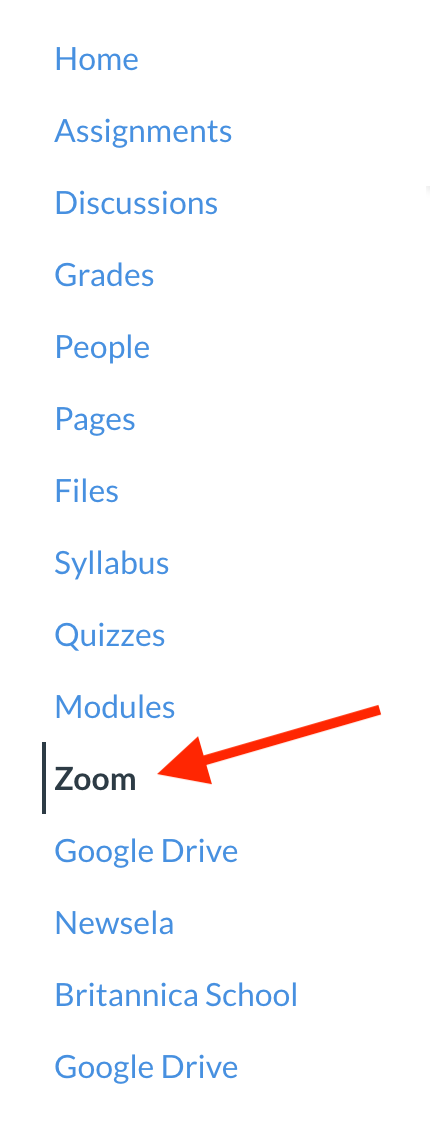
- Click "Zoom" in the course navigation menu.
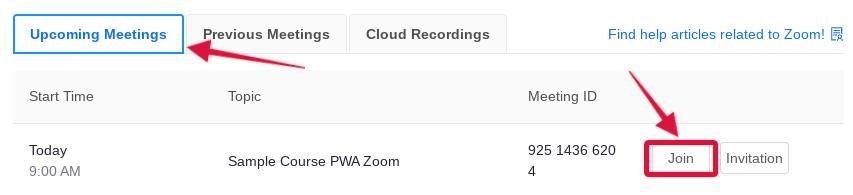
- Under "Upcoming Meetings" find your live class, and click "Join"
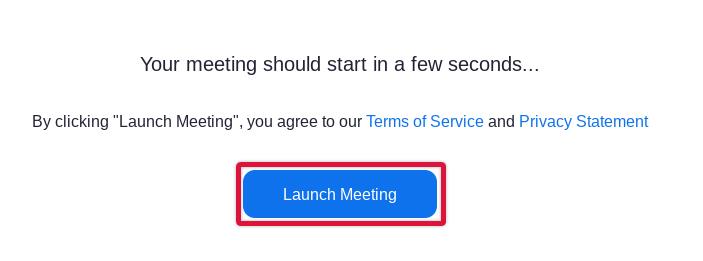
- A new tab will open with a prompt to launch the meeting. Click "Launch Meeting" to open the Zoom waiting room.
- At this point, if you are prompted to "Sign in with the email Invited to the meeting," follow along with this guide to access the meeting.
- Once the zoom app opens, you test your video and audio. Then, click "Join" to enter the waiting room.
- In the waiting room you will be able to test your video and audio again, and see whether or not the host has joined yet.
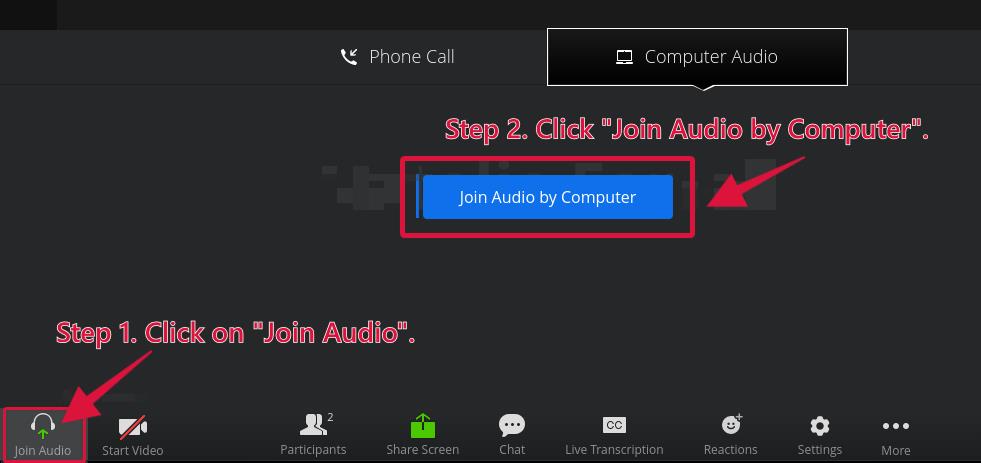
- Once the host admits you to the call, if you see the see the prompt to "Join Audio" found at the bottom right-hand side of your Zoom call, click it. Then, click on "Join Audio by Computer". This will make it so that you can hear other participants, and be heard.
If you are still experiencing any issues, or have any questions about joining Zoom live classes, don't hesitate to get in touch with our support team! You can find all the ways to contact them in this article: