
Occasionally, your teacher might prompt you to share your screen during a live class. You might want to share your screen to show something you have been working on, or give a presentation in Google Slides.
Note: You can only share your screen if your teacher has allowed you to. If you are prompted to share your screen during a class but cannot, ask your teacher to grant you permission in Zoom to share your screen.
If your teacher has allowed you to share your screen, follow these steps to share it:
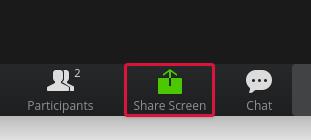
- Click the "Share" button on the the bottom of the screen.
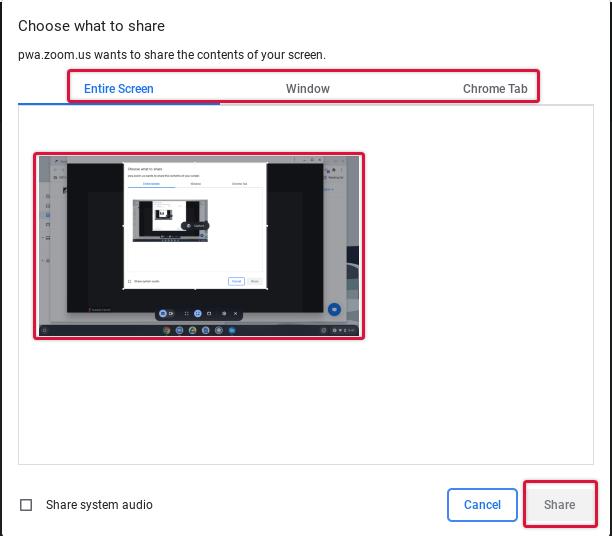
- In the window that appears, either select your "Entire Screen", "Window", or "Chrome Tab" that you would like to share. From there, click on the screen image, and then click "Share."
- Other participants in the Zoom meeting can now see your screen! You will see a bar that looks like this at the top of your screen:
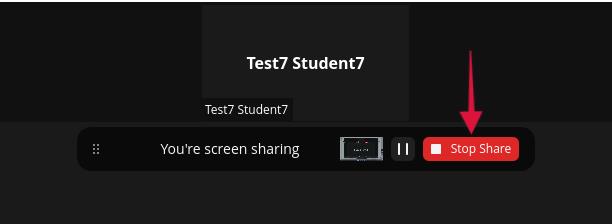
- Click "Stop Share" when you are finished sharing your screen.
If you have any questions about Zoom features, please don't hesitate to ask the Tech Team. Check out the following article for how to get support: