
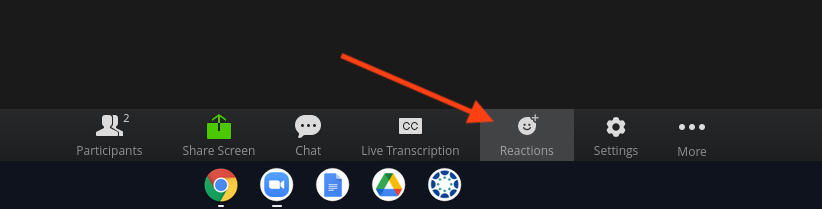
Where you used to go into the "Participants" window for your nonverbal communication tools you will now find those options under "Reactions". The nonverbal communication tools in Zoom are buttons that you can press to communicate with your teacher. Pressing these buttons will make an icon appear next to your name in the "Participants" window that your teacher can see. Things you can say by pressing these buttons include "Raise Hand", "Yes," "No," "Speed up," "Slow Down," "I'm Away" and more!
Note: We only suggest you use nonverbal communication tools if your teacher has prompted you to. Otherwise, your teacher may not notice your responses.
Follow these steps to use nonverbal communication tools in Zoom:
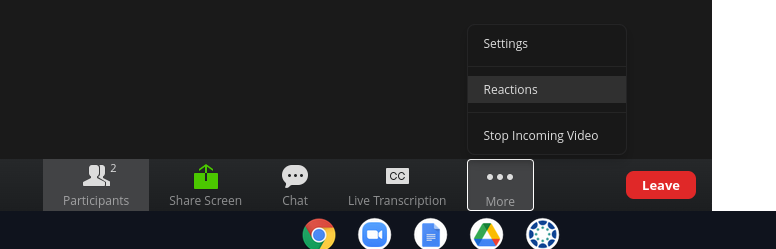
- First, open the "Reactions" window, by clicking the "Reactions" button on the bottom of the screen. If you already have the chat or participants window open you may need to select the "More" option to access the "Reactions".
- At the top of the participants window you will see a list of all the people currently in the live class. Any nonverbal messages they are sending will appear next to their name.
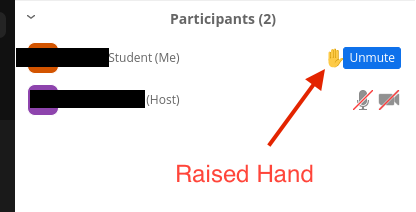
- If you want to virtually raise your hand, answer yes or no, or suggest to your teacher to speed up or slow down, click the corresponding buttons at the bottom of the participants window.
If you have any questions about Zoom features, please don't hesitate to ask the Tech Team. Check out the following article for how to get support: