
You can send messages to your class or directly to your teacher using the "Chat" window in Zoom. If you have a question or comment during class, using the chat is a great way to express yourself!
Messaging your teacher directly
Sending a message
- To open the "Chat" pop-out window, click the "Chat" button on the bottom of the screen.

- In the chat window, you can see messages from other participants in your class, and send messages of your own.
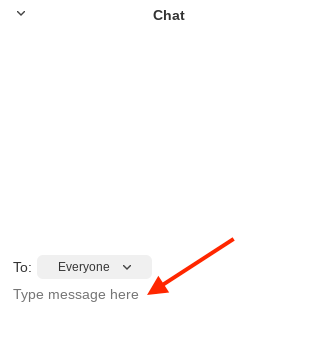
- If you want to send a message, in the chat window click where it says "Type message here" and type out your message. Press enter to send it when you are ready.
Messaging your teacher directly
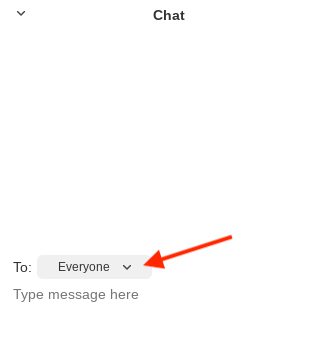
- If you want to send a direct message to your teacher that other students in class cannot see, click on the "To:" menu where it says "Everyone."
- Select your teachers name from the list. It should say "(Host)" next to your teacher's name.
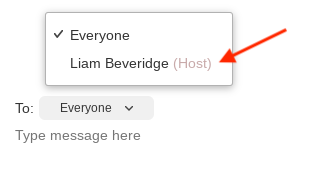
- With your teacher selected, you will now directly message your teacher. If you want to switch back to sending messages that the entire class can see, select "Everyone" from the same menu.
Replying in a thread
- Zoom now allows users to reply directly to other user's messages in a thread. This is helpful when you want to respond to a specific message.
- To respond to a message in a thread, hover your mouse over the message you want reply to, click the chat bubble icon, and type your message.
- Threaded replies will appear below the original message. You can click "Collapse All" to hide the thread, and also click the thread again to expand it.
If you have any questions about using the Chat in Zoom, or any other questions about Zoom, please don't hesitate to ask the Tech Team. Check out the following article for how to get support: