
Sometimes your teachers may assign you a discussion post or assignment with a peer review requirement. This means that not only will you complete the assignment but you will also give feedback to one or more of your classmate's replies. Submitting a peer review is easy!
Peer Review Discussion
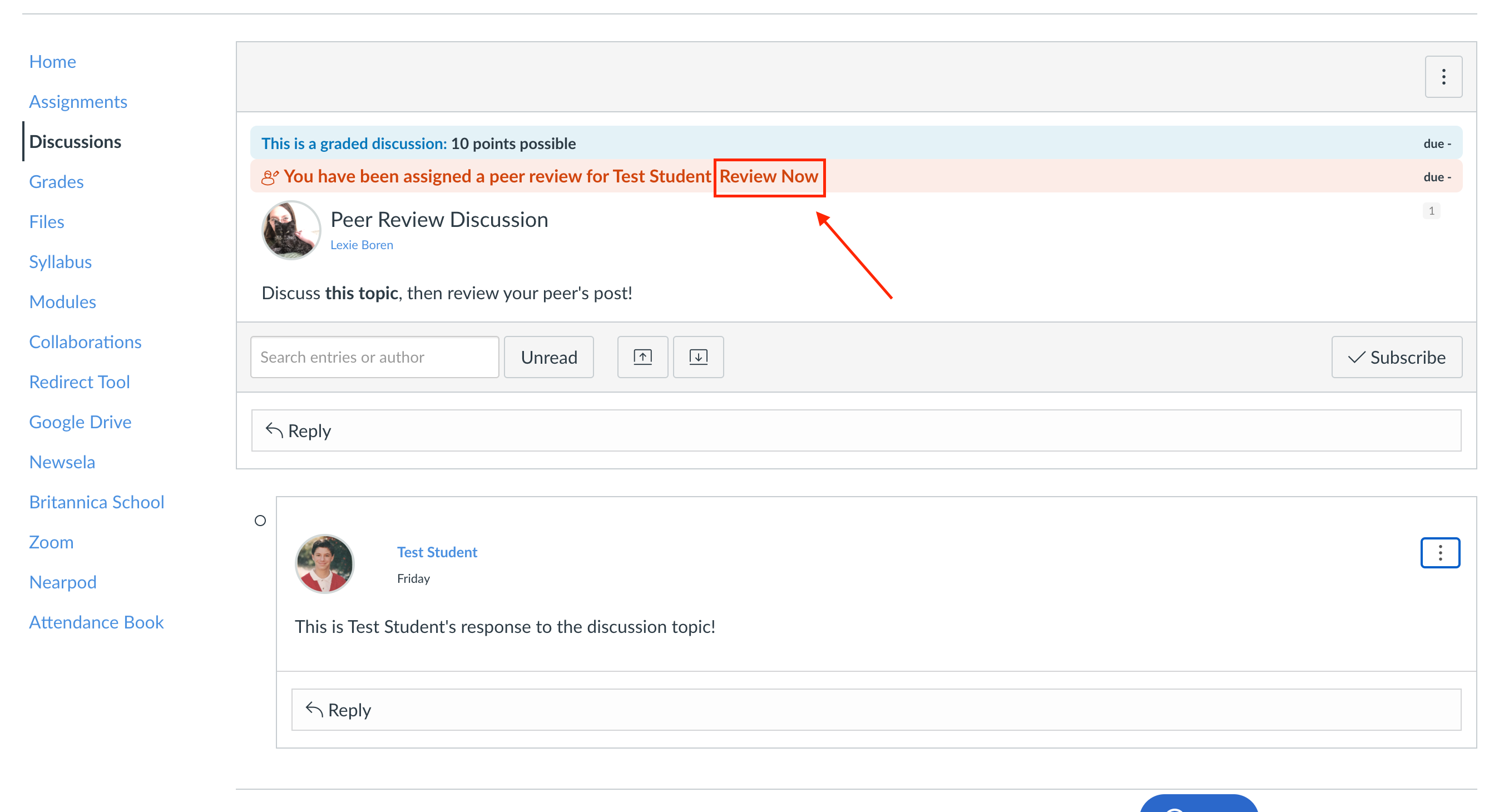
First, go to the discussion assignment. Here, you can post your own reply as usual. You will see a message at the top of the discussion telling you that you've been assigned a peer review. Click “Review Now” on the message to complete the review.
You will be brought to a page that looks like this:
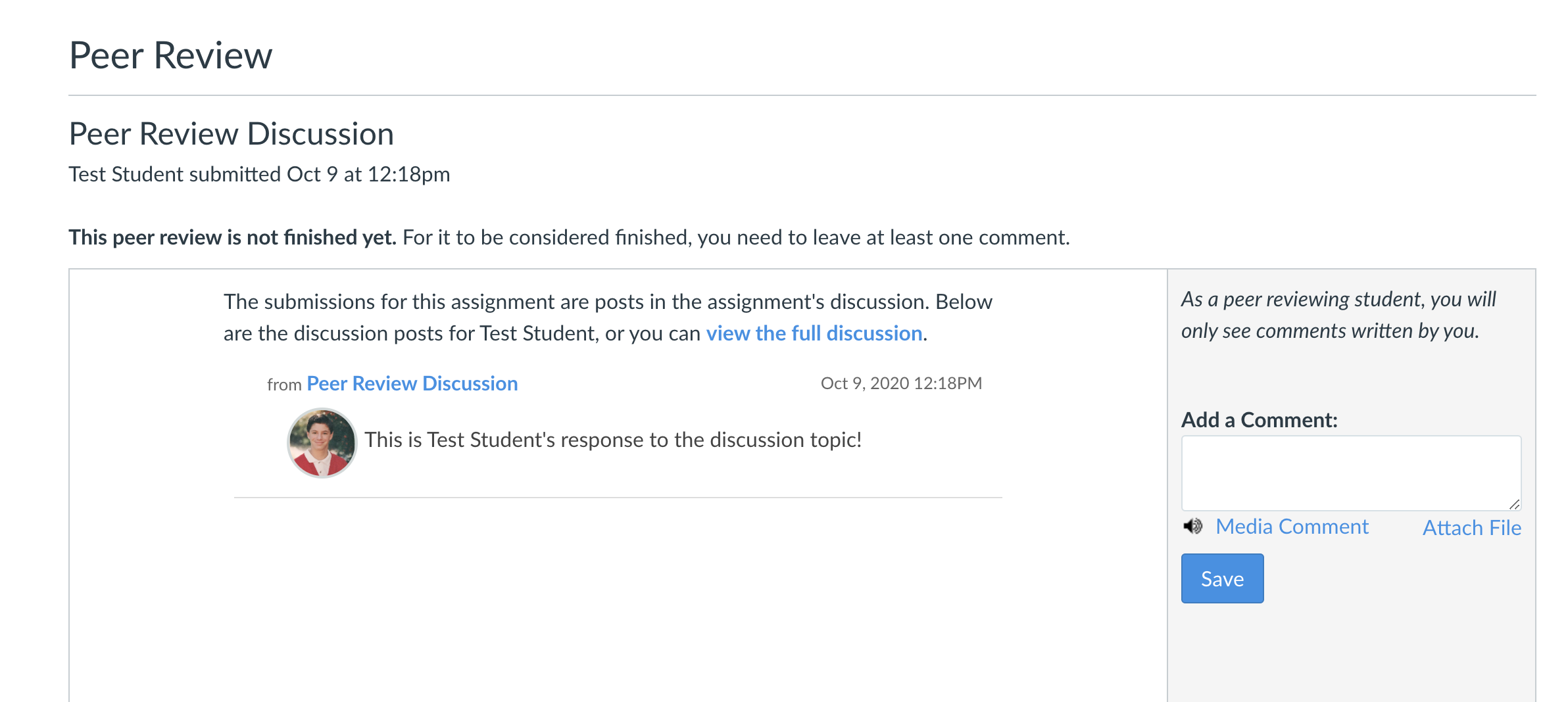
Here, you can see your assigned discussion post, or choose to view the entire discussion for more context. Your teacher may have attached a rubric to the discussion—if so, complete the rubric to finish the peer review. If there’s no rubric, you can post your comment on the right (you can include a file or a media upload, if you’d like) and click Save. Then you're done!
Peer Review Assignment
Open the assignment that you need to complete a peer review for. In the assignment under "Assigned Peer Reviews," you will see any peer reviews assigned to you. Click the name of the peer whose work you will be reviewing. If you see a caution sign icon [1] it means that the peer review has not been completed. A checkmark icon [2] means that you have completed the peer review.

* Anonymous Peer Reviews - If your peer review is anonymous, you cannot see the name of the student. The name of the student should also not be shown anywhere in the assignment.

View Peer Review

If you want to download the assignment to view it, click the name of the assignment [1]. Otherwise, you can click "View Feedback" [2] to open the document in Canvas.
Create Annotated Feedback

To add comments directly to the submission through DocViewer, click theView Feedback button [1]. Here you can add annotations and suggestions directly to the submission.
Note: In anonymous peer reviews, you can't leave comments in DocViewer.
Complete Rubric

If the assignment has a rubric attached, you are required to complete the attached rubric for the peer review to be finished.
To view the rubric, click the Show Rubric link [1].
To score the assignment with the rubric, select rubric ratings [2] or enter a score for each criterion in the Points column [3]. To deselect a rubric rating, click the rubric rating [4].
Each criterion score will create the total points for the assignment [5].
When you're finished, click the Save Comment button [6]. You may need to refresh your browser to see that you've completed the required steps for the peer review.
Notes:
- Depending on how your instructor set up the rubric, it may or may not include point values. If the rubric does not include point values you will still need to fill out the rubric to complete the peer review.
- After you save the rubric, you cannot edit it to change your comments or ratings.
Add Assignment Comment

If your assignment does not include a rubric, you are required to add at least one comment. You can't view any existing feedback submitted by another student or the instructor.
You can complete this by typing a comment in the comment field [1], leaving a media comment [2], or attaching a file [3]. Click the Save button [4] when you're done.
Note:When an assignment is muted, you can view peer review comments. However, instructor comments are hidden until after the assignment is unmuted.
If you have any questions or need further support, feel free to reach out to the tech team!