
There are two instances where Canvas content may be blocked or inaccessible. Please refer to the information below for how to proceed in these cases.
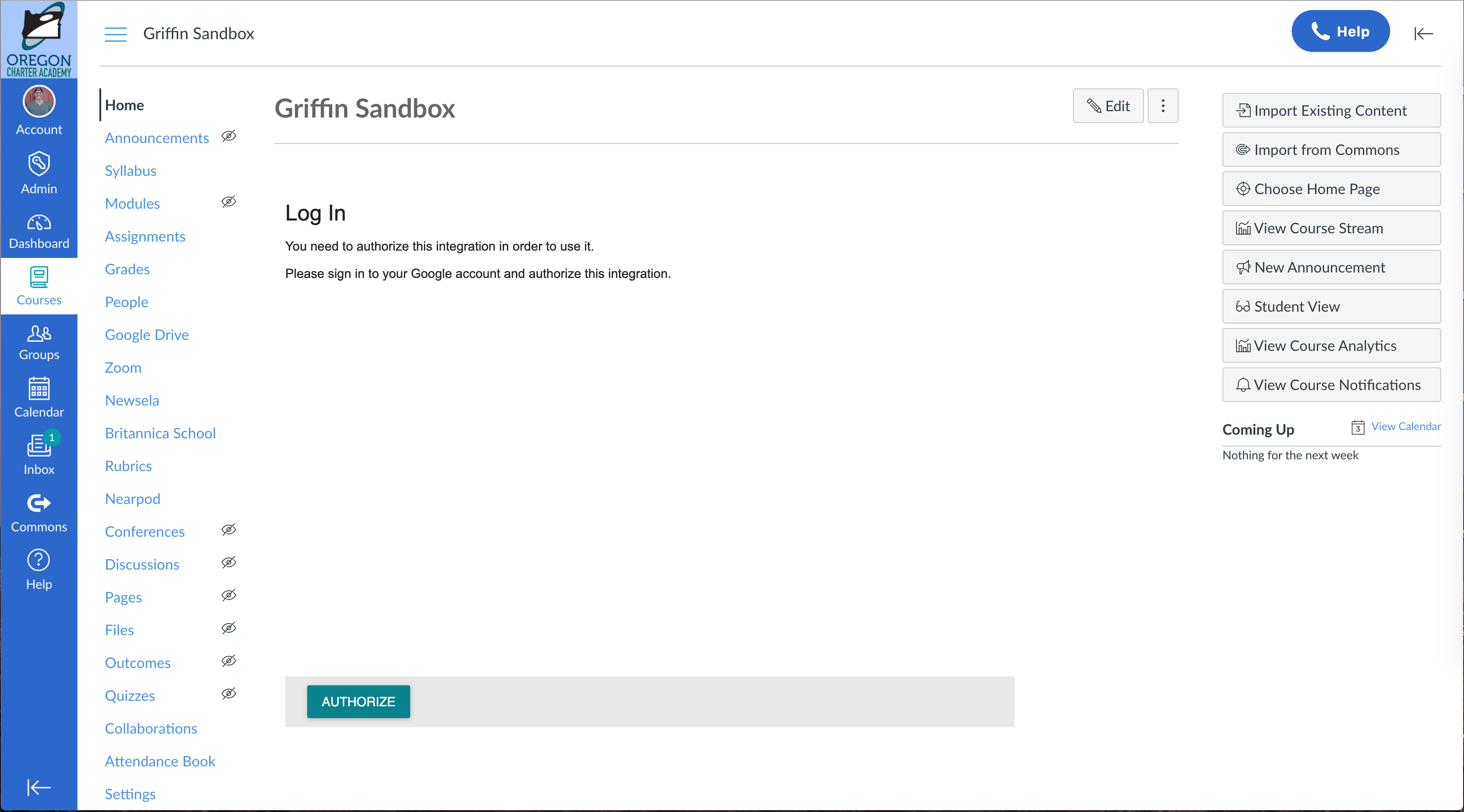
"Authorize this integration"
ORCA teachers will often use external resources that require your authorization before you are allowed access. To authorize, click the teal-colored Authorize button toward the bottom of the content. Keep in mind that due to the size of the screen on your Chromebook, you may have to scroll down a bit before you are able to view the button.
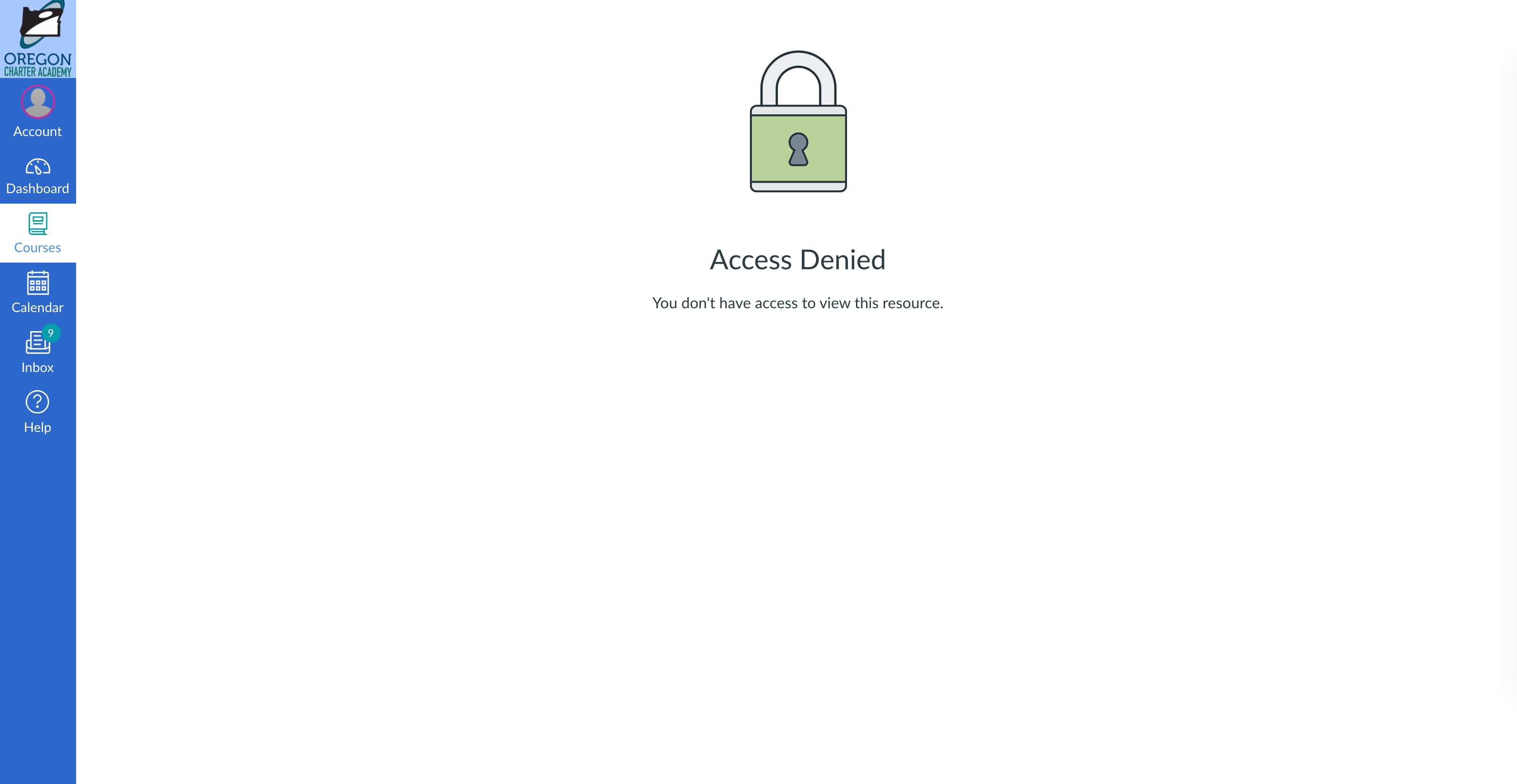
"Access Denied"
The other most common barrier you'll come across is an image of a padlock with a message about your access being denied. In almost all cases, this is because your teacher has not made the content available to you yet. If you see something like the image below, please let your teacher know!
Need more help?
If neither of the steps above worked for you, please don't hesitate to reach out to tech support.